> ## Documentation Index
> Fetch the complete documentation index at: https://help-loyalife.xoxoday.com/llms.txt
> Use this file to discover all available pages before exploring further.
# Advanced configuration
> Configure technical settings for personal data export controls, card/account linking, and CRD visibility in Loyalife.
Advanced Configuration covers technical settings that affect data privacy capabilities and member profile linking. These settings are typically configured once at program setup and rarely changed afterwards.
## Accessing advanced configuration
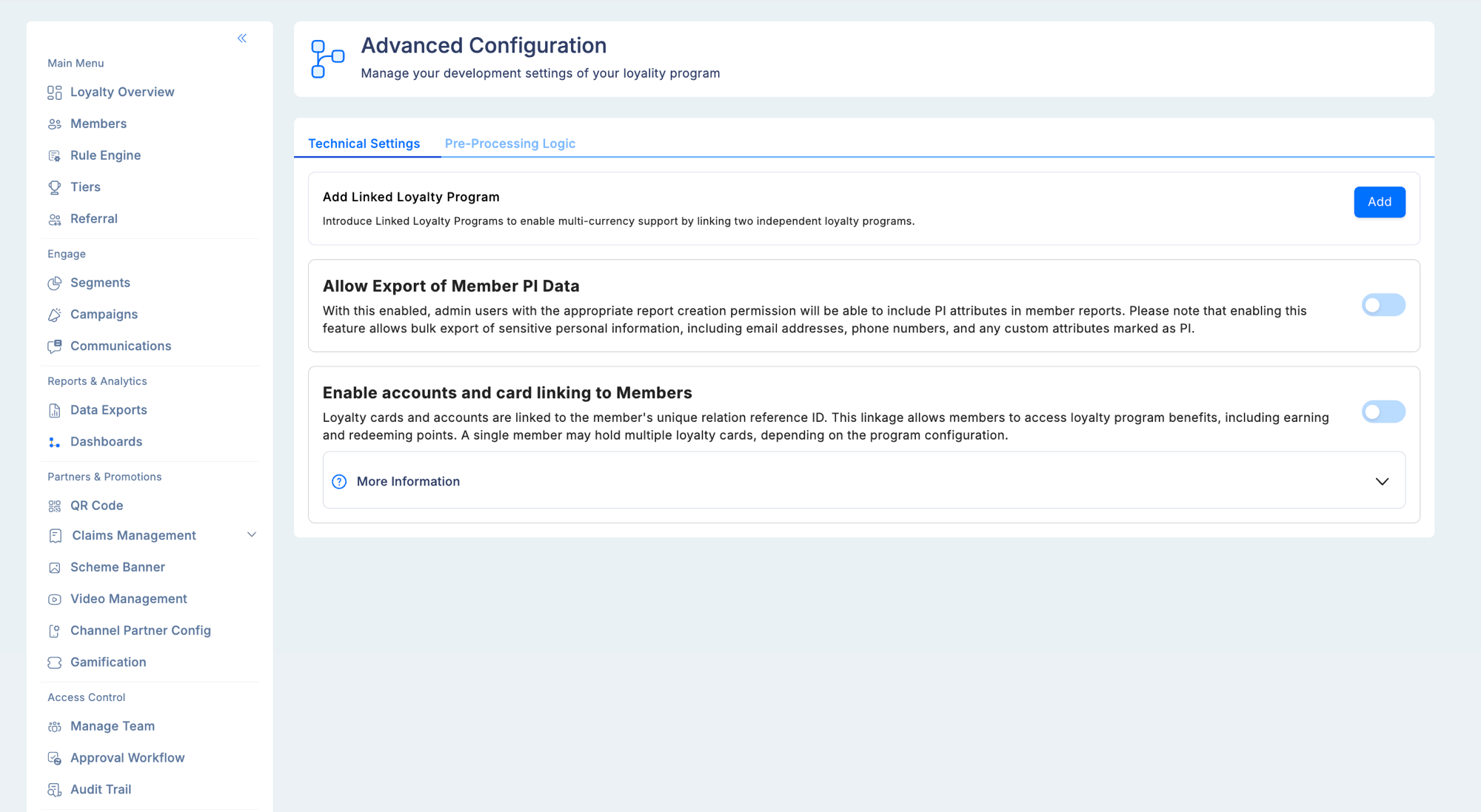
Navigate to **Configuration → Advanced Configuration → Technical Settings**.
 ## Member PI data export
This toggle controls whether personally identifiable information (PII) can be included in member report exports.
**What counts as PI data:**
* Email addresses
* Phone numbers
* National identity numbers
* Any custom member attributes that were flagged as PI during attribute creation
### Enabling PI data export
Toggle the setting on in Technical Settings and confirm when prompted.
This is a **one-way action**. Once the PI data export toggle is enabled, it cannot be disabled. All changes are logged in the Audit Trail.
Enabling this feature allows bulk export of sensitive personal data. Ensure that only authorised administrators hold the export permission, and that exported files are handled in compliance with your organisation's data protection policies and applicable regulations (GDPR, DPDP Act, or similar).
After enabling, administrators with the PI Data Access permission can include PI fields in member exports. The **Export Linked Accounts & Cards** option also becomes available with this permission.
## Customer relational data (CRD) — card and account linking
CRD refers to external account or card information that can be associated with member profiles. This is used in programs where loyalty is tied to a financial product — for example, a credit card loyalty program where the card number is linked to the member's loyalty profile.
**CRD fields available when enabled:**
| Field | Description |
| -------------------------------- | --------------------------------------------------------------------------- |
| Card / account numbers | Credit card numbers, EMI account numbers, or other external identifiers |
| Sub-relationship classification | The type of linked account or card (credit, debit, loan, etc.) |
| Account status | Current status of the linked financial account |
| Member relationship reference ID | The linking identifier between the Loyalife member and the external account |
### Enabling CRD visibility
1. Go to **Advanced Configuration → Technical Settings**.
2. Locate the **Enable accounts and card linking to members** toggle.
3. Enable it and confirm your selection.
Once enabled:
* The **View Linked Cards & Accounts** button becomes visible on member profiles (for users with the appropriate permission)
* The **CRD search** option appears on the Members list, allowing admins to find members by card or account number
* The **Export Linked Accounts & Cards** option appears in the member export menu (requires PI data access permission as well)
### Exporting CRD data
Exporting CRD reports requires both:
1. **PI data access** permission in the user's role
2. **Report creation** capability in the user's role
Exported files follow this naming convention:
```
Cards and Account Export [User Name] [Date].csv
```
The export includes: card numbers, sub-relationship classification, account status, and member relationship reference IDs.
CRD export files contain sensitive financial identifiers. Apply the same data handling and storage controls as for other PII exports — encrypted storage, access logging, and retention limits per your data protection policy.
## Pre-processing logic
The **Pre-Processing Logic** tab lets you deploy a custom script that transforms incoming data before the loyalty engine processes it. This is for programs that receive transaction files in non-standard formats or need field remapping before rule evaluation.
## Member PI data export
This toggle controls whether personally identifiable information (PII) can be included in member report exports.
**What counts as PI data:**
* Email addresses
* Phone numbers
* National identity numbers
* Any custom member attributes that were flagged as PI during attribute creation
### Enabling PI data export
Toggle the setting on in Technical Settings and confirm when prompted.
This is a **one-way action**. Once the PI data export toggle is enabled, it cannot be disabled. All changes are logged in the Audit Trail.
Enabling this feature allows bulk export of sensitive personal data. Ensure that only authorised administrators hold the export permission, and that exported files are handled in compliance with your organisation's data protection policies and applicable regulations (GDPR, DPDP Act, or similar).
After enabling, administrators with the PI Data Access permission can include PI fields in member exports. The **Export Linked Accounts & Cards** option also becomes available with this permission.
## Customer relational data (CRD) — card and account linking
CRD refers to external account or card information that can be associated with member profiles. This is used in programs where loyalty is tied to a financial product — for example, a credit card loyalty program where the card number is linked to the member's loyalty profile.
**CRD fields available when enabled:**
| Field | Description |
| -------------------------------- | --------------------------------------------------------------------------- |
| Card / account numbers | Credit card numbers, EMI account numbers, or other external identifiers |
| Sub-relationship classification | The type of linked account or card (credit, debit, loan, etc.) |
| Account status | Current status of the linked financial account |
| Member relationship reference ID | The linking identifier between the Loyalife member and the external account |
### Enabling CRD visibility
1. Go to **Advanced Configuration → Technical Settings**.
2. Locate the **Enable accounts and card linking to members** toggle.
3. Enable it and confirm your selection.
Once enabled:
* The **View Linked Cards & Accounts** button becomes visible on member profiles (for users with the appropriate permission)
* The **CRD search** option appears on the Members list, allowing admins to find members by card or account number
* The **Export Linked Accounts & Cards** option appears in the member export menu (requires PI data access permission as well)
### Exporting CRD data
Exporting CRD reports requires both:
1. **PI data access** permission in the user's role
2. **Report creation** capability in the user's role
Exported files follow this naming convention:
```
Cards and Account Export [User Name] [Date].csv
```
The export includes: card numbers, sub-relationship classification, account status, and member relationship reference IDs.
CRD export files contain sensitive financial identifiers. Apply the same data handling and storage controls as for other PII exports — encrypted storage, access logging, and retention limits per your data protection policy.
## Pre-processing logic
The **Pre-Processing Logic** tab lets you deploy a custom script that transforms incoming data before the loyalty engine processes it. This is for programs that receive transaction files in non-standard formats or need field remapping before rule evaluation.
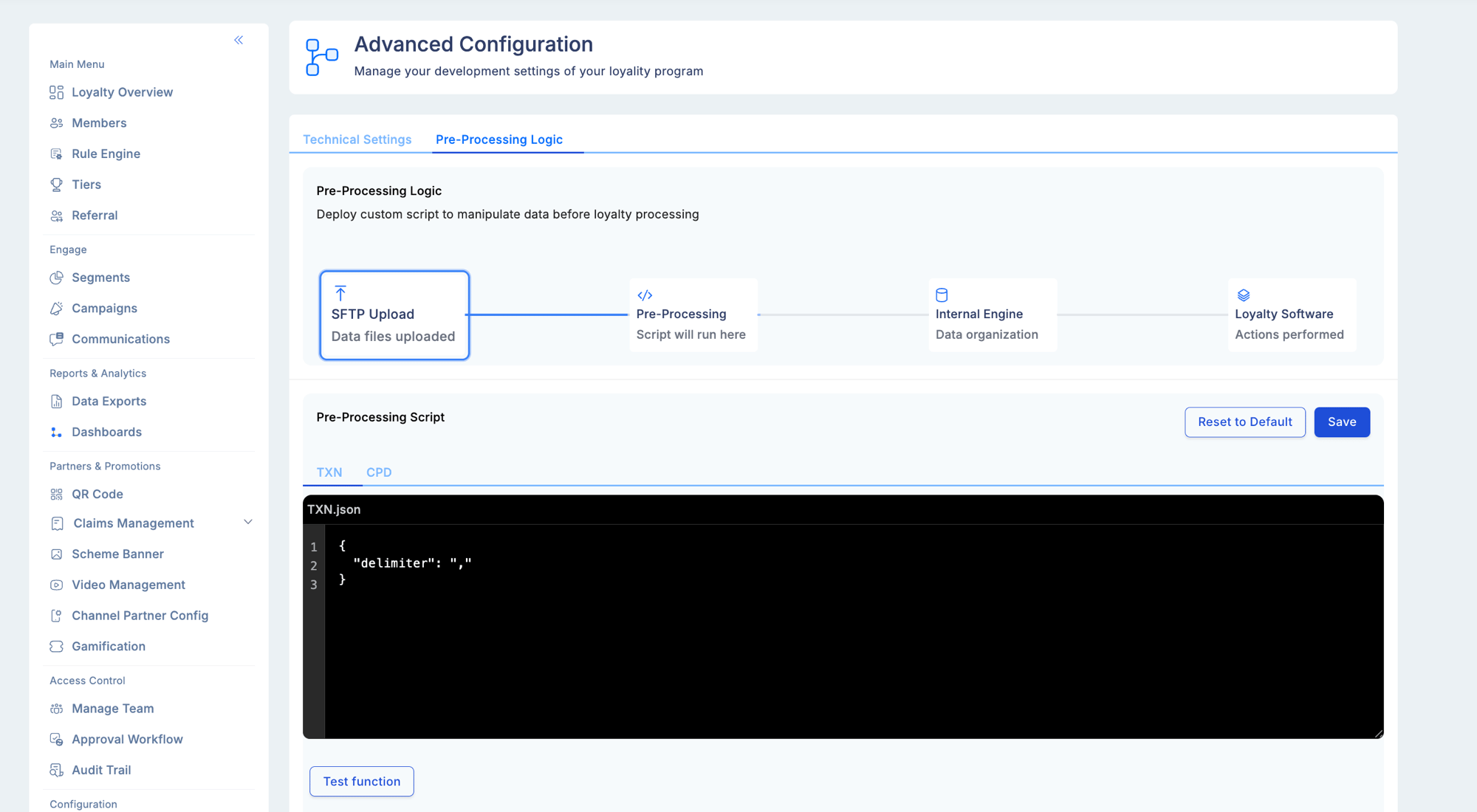 The script editor supports TXN (transaction) and CPD (customer profile data) file types independently. Use **Reset to Default** to restore the original script if a custom transformation causes processing errors.
## Troubleshooting
**The "View Linked Cards & Accounts" button is not visible on member profiles.**
* Confirm the CRD linking toggle is enabled in Advanced Configuration.
* Verify the viewing user has the CRD visibility permission in their role.
**CRD search is not appearing on the Members list.**
* CRD search requires the CRD linking toggle to be enabled in Advanced Configuration.
**Export does not include PI fields even though the PI export toggle is enabled.**
* Check that the exporting user's role includes the PI Data Access permission.
* Verify that the specific fields you expect to see were marked as PI attributes during attribute creation.
The script editor supports TXN (transaction) and CPD (customer profile data) file types independently. Use **Reset to Default** to restore the original script if a custom transformation causes processing errors.
## Troubleshooting
**The "View Linked Cards & Accounts" button is not visible on member profiles.**
* Confirm the CRD linking toggle is enabled in Advanced Configuration.
* Verify the viewing user has the CRD visibility permission in their role.
**CRD search is not appearing on the Members list.**
* CRD search requires the CRD linking toggle to be enabled in Advanced Configuration.
**Export does not include PI fields even though the PI export toggle is enabled.**
* Check that the exporting user's role includes the PI Data Access permission.
* Verify that the specific fields you expect to see were marked as PI attributes during attribute creation.