> ## Documentation Index
> Fetch the complete documentation index at: https://help-loyalife.xoxoday.com/llms.txt
> Use this file to discover all available pages before exploring further.
# Configuration overview
> Explore Loyalife's platform configuration that covers organisation details, point definitions, calculation rules, and module toggles.
Configuration is where you set the foundational parameters that govern how your loyalty program operates. These settings align Loyalife with your business requirements, brand identity, and operational processes. Most configuration changes are permanent or have significant downstream effects — review them carefully before saving.
## Accessing configuration
Select **Configuration** from the left sidebar.
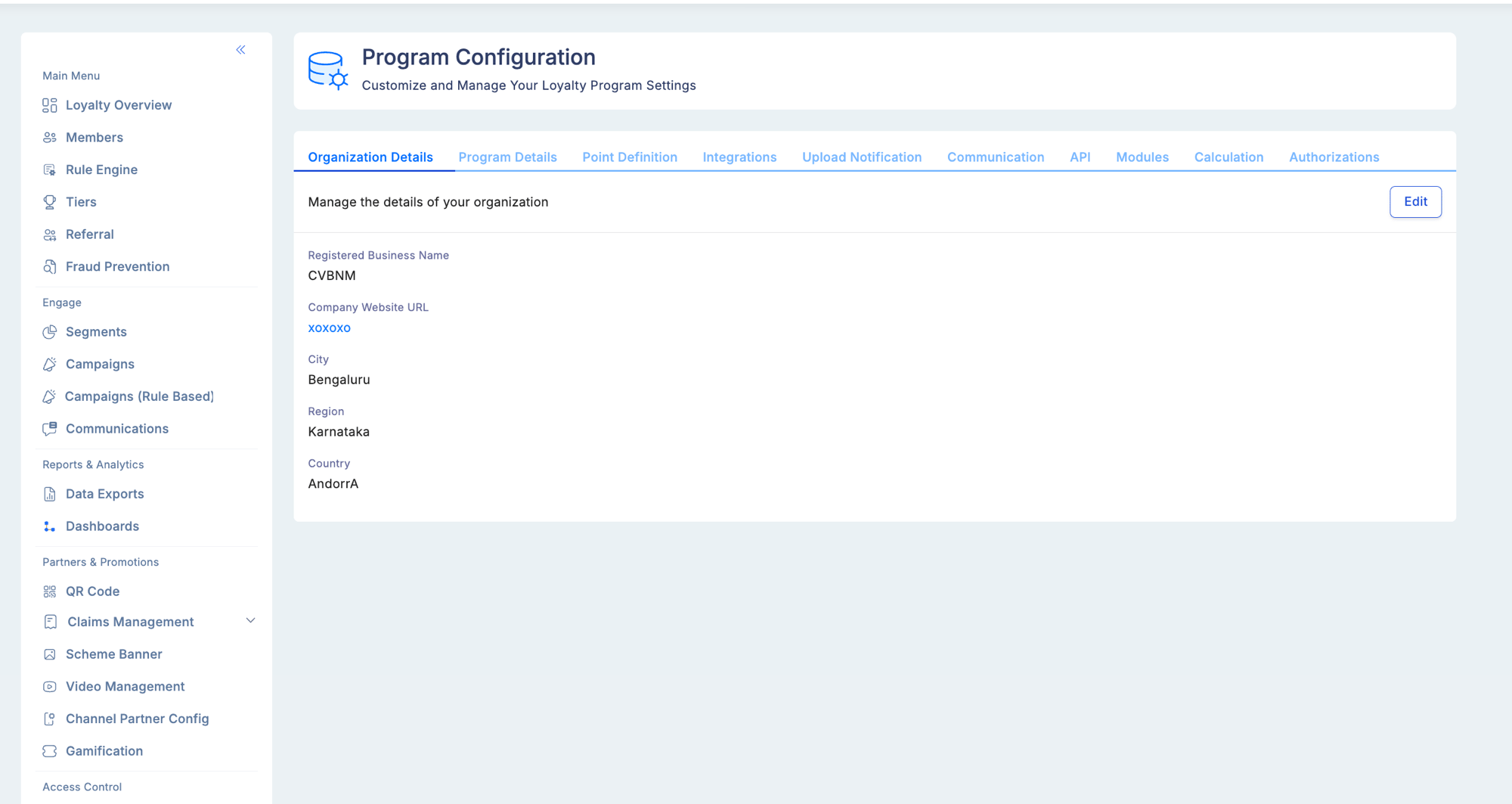 ## Configuration sections
### Organisation configuration
Edit your company's details to keep business information current within the platform:
## Configuration sections
### Organisation configuration
Edit your company's details to keep business information current within the platform:
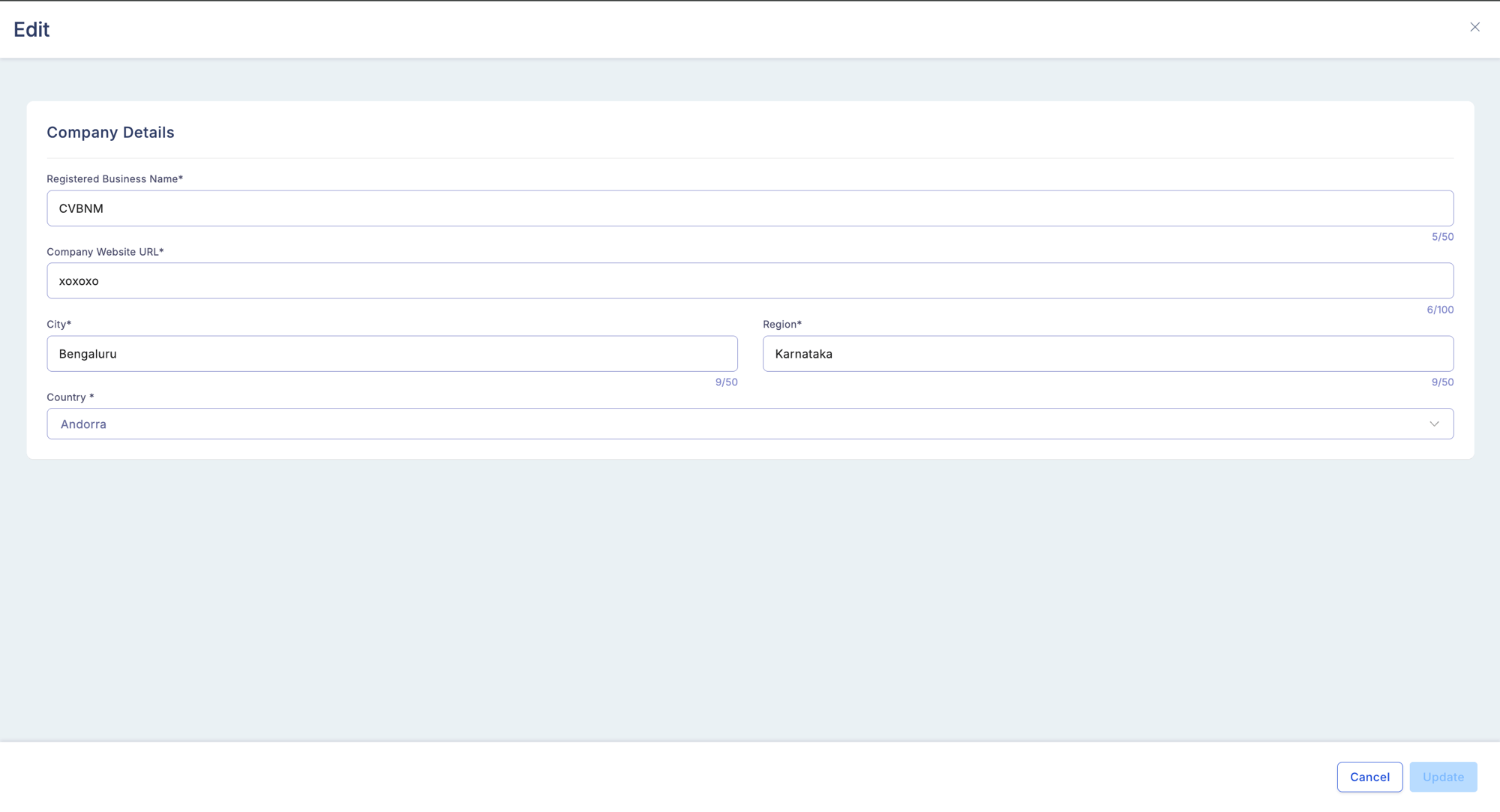 * Company name
* Business address
* Contact information
* Organizational hierarchy settings
### Program details
Manage and customize program-specific settings:
| Setting | Description |
| -------------------------- | --------------------------------------------------- |
| Program name | The name shown to members and on all communications |
| Currency | The base currency for your program |
| Program status | Active, paused, or closed |
| Program lifecycle settings | Enrollment open/closed, etc. |
* Company name
* Business address
* Contact information
* Organizational hierarchy settings
### Program details
Manage and customize program-specific settings:
| Setting | Description |
| -------------------------- | --------------------------------------------------- |
| Program name | The name shown to members and on all communications |
| Currency | The base currency for your program |
| Program status | Active, paused, or closed |
| Program lifecycle settings | Enrollment open/closed, etc. |
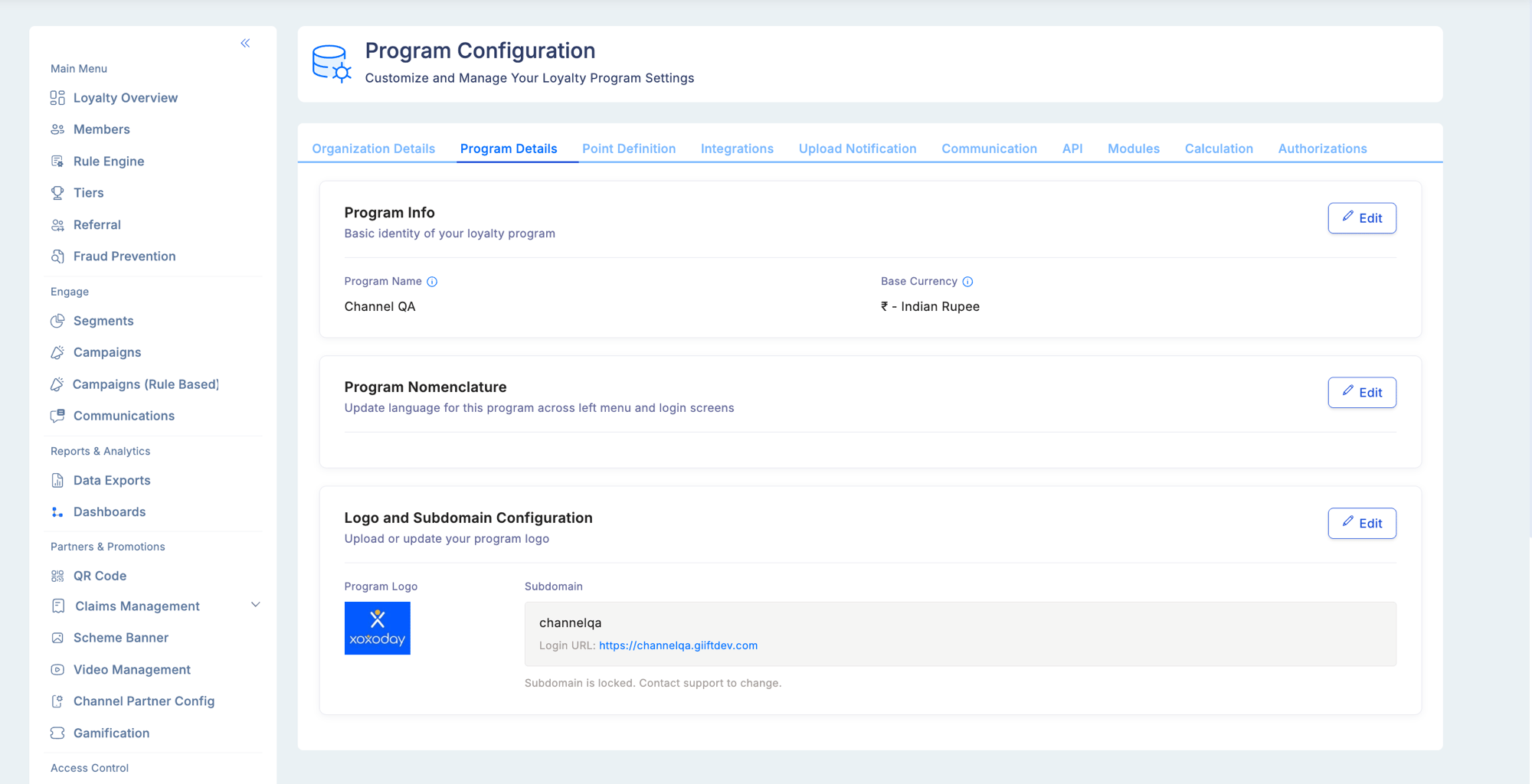 **On-premise deployments:** The Program Details page shows a **Logo Configuration** card instead of the Subdomain Configuration card. On-premise clients configure their program logo here, but subdomain assignment is not available — the login URL is managed at the infrastructure level by your IT team.
#### Program Nomenclature
Loyalife supports full UI text customisation through **Program Nomenclature**. Every string displayed in the member-facing app — labels, button text, messages, and error text — can be replaced with your program's branded language.
**Accessing nomenclature:**
Go to **Program Settings → Program Details → Program Nomenclature**.
Use the module filter to view strings by page:
| Filter | Shows strings for |
| ------------ | ------------------------------------ |
| Login | The login and sign-in screens |
| Dashboard | The member home screen |
| Transactions | The transaction history screen |
| Rewards | The redemption and catalogue screens |
| Profile | The member profile screen |
Only string keys belonging to the selected module appear when a filter is applied. Keys from other pages (e.g., Reset Password, Compass navigation) are excluded from each filter to keep the list manageable.
To change a label: find the string key, enter your custom text, and save. Changes apply to all members immediately.
### Point definitions
Configure how points are structured and valued:
**On-premise deployments:** The Program Details page shows a **Logo Configuration** card instead of the Subdomain Configuration card. On-premise clients configure their program logo here, but subdomain assignment is not available — the login URL is managed at the infrastructure level by your IT team.
#### Program Nomenclature
Loyalife supports full UI text customisation through **Program Nomenclature**. Every string displayed in the member-facing app — labels, button text, messages, and error text — can be replaced with your program's branded language.
**Accessing nomenclature:**
Go to **Program Settings → Program Details → Program Nomenclature**.
Use the module filter to view strings by page:
| Filter | Shows strings for |
| ------------ | ------------------------------------ |
| Login | The login and sign-in screens |
| Dashboard | The member home screen |
| Transactions | The transaction history screen |
| Rewards | The redemption and catalogue screens |
| Profile | The member profile screen |
Only string keys belonging to the selected module appear when a filter is applied. Keys from other pages (e.g., Reset Password, Compass navigation) are excluded from each filter to keep the list manageable.
To change a label: find the string key, enter your custom text, and save. Changes apply to all members immediately.
### Point definitions
Configure how points are structured and valued:
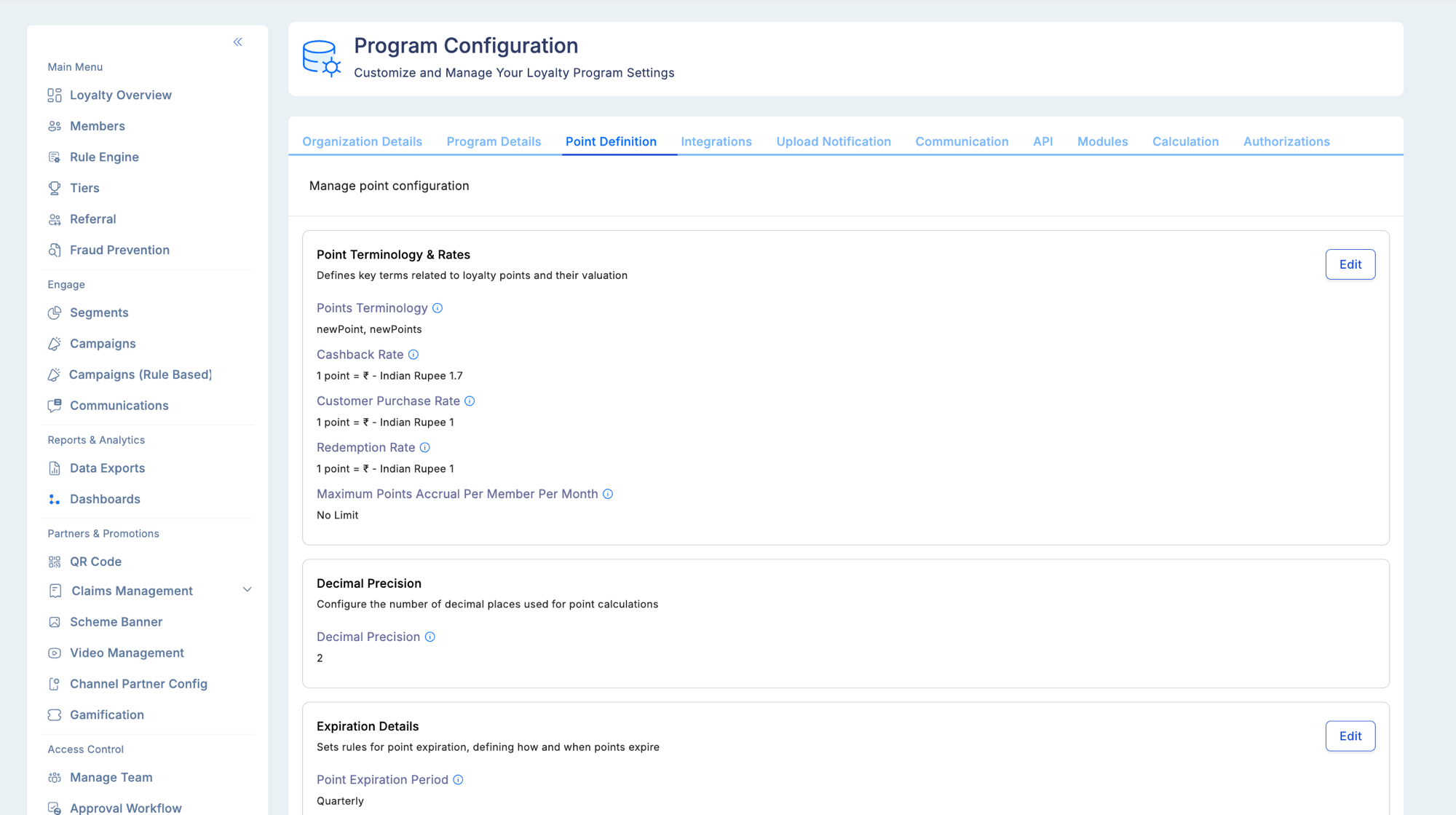 | Setting | Description |
| ------------------------ | ------------------------------------------------------------ |
| Points-to-currency ratio | How many points equal one unit of currency |
| Points naming convention | What your program calls "points" (e.g., Stars, Miles, Coins) |
| Decimal precision | How many decimal places are used in point calculations |
| Expiry policy | When and how points expire |
| Rounding rules | How fractional points are handled |
#### Expiry condition
When configuring expiry, you specify whether points expire relative to:
| Expiry condition | Value | Meaning |
| --------------------------- | :---: | -------------------------------------------------------------------------------------------------------------------------------------------- |
| **Processing Date** | 1 | Expiry is calculated from the date the points were posted to the member's ledger |
| **Point Availability Date** | 2 | Expiry is calculated from the date the points became available for redemption (may differ from processing if a holding period is configured) |
Choose **Processing Date** for programs where points become available immediately. Choose **Point Availability Date** for programs where points are held before posting.
#### Decimal precision (important note)
The decimal precision setting determines how many decimal places are stored and displayed in all point calculations across your program. **Once configured, this value cannot be changed.**
This is intentional: changing decimal precision after transactions have been recorded would create inconsistencies in balances, reports, and member statements. Set this value correctly at program setup.
Decimal precision is permanently locked after the first configuration. Plan this carefully before going live. If you need to change it, contact your Loyalife implementation team.
### Marketplace settings
Configure the reward redemption options available to members:
* Minimum redemption threshold (minimum points required to access the catalogue)
* Available reward categories
* Plum integration settings (redemption rate token configuration)
* Redemption rate (points-to-currency conversion for redemption)
### Upload notifications
Configure alerts for file upload events:
* Who receives notifications for TXN file processing outcomes
* Alert thresholds (notify when rejected row count exceeds X%)
* Notification channels (email)
* Which upload types trigger notifications
### Communication
Set up messaging infrastructure:
| Setting | Description |
| ------------------------ | ------------------------------------------------------------ |
| Points-to-currency ratio | How many points equal one unit of currency |
| Points naming convention | What your program calls "points" (e.g., Stars, Miles, Coins) |
| Decimal precision | How many decimal places are used in point calculations |
| Expiry policy | When and how points expire |
| Rounding rules | How fractional points are handled |
#### Expiry condition
When configuring expiry, you specify whether points expire relative to:
| Expiry condition | Value | Meaning |
| --------------------------- | :---: | -------------------------------------------------------------------------------------------------------------------------------------------- |
| **Processing Date** | 1 | Expiry is calculated from the date the points were posted to the member's ledger |
| **Point Availability Date** | 2 | Expiry is calculated from the date the points became available for redemption (may differ from processing if a holding period is configured) |
Choose **Processing Date** for programs where points become available immediately. Choose **Point Availability Date** for programs where points are held before posting.
#### Decimal precision (important note)
The decimal precision setting determines how many decimal places are stored and displayed in all point calculations across your program. **Once configured, this value cannot be changed.**
This is intentional: changing decimal precision after transactions have been recorded would create inconsistencies in balances, reports, and member statements. Set this value correctly at program setup.
Decimal precision is permanently locked after the first configuration. Plan this carefully before going live. If you need to change it, contact your Loyalife implementation team.
### Marketplace settings
Configure the reward redemption options available to members:
* Minimum redemption threshold (minimum points required to access the catalogue)
* Available reward categories
* Plum integration settings (redemption rate token configuration)
* Redemption rate (points-to-currency conversion for redemption)
### Upload notifications
Configure alerts for file upload events:
* Who receives notifications for TXN file processing outcomes
* Alert thresholds (notify when rejected row count exceeds X%)
* Notification channels (email)
* Which upload types trigger notifications
### Communication
Set up messaging infrastructure:
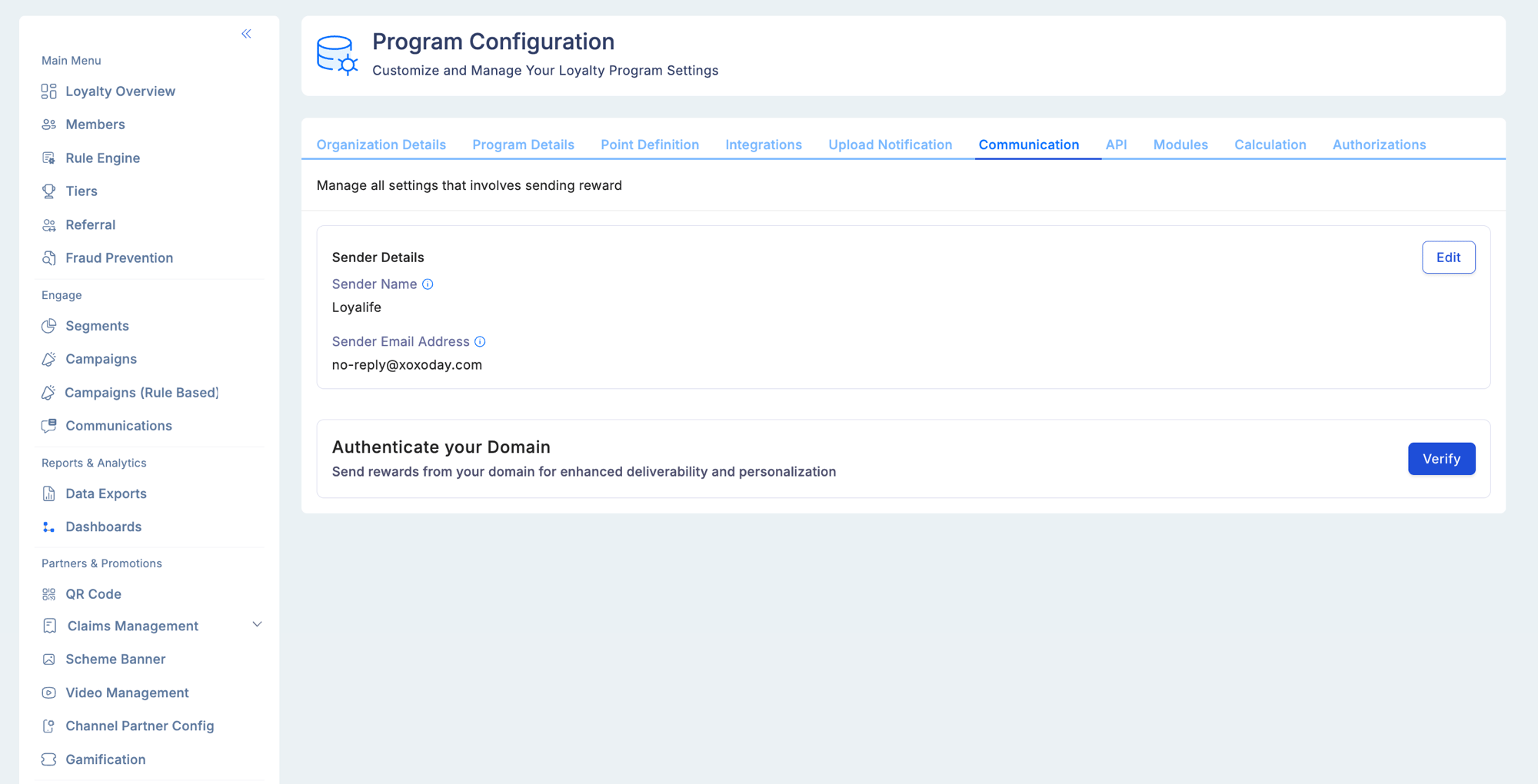 * Sender email address and display name
* SMS sender ID
* Default reply-to address
### API integrations
Manage third-party connections:
* Sender email address and display name
* SMS sender ID
* Default reply-to address
### API integrations
Manage third-party connections:
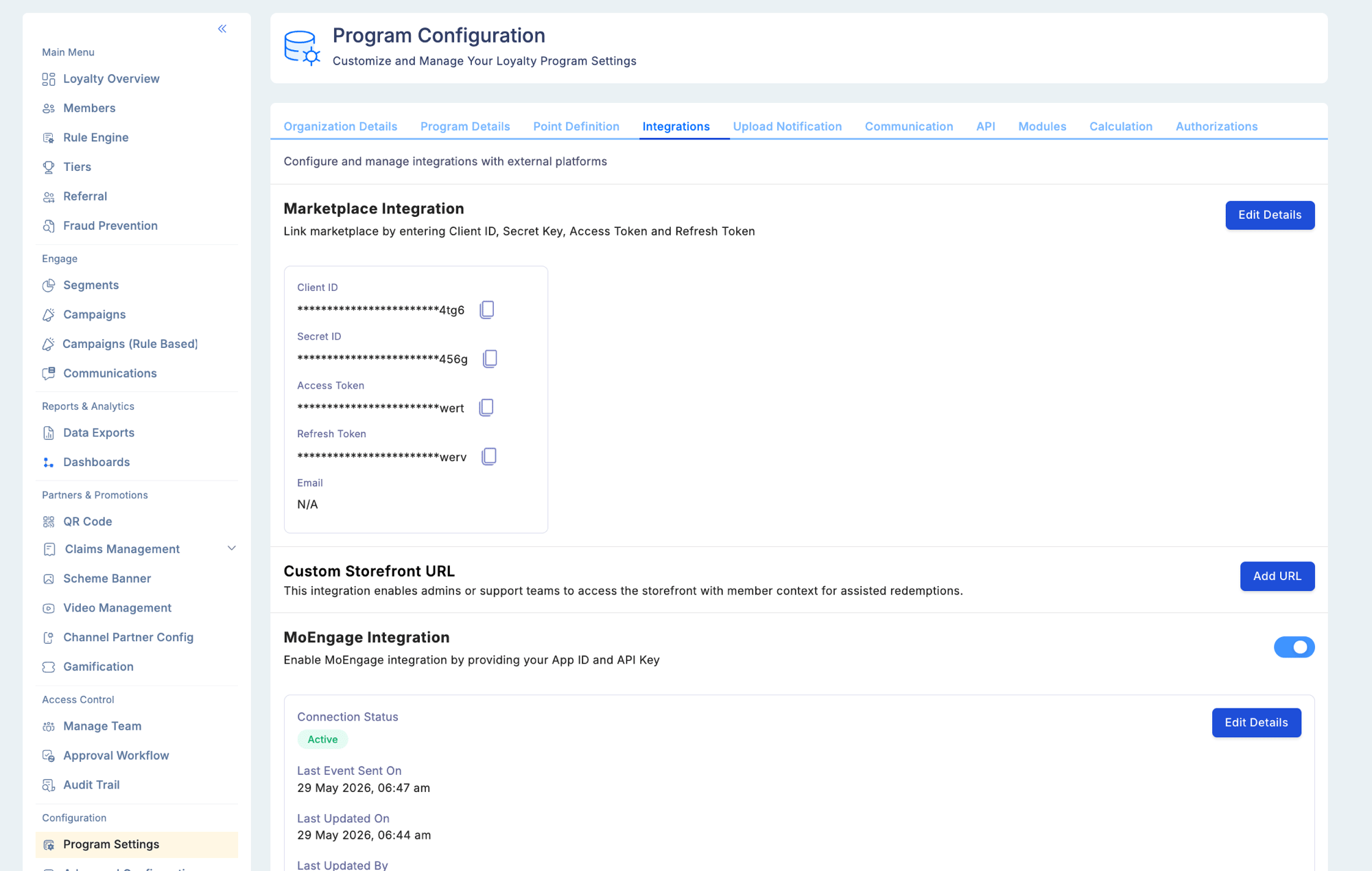 * API keys for your systems integrating with Loyalife
* Webhook endpoint configuration
* Integration health status
* Token management for partner integrations (e.g., Plum SSO token, Redemption Rate token)
### Modules
Control which Loyalife features are active for your program:
* API keys for your systems integrating with Loyalife
* Webhook endpoint configuration
* Integration health status
* Token management for partner integrations (e.g., Plum SSO token, Redemption Rate token)
### Modules
Control which Loyalife features are active for your program:
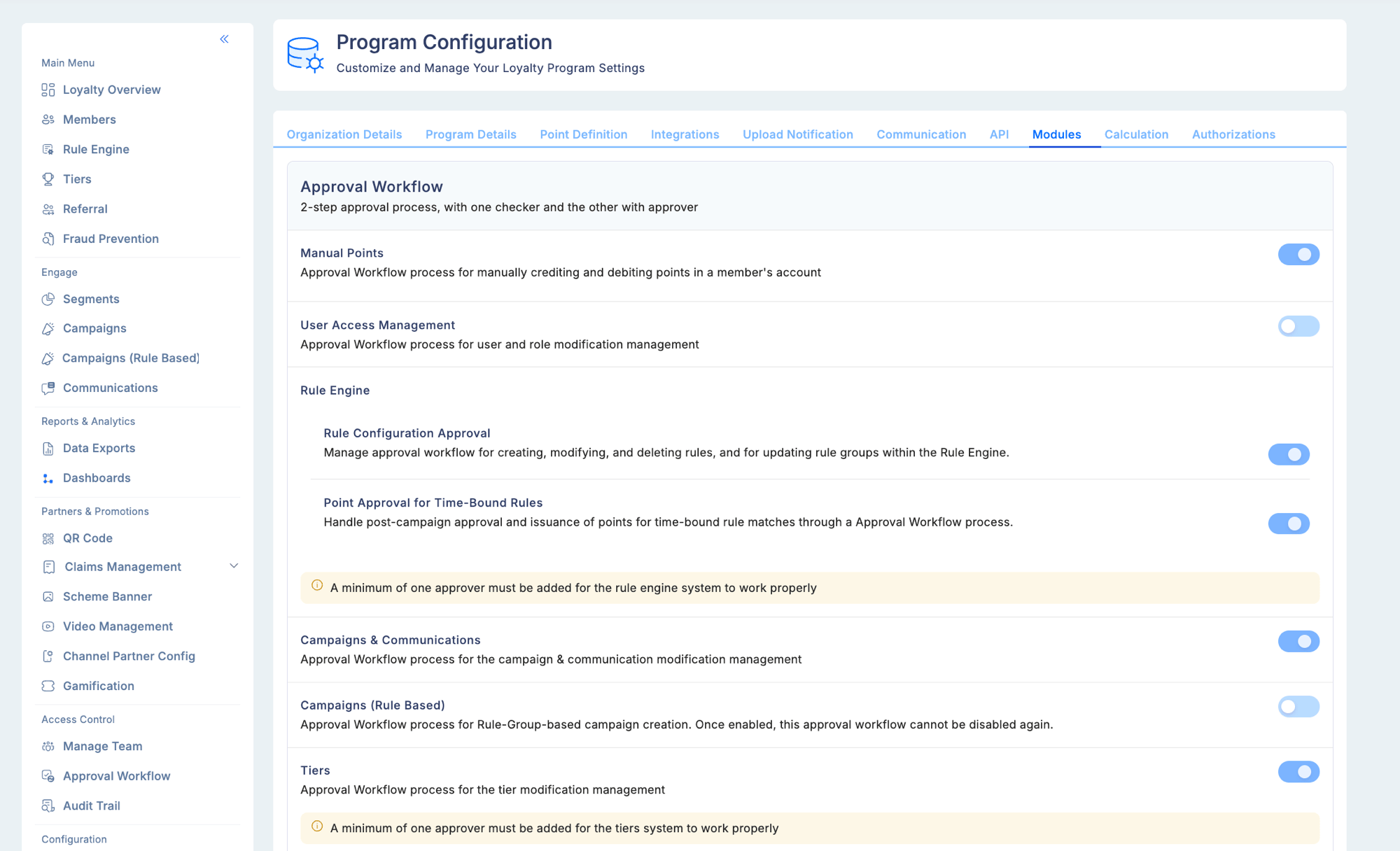 | Module | What enabling it does |
| ---------------- | ------------------------------------------------------------------------------- |
| Referrals | Activates the Referrals module and auto-creates member referral code attributes |
| Tiers | Activates the Tiers module for member tier assessment |
| Fraud Prevention | Enables fraud threshold monitoring on transaction accrual |
| Gamification | Enables the game creation and partner-facing games experience |
Disabling a module hides it from the admin portal and stops its functionality without deleting historical data.
### Calculation settings
Define computational rules for point processing:
| Setting | Options |
| ------------------ | --------------------------------------------------------------------- |
| Calculation method | Transaction-date basis vs. billing cycle basis |
| Billing cycle | Monthly, quarterly, or custom period (when billing cycle is selected) |
| Processing timing | When points are posted after a transaction event |
Changes to the calculation method are logged in the Audit Trail. Switching between transaction-date and billing cycle basis affects how aggregate attributes (like Monthly Spend Sum) are computed and may impact existing rule evaluations. Test in a non-production environment before changing a live program.
## SAML 2.0 SSO
Enterprise programs can enable **SAML 2.0 Single Sign-On** as an alternative to password-based login under **Program Settings → Program Details**:
* **Supported identity providers:** Okta and Microsoft Azure AD
* When enabled, users are redirected to the IdP for authentication; Loyalife issues a session token on successful SAML verification
* Disabling the SAML SSO toggle immediately reverts all logins to standard username/password
* LDAP authentication continues to work when SAML is concurrently enabled
* MFA is compatible with both authentication flows
* Programs with SSO enabled cannot change their subdomain configuration after it is set
Once a custom subdomain is saved, it is locked and cannot be changed. Programs with SSO enabled inherit this restriction.
## API Credential Management
Multiple API credentials can be generated per program under **Program Settings → API**:
* Generate multiple **Client ID / Client Secret** pairs, each with independent expiry
* **Module-level API keys** support Read or Write access scopes
* Default credential expiry: **90 days**; configurable up to a maximum of **2 years**
* The credential listing page shows **Expiring Soon** and **Expired** status badges
* Automated email notifications are sent at: credential generation, revocation, 7 days before expiry, 1 day before expiry, and on the expiry day
* Rotating a credential generates a new pair — the old credential is immediately revoked
## Related
See [Advanced Configuration](/user-guides/configuration/advanced-configuration) for PI data export controls and card/account linking settings.
| Module | What enabling it does |
| ---------------- | ------------------------------------------------------------------------------- |
| Referrals | Activates the Referrals module and auto-creates member referral code attributes |
| Tiers | Activates the Tiers module for member tier assessment |
| Fraud Prevention | Enables fraud threshold monitoring on transaction accrual |
| Gamification | Enables the game creation and partner-facing games experience |
Disabling a module hides it from the admin portal and stops its functionality without deleting historical data.
### Calculation settings
Define computational rules for point processing:
| Setting | Options |
| ------------------ | --------------------------------------------------------------------- |
| Calculation method | Transaction-date basis vs. billing cycle basis |
| Billing cycle | Monthly, quarterly, or custom period (when billing cycle is selected) |
| Processing timing | When points are posted after a transaction event |
Changes to the calculation method are logged in the Audit Trail. Switching between transaction-date and billing cycle basis affects how aggregate attributes (like Monthly Spend Sum) are computed and may impact existing rule evaluations. Test in a non-production environment before changing a live program.
## SAML 2.0 SSO
Enterprise programs can enable **SAML 2.0 Single Sign-On** as an alternative to password-based login under **Program Settings → Program Details**:
* **Supported identity providers:** Okta and Microsoft Azure AD
* When enabled, users are redirected to the IdP for authentication; Loyalife issues a session token on successful SAML verification
* Disabling the SAML SSO toggle immediately reverts all logins to standard username/password
* LDAP authentication continues to work when SAML is concurrently enabled
* MFA is compatible with both authentication flows
* Programs with SSO enabled cannot change their subdomain configuration after it is set
Once a custom subdomain is saved, it is locked and cannot be changed. Programs with SSO enabled inherit this restriction.
## API Credential Management
Multiple API credentials can be generated per program under **Program Settings → API**:
* Generate multiple **Client ID / Client Secret** pairs, each with independent expiry
* **Module-level API keys** support Read or Write access scopes
* Default credential expiry: **90 days**; configurable up to a maximum of **2 years**
* The credential listing page shows **Expiring Soon** and **Expired** status badges
* Automated email notifications are sent at: credential generation, revocation, 7 days before expiry, 1 day before expiry, and on the expiry day
* Rotating a credential generates a new pair — the old credential is immediately revoked
## Related
See [Advanced Configuration](/user-guides/configuration/advanced-configuration) for PI data export controls and card/account linking settings.