> ## Documentation Index
> Fetch the complete documentation index at: https://help-loyalife.xoxoday.com/llms.txt
> Use this file to discover all available pages before exploring further.
# Segments
> Divide your member base into targeted segments by behaviour, demographics, or spend for rules, campaigns, and communications.
Segments define *who* a rule, campaign, or communication targets. Build a segment once, and Loyalife keeps it current — members enter or exit automatically as their data changes. Segments power the Rule Engine (by restricting earning rules to specific audiences), campaigns, and communications.
## Accessing segments
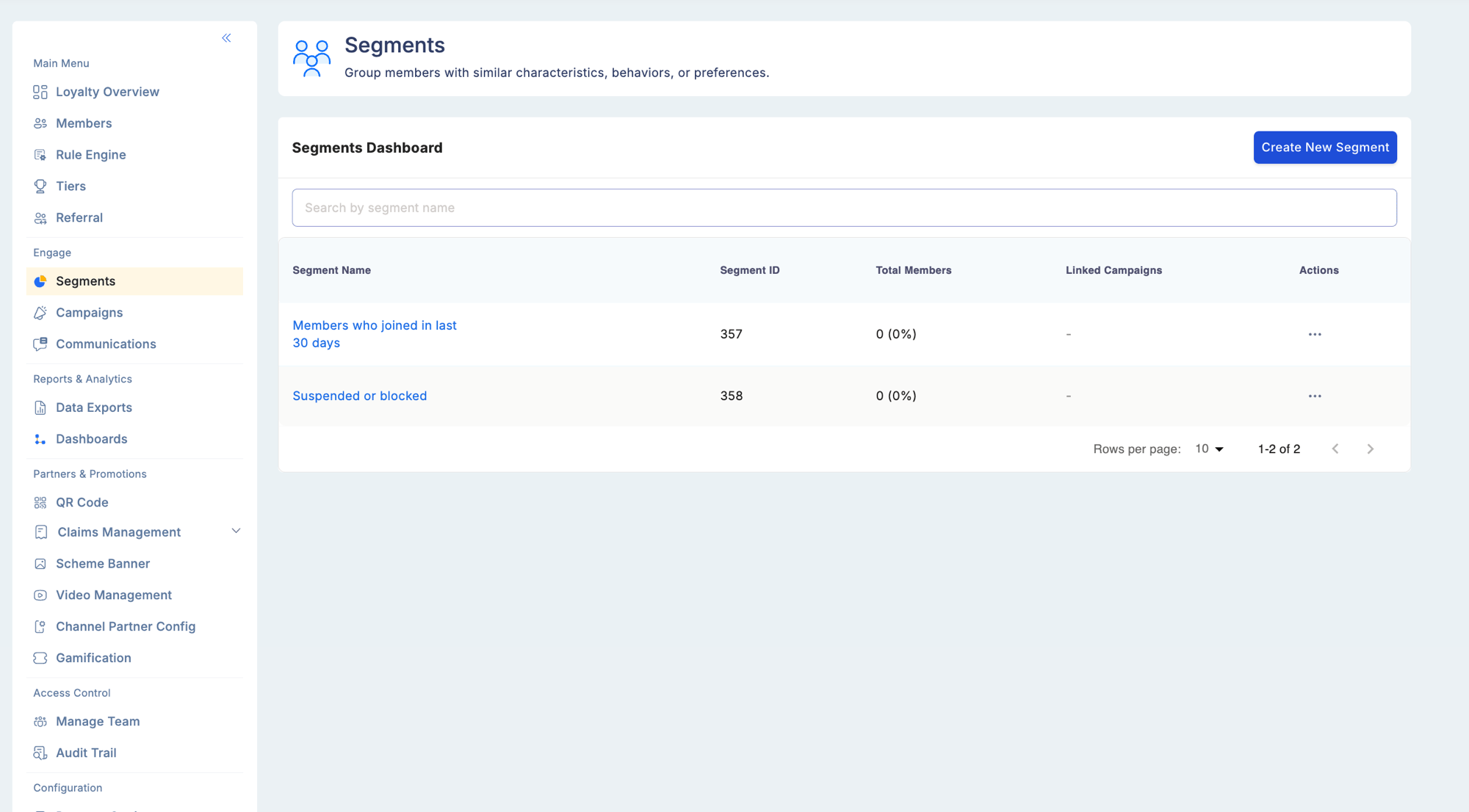
Navigate to **Engage → Segments** in the left sidebar.
 ## Why use segments?
| Benefit | What it enables |
| --------------------------- | ---------------------------------------------------------------------------------- |
| Targeted earning rules | Link a rule group to a segment so bonus earning only applies to a defined audience |
| Campaign precision | Send promotions only to members most likely to respond |
| Personalised communications | Tailor messages by member behaviour or lifecycle stage |
| Segment insights | Understand how different audiences behave and compare their value |
## Segment types
### Default segments
Every Loyalife program includes four pre-built segments available immediately:
| Segment | Criteria |
| --------------- | ------------------------------------ |
| New members | Joined in the last 30 days |
| At-risk members | Currently suspended or blocked |
| Active buyers | Have completed at least one purchase |
| Never purchased | Enrolled but have not transacted |
### Smart segments
Smart segments are the custom segments you create with filter criteria. They update their membership automatically as member data changes.
## Membership behavior: Dynamic vs Frozen
When creating a smart segment, you choose how membership evolves over time:
| Mode | Internal value | Behavior |
| ----------- | :------------: | -------------------------------------------------------------------------------------------------------------------------------------- |
| **Dynamic** | 0 | Membership updates continuously — new members who meet the criteria are added automatically; members who no longer qualify are removed |
| **Frozen** | 1 | Membership is a point-in-time snapshot captured at creation. No new members enter or leave, regardless of data changes |
Use **Dynamic** for ongoing campaigns and rule linkages. Use **Frozen** for one-time campaigns where you want a fixed audience (e.g., "all Gold members as of campaign launch date").
### Adding members to a frozen segment
For frozen segments, you can expand the audience after creation:
| Mode | Effect |
| ----------- | ------------------------------------------------------- |
| **Replace** | Replaces the existing member list with a new snapshot |
| **Append** | Adds new qualifying members to the existing frozen list |
## Filter criteria
Segment filters are organized into three categories: **Member Attributes**, **Transaction**, and **Transaction Aggregate**.
***
### Category 1 — Member Attributes
#### Date-based filters
| Filter | Description |
| ------------------------------- | ------------------------------------------------------- |
| Enrollment Date | Date the member enrolled in the program |
| Activation Date | Date the account was activated |
| Last Communication Sent — Email | Date the member last received an email from the program |
| Last Communication Sent — SMS | Date the member last received an SMS from the program |
All date filters support: **before**, **after**, **on**, **between**, **within last N days**.
#### Tiers & Status filters
| Filter | Options |
| -------------- | ------------------------------------------------------------------------------------------------ |
| Tier | Select from your configured tiers |
| Last Tier | The tier the member held before their most recent tier change |
| Account Status | Active (1), Suspended (2), Login Blocked (3), Canceled (4), InActive (5), Membership Blocked (6) |
#### Demographic filters
| Filter | Description |
| ------ | --------------------------------------------------------------------- |
| Age | Numeric comparison (`>`, `<`, `=`, `>=`, `<=`) based on date of birth |
| Gender | Multi-select from configured gender options |
#### Custom member attribute filters
Any custom member attributes defined for your program appear in this group as additional filter options. Examples include occupation, region, product category preference, or any other program-specific member field configured in **Attributes**.
***
### Category 2 — Transaction
Filters based on individual transaction history.
#### Custom transaction attribute filters
Any custom transaction attributes defined in your program appear here. Examples: merchant category, product code, channel, store ID. These filters let you build segments like "members who have ever transacted at a specific merchant category" or "members who used a specific product code."
Custom transaction attributes are defined in **Rule Engine → Attributes**. Once created, they appear automatically as filter options in segments.
***
### Category 3 — Transaction Aggregate
Filters based on computed values derived from transaction history across a defined time window.
| Filter | Type | Description |
| --------------------------------- | ---------------- | ------------------------------------------------------------------------------------------------------------------------------------ |
| Point Balance | Number | Member's current available points balance |
| Total Transactions in Time Period | Int + Date range | Count of transactions within a specified date window |
| Aggregate attributes | Number | Any aggregate attribute created in the Rule Engine — e.g., Monthly Spend Sum, Transaction Count (MTD/YTD), Average Transaction Value |
**Example conditions using aggregate filters:**
| Aggregate | Condition | Segment meaning |
| --------------------------------- | ----------------- | ------------------------------------------------------- |
| Monthly Spend Sum | > 20,000 | High spenders this month |
| Transaction Count (MTD) | >= 5 | Members transacting at least 5x this month |
| Point Balance | \< 500 | Near-zero balance members — redemption nudge candidates |
| Total Transactions in Time Period | = 0, Last 90 days | Dormant members — no transactions in past 3 months |
The aggregate attribute list grows as you create new aggregate attributes in the Rule Engine. Any aggregate attribute you define is automatically available here as a segment filter.
***
## Combining filters
Filters within a segment are combined using **AND** logic by default — a member must meet all conditions to qualify.
For OR-based logic, create separate segments and combine them in a campaign audience that targets multiple segments.
## Linking a segment to a Rule Group
Segments and the Rule Engine are tightly connected. You can link a rule group to a segment in two ways:
**Option 1 — From the Segment form:**
Enable the **Link to Rule Group** option when creating a segment. A list of available rule groups appears. Select one (only one rule group can be linked per segment). This restricts the earning rules in that group to members in this segment only.
**Option 2 — From the Segment listing:**
Open the three-dot menu on any existing segment and select **Link Rule Group**. A modal appears with available rule groups for selection.
**Creating a rule group from within the segment flow:**
If no suitable rule group exists, click **+ Create New Rule Group** inside the segment form. Fill in the name, description, and limits. The new group is automatically linked to the segment. After saving, navigate to Rule Engine to add earning rules to the group.
Only one rule group can be linked per segment at a time. Linking a different group replaces the existing linkage.
## Previewing and downloading segment members
After applying filter criteria, use the **Preview** function to see a table of members who currently match before saving the segment. The preview shows:
* Relation Reference
* Member name
From the preview, you can **Download** the matching member list as a file for offline review or sharing with other teams.
## Creating a segment
When you click **Create Segment**, you choose between two creation paths:
### Smart Segment
Filter-based segments that update membership automatically based on member and transaction data.
Enter a clear, descriptive name (up to 100 characters). Duplicate names are blocked. The name auto-populates from the first filter if left blank.
Select **Dynamic** (auto-updating) or **Frozen** (point-in-time snapshot). Alternatively, select **All Members** to create a static segment covering your entire member base.
Add one or more filter conditions from the Member Attributes, Transaction, or Transaction Aggregate categories. Combine them with AND logic.
Click **Preview** to see which members currently qualify. Download the list if needed.
Click **Save**. The segment is created and begins reflecting real-time membership for Dynamic segments.
### Manual Segment
Upload a CSV file to define a fixed member list directly.
Enter a name (up to 100 characters).
Upload a CSV containing the member Relation References to include.
* **Append** — adds new members from the file to any existing list
* **Replace** — replaces the full member list with the file contents
Click **Save**. The segment is created with the uploaded member list.
## Exporting segment members
From the Segments listing, open the three-dot menu on any segment and select **Export Members** to download the full member list for that segment as a CSV.
## Segment listing enhancements
* **Search:** Find segments by name directly from the listing page
* **Clickable names:** Segment names are hyperlinks that open the segment detail view
* **Linked Campaigns column:** Shows how many active campaigns are associated with each segment
## Attribute visibility controls
A dedicated **Attribute Flags** section under Feature Flags controls which attributes are visible in the segment filter:
* 15 system attributes (across Member and Transaction categories) can be individually or bulk enabled/disabled
* Disabling a system attribute hides it from the filter options in segment creation
* Custom member and transaction attributes include an **Include in Segment Filter** checkbox, available at creation time and via Edit
* Aggregate transaction attributes support the same visibility checkbox
Attributes used in an existing segment can still be disabled — the segment continues to function, but the attribute will not appear as an option when creating new segments.
## Using segments in campaigns and communications
When creating a campaign or communication, you select a segment as the target audience. Only members in the segment at the time of the qualifying event (for campaigns) or message send (for communications) will be included.
## Troubleshooting
**Segment member count looks unexpectedly low.**
* Verify that all filter conditions are correct — especially date ranges and aggregate attribute thresholds.
* For Dynamic segments, membership updates continuously; count reflects current state.
* For Frozen segments, count is fixed at the time of creation.
* AND logic means all conditions must be satisfied simultaneously. A member inactive for 60 days AND in Gold tier AND with balance under 500 is a stricter filter than any single condition alone.
**A member who should qualify is not in the segment.**
* Check the Last Communication Sent filter — if set, it may be excluding members who have never received that channel type.
* For Transaction Aggregate filters, confirm the aggregate attribute formula covers the correct time window (MTD, YTD, Rolling, etc.).
* Verify that the member's profile data (tier, status, custom attributes) matches the segment filters.
**A Last Tier filter returns unexpected members.**
* Last Tier captures the tier before the most recent tier change. A member who has never changed tiers will have no Last Tier value — they will fail a Last Tier filter regardless of condition.
## Why use segments?
| Benefit | What it enables |
| --------------------------- | ---------------------------------------------------------------------------------- |
| Targeted earning rules | Link a rule group to a segment so bonus earning only applies to a defined audience |
| Campaign precision | Send promotions only to members most likely to respond |
| Personalised communications | Tailor messages by member behaviour or lifecycle stage |
| Segment insights | Understand how different audiences behave and compare their value |
## Segment types
### Default segments
Every Loyalife program includes four pre-built segments available immediately:
| Segment | Criteria |
| --------------- | ------------------------------------ |
| New members | Joined in the last 30 days |
| At-risk members | Currently suspended or blocked |
| Active buyers | Have completed at least one purchase |
| Never purchased | Enrolled but have not transacted |
### Smart segments
Smart segments are the custom segments you create with filter criteria. They update their membership automatically as member data changes.
## Membership behavior: Dynamic vs Frozen
When creating a smart segment, you choose how membership evolves over time:
| Mode | Internal value | Behavior |
| ----------- | :------------: | -------------------------------------------------------------------------------------------------------------------------------------- |
| **Dynamic** | 0 | Membership updates continuously — new members who meet the criteria are added automatically; members who no longer qualify are removed |
| **Frozen** | 1 | Membership is a point-in-time snapshot captured at creation. No new members enter or leave, regardless of data changes |
Use **Dynamic** for ongoing campaigns and rule linkages. Use **Frozen** for one-time campaigns where you want a fixed audience (e.g., "all Gold members as of campaign launch date").
### Adding members to a frozen segment
For frozen segments, you can expand the audience after creation:
| Mode | Effect |
| ----------- | ------------------------------------------------------- |
| **Replace** | Replaces the existing member list with a new snapshot |
| **Append** | Adds new qualifying members to the existing frozen list |
## Filter criteria
Segment filters are organized into three categories: **Member Attributes**, **Transaction**, and **Transaction Aggregate**.
***
### Category 1 — Member Attributes
#### Date-based filters
| Filter | Description |
| ------------------------------- | ------------------------------------------------------- |
| Enrollment Date | Date the member enrolled in the program |
| Activation Date | Date the account was activated |
| Last Communication Sent — Email | Date the member last received an email from the program |
| Last Communication Sent — SMS | Date the member last received an SMS from the program |
All date filters support: **before**, **after**, **on**, **between**, **within last N days**.
#### Tiers & Status filters
| Filter | Options |
| -------------- | ------------------------------------------------------------------------------------------------ |
| Tier | Select from your configured tiers |
| Last Tier | The tier the member held before their most recent tier change |
| Account Status | Active (1), Suspended (2), Login Blocked (3), Canceled (4), InActive (5), Membership Blocked (6) |
#### Demographic filters
| Filter | Description |
| ------ | --------------------------------------------------------------------- |
| Age | Numeric comparison (`>`, `<`, `=`, `>=`, `<=`) based on date of birth |
| Gender | Multi-select from configured gender options |
#### Custom member attribute filters
Any custom member attributes defined for your program appear in this group as additional filter options. Examples include occupation, region, product category preference, or any other program-specific member field configured in **Attributes**.
***
### Category 2 — Transaction
Filters based on individual transaction history.
#### Custom transaction attribute filters
Any custom transaction attributes defined in your program appear here. Examples: merchant category, product code, channel, store ID. These filters let you build segments like "members who have ever transacted at a specific merchant category" or "members who used a specific product code."
Custom transaction attributes are defined in **Rule Engine → Attributes**. Once created, they appear automatically as filter options in segments.
***
### Category 3 — Transaction Aggregate
Filters based on computed values derived from transaction history across a defined time window.
| Filter | Type | Description |
| --------------------------------- | ---------------- | ------------------------------------------------------------------------------------------------------------------------------------ |
| Point Balance | Number | Member's current available points balance |
| Total Transactions in Time Period | Int + Date range | Count of transactions within a specified date window |
| Aggregate attributes | Number | Any aggregate attribute created in the Rule Engine — e.g., Monthly Spend Sum, Transaction Count (MTD/YTD), Average Transaction Value |
**Example conditions using aggregate filters:**
| Aggregate | Condition | Segment meaning |
| --------------------------------- | ----------------- | ------------------------------------------------------- |
| Monthly Spend Sum | > 20,000 | High spenders this month |
| Transaction Count (MTD) | >= 5 | Members transacting at least 5x this month |
| Point Balance | \< 500 | Near-zero balance members — redemption nudge candidates |
| Total Transactions in Time Period | = 0, Last 90 days | Dormant members — no transactions in past 3 months |
The aggregate attribute list grows as you create new aggregate attributes in the Rule Engine. Any aggregate attribute you define is automatically available here as a segment filter.
***
## Combining filters
Filters within a segment are combined using **AND** logic by default — a member must meet all conditions to qualify.
For OR-based logic, create separate segments and combine them in a campaign audience that targets multiple segments.
## Linking a segment to a Rule Group
Segments and the Rule Engine are tightly connected. You can link a rule group to a segment in two ways:
**Option 1 — From the Segment form:**
Enable the **Link to Rule Group** option when creating a segment. A list of available rule groups appears. Select one (only one rule group can be linked per segment). This restricts the earning rules in that group to members in this segment only.
**Option 2 — From the Segment listing:**
Open the three-dot menu on any existing segment and select **Link Rule Group**. A modal appears with available rule groups for selection.
**Creating a rule group from within the segment flow:**
If no suitable rule group exists, click **+ Create New Rule Group** inside the segment form. Fill in the name, description, and limits. The new group is automatically linked to the segment. After saving, navigate to Rule Engine to add earning rules to the group.
Only one rule group can be linked per segment at a time. Linking a different group replaces the existing linkage.
## Previewing and downloading segment members
After applying filter criteria, use the **Preview** function to see a table of members who currently match before saving the segment. The preview shows:
* Relation Reference
* Member name
From the preview, you can **Download** the matching member list as a file for offline review or sharing with other teams.
## Creating a segment
When you click **Create Segment**, you choose between two creation paths:
### Smart Segment
Filter-based segments that update membership automatically based on member and transaction data.
Enter a clear, descriptive name (up to 100 characters). Duplicate names are blocked. The name auto-populates from the first filter if left blank.
Select **Dynamic** (auto-updating) or **Frozen** (point-in-time snapshot). Alternatively, select **All Members** to create a static segment covering your entire member base.
Add one or more filter conditions from the Member Attributes, Transaction, or Transaction Aggregate categories. Combine them with AND logic.
Click **Preview** to see which members currently qualify. Download the list if needed.
Click **Save**. The segment is created and begins reflecting real-time membership for Dynamic segments.
### Manual Segment
Upload a CSV file to define a fixed member list directly.
Enter a name (up to 100 characters).
Upload a CSV containing the member Relation References to include.
* **Append** — adds new members from the file to any existing list
* **Replace** — replaces the full member list with the file contents
Click **Save**. The segment is created with the uploaded member list.
## Exporting segment members
From the Segments listing, open the three-dot menu on any segment and select **Export Members** to download the full member list for that segment as a CSV.
## Segment listing enhancements
* **Search:** Find segments by name directly from the listing page
* **Clickable names:** Segment names are hyperlinks that open the segment detail view
* **Linked Campaigns column:** Shows how many active campaigns are associated with each segment
## Attribute visibility controls
A dedicated **Attribute Flags** section under Feature Flags controls which attributes are visible in the segment filter:
* 15 system attributes (across Member and Transaction categories) can be individually or bulk enabled/disabled
* Disabling a system attribute hides it from the filter options in segment creation
* Custom member and transaction attributes include an **Include in Segment Filter** checkbox, available at creation time and via Edit
* Aggregate transaction attributes support the same visibility checkbox
Attributes used in an existing segment can still be disabled — the segment continues to function, but the attribute will not appear as an option when creating new segments.
## Using segments in campaigns and communications
When creating a campaign or communication, you select a segment as the target audience. Only members in the segment at the time of the qualifying event (for campaigns) or message send (for communications) will be included.
## Troubleshooting
**Segment member count looks unexpectedly low.**
* Verify that all filter conditions are correct — especially date ranges and aggregate attribute thresholds.
* For Dynamic segments, membership updates continuously; count reflects current state.
* For Frozen segments, count is fixed at the time of creation.
* AND logic means all conditions must be satisfied simultaneously. A member inactive for 60 days AND in Gold tier AND with balance under 500 is a stricter filter than any single condition alone.
**A member who should qualify is not in the segment.**
* Check the Last Communication Sent filter — if set, it may be excluding members who have never received that channel type.
* For Transaction Aggregate filters, confirm the aggregate attribute formula covers the correct time window (MTD, YTD, Rolling, etc.).
* Verify that the member's profile data (tier, status, custom attributes) matches the segment filters.
**A Last Tier filter returns unexpected members.**
* Last Tier captures the tier before the most recent tier change. A member who has never changed tiers will have no Last Tier value — they will fail a Last Tier filter regardless of condition.