> ## Documentation Index
> Fetch the complete documentation index at: https://help-loyalife.xoxoday.com/llms.txt
> Use this file to discover all available pages before exploring further.
# QR Code
> Generate batches of scannable QR codes that instantly transfer loyalty points to channel partners upon redemption.
The QR Code module lets admins create batches of unique QR codes, each encoding an encrypted payload that carries a point value. When a channel partner scans a code, they are redirected to a form where they submit their details and receive the configured points.
## Overview
Each QR code encodes a URL in the format `baseURL?code=encrypted_code`. The encrypted payload contains the parameters you define at batch creation time — for example, `points: 20`. Codes are single-use, expiry-checked, and tamper-resistant.
## Generating a QR Code batch
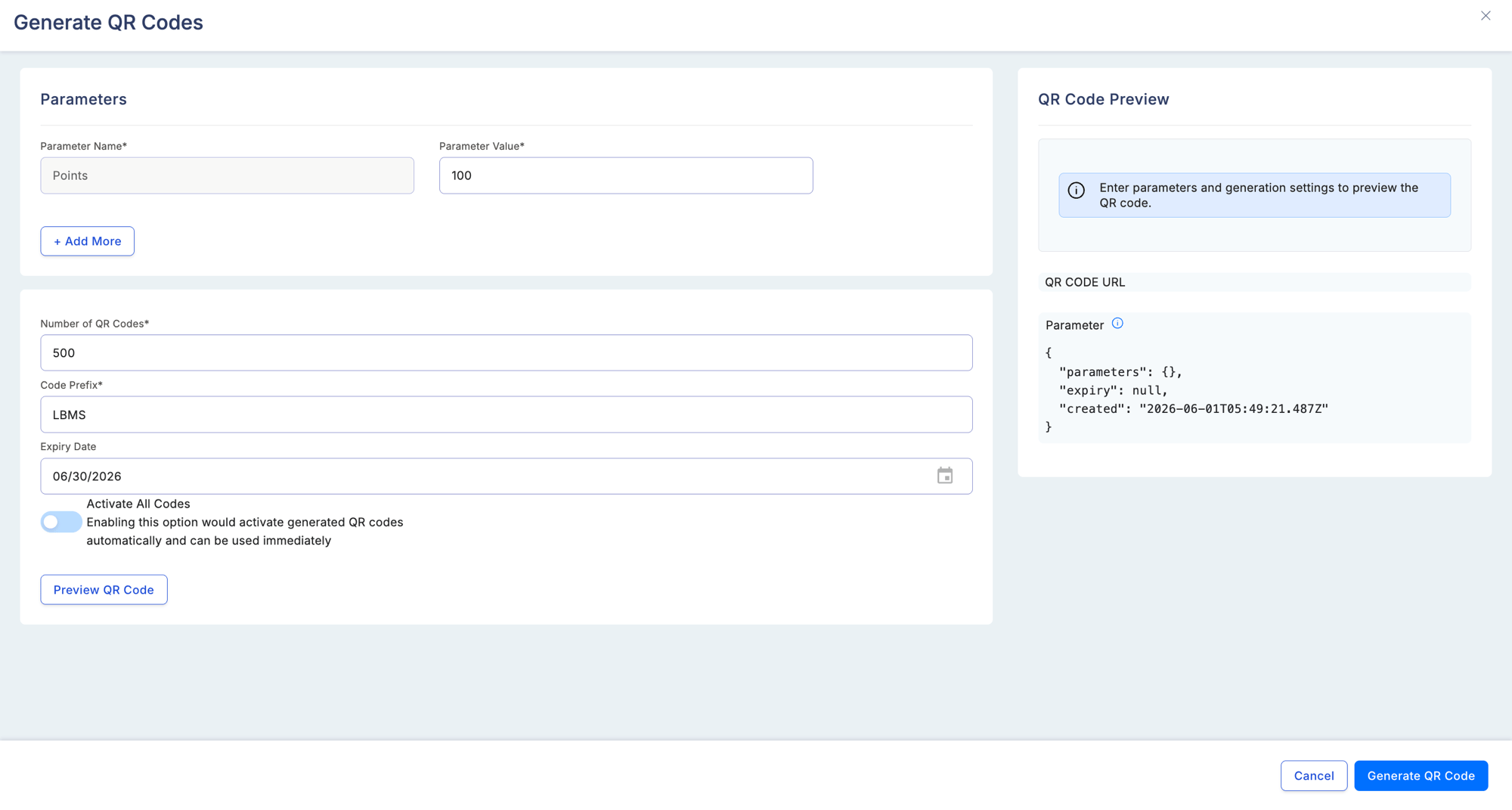 Go to **Partners & Promotions** > **QR Code** and select **Create Batch**.
Add one or more custom key-value parameters that will be encoded into every QR code in the batch. For example, set `points` to `20` to award 20 points per scan.
Enter the number of codes to generate (maximum 100,000 per batch). Optionally add a prefix string that will appear at the start of every code identifier, which is useful for sorting and reporting.
Choose the date after which codes in this batch will no longer be redeemable. Enter the base redirect URL — this is the landing page partners are sent to after scanning.
The preview panel shows a sample QR code image, the constructed redirect URL, and the attached parameters. Review everything, then select **Submit** to generate the batch.
Once submitted, the batch is created immediately and codes are available to download.
## Downloading codes
After a batch is created, you can:
* Download individual QR code images
* Download all codes as a ZIP archive
* Export a CSV report containing each code, its redirect URL, and its current status
## Managing batches
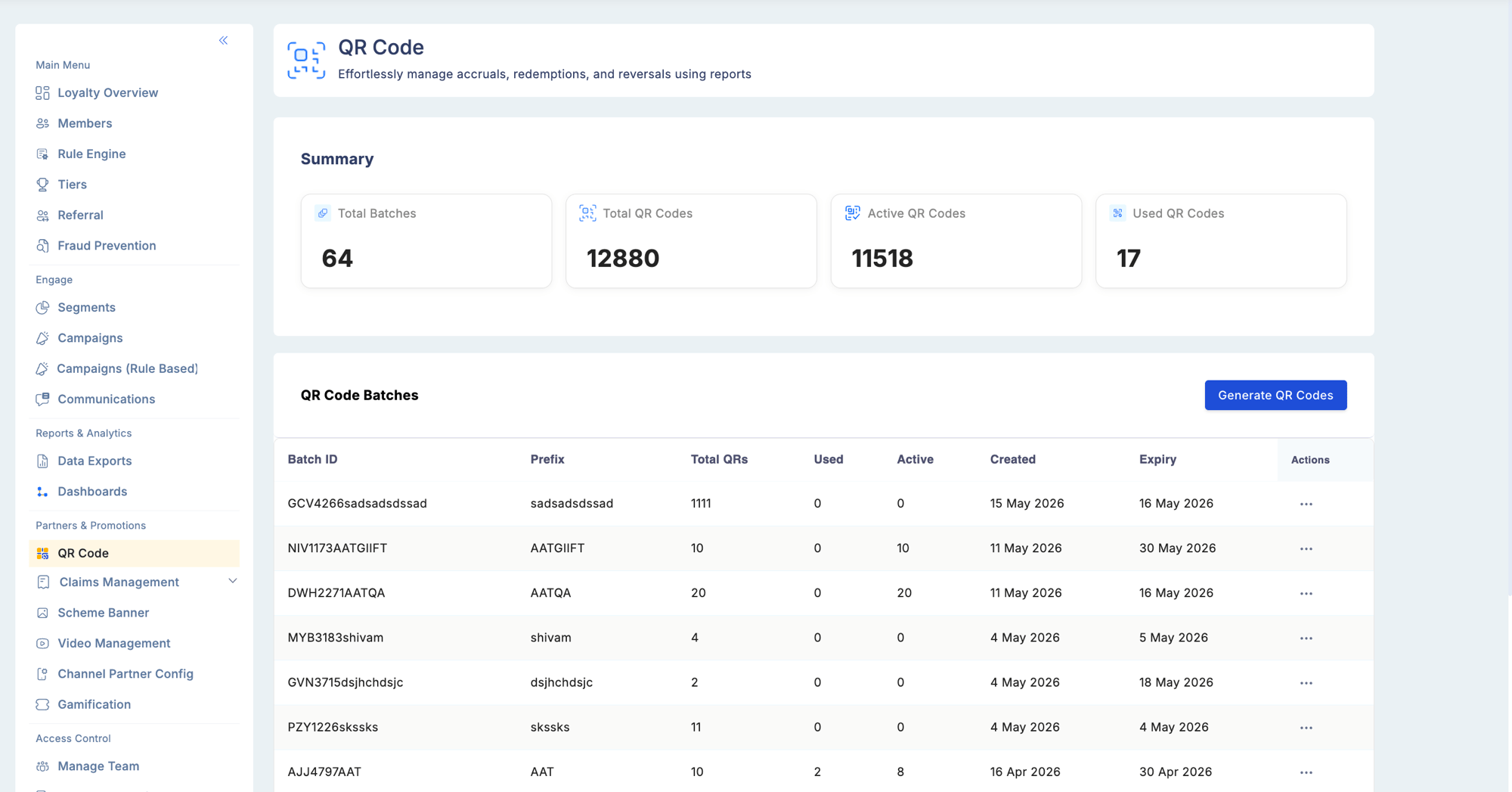
Navigate to the **Batch Management** tab to see all batches across your program.
Go to **Partners & Promotions** > **QR Code** and select **Create Batch**.
Add one or more custom key-value parameters that will be encoded into every QR code in the batch. For example, set `points` to `20` to award 20 points per scan.
Enter the number of codes to generate (maximum 100,000 per batch). Optionally add a prefix string that will appear at the start of every code identifier, which is useful for sorting and reporting.
Choose the date after which codes in this batch will no longer be redeemable. Enter the base redirect URL — this is the landing page partners are sent to after scanning.
The preview panel shows a sample QR code image, the constructed redirect URL, and the attached parameters. Review everything, then select **Submit** to generate the batch.
Once submitted, the batch is created immediately and codes are available to download.
## Downloading codes
After a batch is created, you can:
* Download individual QR code images
* Download all codes as a ZIP archive
* Export a CSV report containing each code, its redirect URL, and its current status
## Managing batches
Navigate to the **Batch Management** tab to see all batches across your program.
 ### Summary metrics
| Metric | Description |
| --------------- | --------------------------------------------------- |
| Total Batches | Number of batches ever created |
| Total QR Codes | Sum of codes across all batches |
| Used QR Codes | Codes that have been scanned and redeemed |
| Active QR Codes | Codes that are enabled and within their expiry date |
### Batch list fields
| Field | Description |
| ------------- | ---------------------------------------------------- |
| Batch ID | Unique identifier for the batch |
| Creation Date | Date and time the batch was generated |
| Expiry Date | Date after which codes in the batch are invalid |
| Total Codes | Number of codes in the batch |
| Used Codes | Codes redeemed so far |
| Active Codes | Codes that are currently enabled |
| Actions | View details, disable all codes, or enable all codes |
## Batch detail view
Opening a batch shows its metadata (parameters, expiry, base URL) and a list of every code in the batch.
### Summary metrics
| Metric | Description |
| --------------- | --------------------------------------------------- |
| Total Batches | Number of batches ever created |
| Total QR Codes | Sum of codes across all batches |
| Used QR Codes | Codes that have been scanned and redeemed |
| Active QR Codes | Codes that are enabled and within their expiry date |
### Batch list fields
| Field | Description |
| ------------- | ---------------------------------------------------- |
| Batch ID | Unique identifier for the batch |
| Creation Date | Date and time the batch was generated |
| Expiry Date | Date after which codes in the batch are invalid |
| Total Codes | Number of codes in the batch |
| Used Codes | Codes redeemed so far |
| Active Codes | Codes that are currently enabled |
| Actions | View details, disable all codes, or enable all codes |
## Batch detail view
Opening a batch shows its metadata (parameters, expiry, base URL) and a list of every code in the batch.
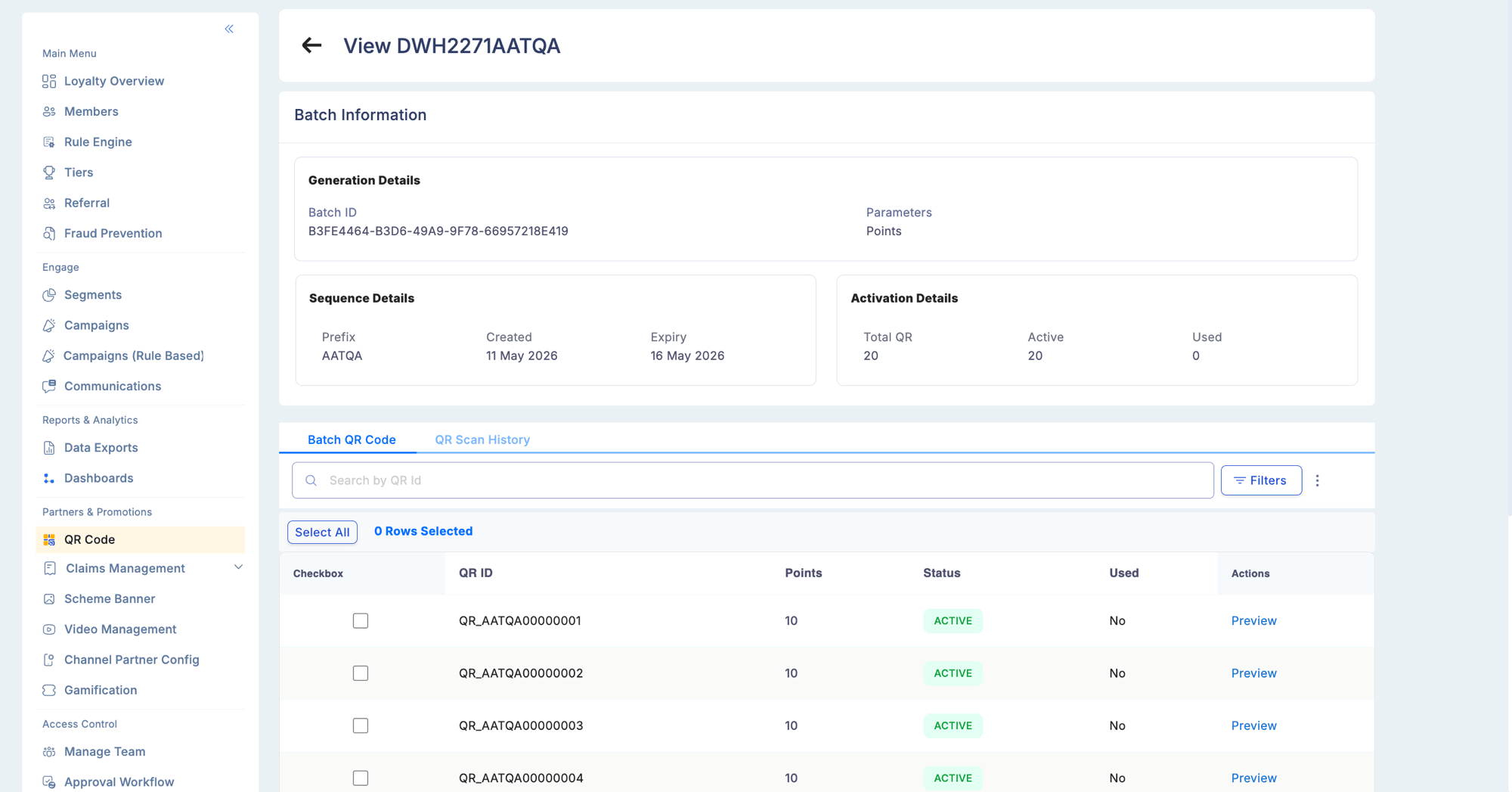 From this view you can:
* View the status of each individual code (active, used, or disabled)
* Enable or disable individual codes
* Track whether each code has been redeemed and, if so, when
## How partners redeem a QR code
1. The partner scans the QR code using their mobile device.
2. They are redirected to the configured base URL (the redemption landing page).
3. They fill in the required information on the form.
4. Points are transferred to their account upon successful submission.
## Security notes
| Property | Detail |
| ------------------ | ------------------------------------------------------------------------------- |
| Encryption | Each code payload is encrypted — the raw parameters are not visible in the URL |
| Tamper resistance | Altering the encrypted string in the URL invalidates the code |
| Expiry enforcement | The system checks the batch expiry date server-side on every redemption attempt |
| Usage tracking | Each code can only be redeemed once; subsequent attempts are rejected |
Generating and managing QR Code batches requires the **QR Code Management** permission.
From this view you can:
* View the status of each individual code (active, used, or disabled)
* Enable or disable individual codes
* Track whether each code has been redeemed and, if so, when
## How partners redeem a QR code
1. The partner scans the QR code using their mobile device.
2. They are redirected to the configured base URL (the redemption landing page).
3. They fill in the required information on the form.
4. Points are transferred to their account upon successful submission.
## Security notes
| Property | Detail |
| ------------------ | ------------------------------------------------------------------------------- |
| Encryption | Each code payload is encrypted — the raw parameters are not visible in the URL |
| Tamper resistance | Altering the encrypted string in the URL invalidates the code |
| Expiry enforcement | The system checks the batch expiry date server-side on every redemption attempt |
| Usage tracking | Each code can only be redeemed once; subsequent attempts are rejected |
Generating and managing QR Code batches requires the **QR Code Management** permission.