> ## Documentation Index
> Fetch the complete documentation index at: https://help-loyalife.xoxoday.com/llms.txt
> Use this file to discover all available pages before exploring further.
# Attributes
> Understand Loyalife's attribute types covering global and custom transaction fields, member profile data, and computed aggregate metrics to build precise conditions in earning rules.
Attributes are the building blocks of rule logic. Every condition in the Rule Engine references an attribute — a named piece of data that carries a value at evaluation time. Loyalife supports four categories of attributes, each serving a different purpose. Rule conditions combine attributes from **both transactions and members** in a single rule — what happened in the transaction and who the member is.
## Attribute categories
### Global transaction attributes
The seven **global transaction attributes** are built into every Loyalife program and are present on every transaction. They cannot be removed.
| Attribute | API / file key | Data type | Mandatory | Description |
| ------------------ | :-------------------------: | :-------: | :-------: | ---------------------------------------------------------------------------------------------- |
| Transaction Id | `transaction_id` | String | Yes | Unique identifier for the transaction — used for deduplication |
| Transaction Date | `transaction_date` | Date | Yes | Date (and optionally time) of the transaction. Supports combined date+time conditions in rules |
| Transaction Amount | `amount` | Decimal | Yes | Monetary value of the transaction in the program currency |
| Product Code | `product_code` | Selection | Yes | Product category classification — values are configured per program |
| Sub Product Code | `sub_product_code` | Selection | No | Subcategory within the product code |
| Relation Reference | `member_relation_reference` | String | Yes | The member's unique identifier — links the transaction to their account |
| Transaction Type | `transaction_type` | Selection | Yes | Direction of the transaction: `CR` (credit/earn) or `DR` (debit/redemption) |
Product Code and Sub Product Code are **selection** type — the allowed values are a configurable picklist. For these attributes, the "Match attribute" comparison is not available; only fixed value selection is supported.
### Custom transaction attributes
Beyond the seven global attributes, you can define **additional transaction attributes** specific to your program. These are configured in **Rule Engine → Attributes** and must be submitted with each transaction via API or TXN file.
Common examples:
| Custom attribute | Example use in a rule |
| ---------------- | ------------------------------------------------------ |
| Merchant Name | `IF Merchant Name ilike "Fuel" THEN 2x points` |
| MCC Code | `IF MCC Code = 5411 (grocery) THEN 1.5x points` |
| Channel | `IF Channel = "Online" THEN bonus 50 points` |
| Store ID | `IF Store ID in_group [premium_stores] THEN 3x points` |
| Currency | `IF Currency = "USD" THEN apply FX rule` |
To create a custom transaction attribute, go to **Rule Engine → Attributes → Add Attribute** and select "Transaction" as the attribute type. Once saved, the attribute appears in the Rule Engine condition builder and must be supplied in every transaction submission that should have it evaluated.
### Member attributes (global)
The nine built-in member profile fields available in every program. These are set at enrollment and updated via API or the member profile in the admin portal.
| Attribute | Data type |
| ------------------ | ----------- |
| Relation Reference | String |
| Full Name | String |
| Email | String (PI) |
| Phone | String (PI) |
| Address | String (PI) |
| Gender | String (PI) |
| Date of Birth | Date (PI) |
| Status | String |
| Preferred Language | Selection |
### Custom member attributes
Any additional member-level fields you define for your program — occupation, product preference, dealer tier, etc. Configured in **Members → Attributes**. Once created, they appear automatically in the Rule Engine condition builder and in Segment filters.
### Aggregate attributes
Computed metrics derived from transaction history. The Rule Engine calculates these dynamically at evaluation time.
| Attribute | Description | Example value |
| -------------------------- | -------------------------------------------- | ------------- |
| Monthly Spend Sum (MTD) | Total transaction amount this calendar month | ₹18,500 |
| Transaction Count (MTD) | Number of transactions this calendar month | 7 |
| Average Transaction Value | Average spend over recent transactions | ₹2,642 |
| Lifetime Spend Sum | Total spend since enrollment | ₹2,34,000 |
| Lifetime Transaction Count | Total number of transactions ever | 89 |
Aggregate attributes appear automatically in the Rule Engine condition builder and in Segment filters. Any new aggregate attribute you define will appear in both places without additional configuration.
**Key aggregate evaluation rules:**
* The current transaction is included in the aggregate count/sum **before** rule evaluation
* Reversals and refunds are automatically subtracted from aggregates
* Aggregation runs at the account level — transactions from primary and supplementary cards are counted together
#### Aggregate time periods
When creating an aggregate attribute, you select the time window over which it is calculated:
| Period | Internal value | Description |
| ------------------------- | :------------: | ---------------------------------------------------------------------------------------------- |
| **Lifetime** | 1 | Computed from the member's enrollment date to now — never resets |
| **Month to Date (MTD)** | 2 | Resets on the first of each calendar month |
| **Quarter to Date (QTD)** | 3 | Resets at the start of each calendar quarter (Jan/Apr/Jul/Oct) |
| **Year to Date (YTD)** | 4 | Resets on January 1st each year |
| **Rolling** | 5 | A sliding window of N days back from the current date (e.g., last 30 days, last 90 days) |
| **Billing Cycle** | 6 | Follows the program's configured billing cycle start/end dates rather than calendar boundaries |
Choose **Billing Cycle** for programs where the calculation period aligns with statement or billing periods rather than calendar months. The billing cycle start date is configured in **Configuration → Calculation Settings**.
#### Aggregate functions
Each aggregate attribute applies a statistical function across qualifying transactions in the selected time window:
| Function | Description |
| --------- | ----------------------------------------------------- |
| **sum** | Total of all values (e.g., total spend, total points) |
| **count** | Number of qualifying transactions |
| **max** | Highest single value in the period |
| **min** | Lowest single value in the period |
| **avg** | Average value per transaction in the period |
### Using attributes in rule conditions
In the Rule Engine condition builder, every condition selects:
1. **An attribute** (from any category above)
2. **An operator** (equals, greater than, between, is multiple of, etc.)
3. **A value** — either a static input or another attribute (for dynamic comparisons like birthday rules)
**Date attribute type modifiers:**
When a date attribute is selected, you can further specify what part of the date to compare:
| Type modifier | Compares |
| ------------- | -------------------------------------- |
| Full date | Complete date value (e.g., 04/22/2026) |
| Date of Month | Just the day number (1–31) |
| Month of Year | Just the month number (1–12) |
| Year | Just the year |
| Day of Week | Monday, Tuesday, etc. |
This allows rules like "transaction on the same day-of-month as the member's birthday" without needing to know which month.
## Accessing the Attributes Manager
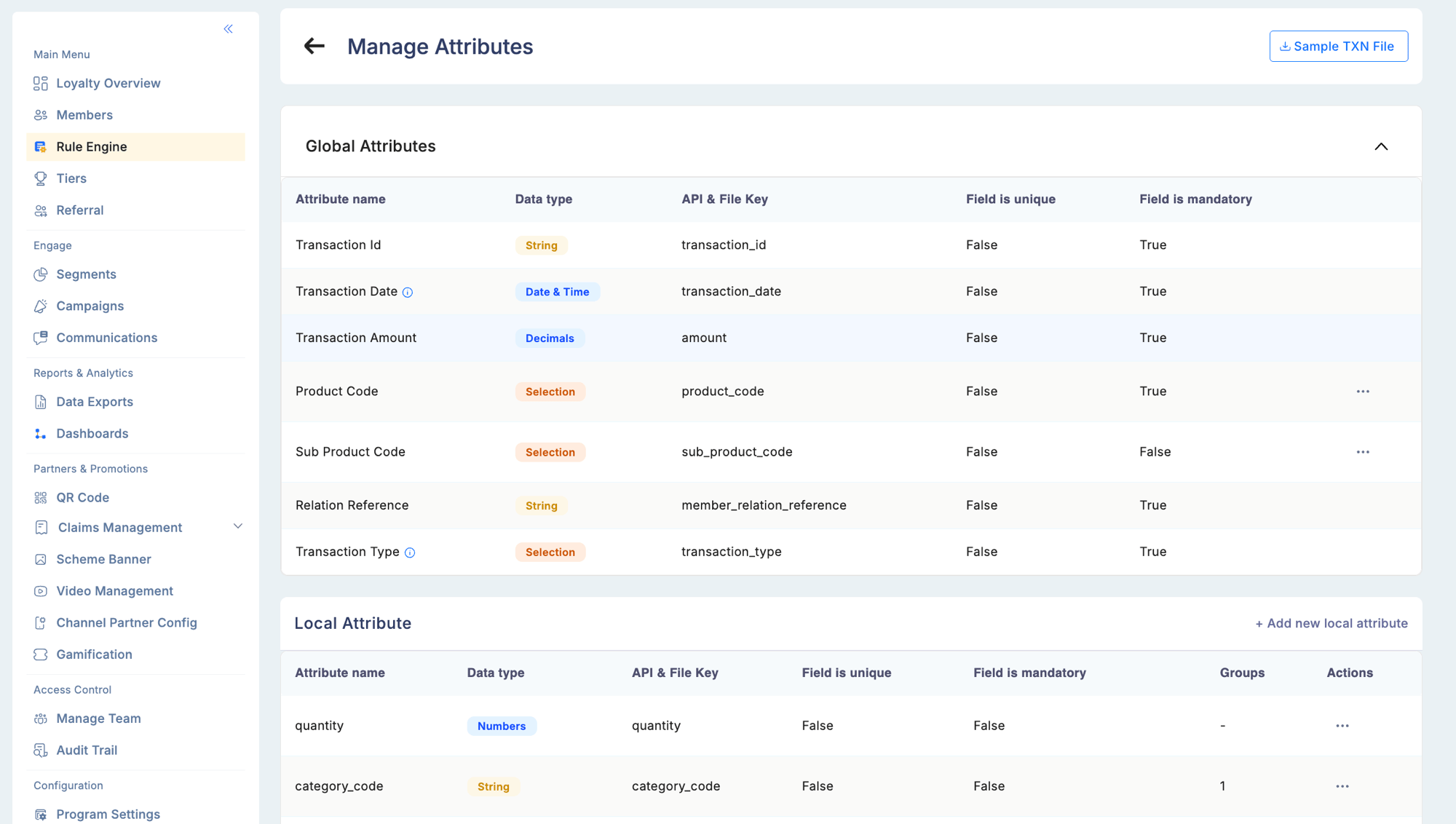 Select **Rule Engine** from the left sidebar.
Click the **settings icon** in the upper-right corner of the Rule Engine screen.
The Attributes Manager lists all attributes configured for your program, organized by category.
## Creating a custom attribute
Choose the attribute category: Transaction (local) or Member (custom).
| Field | Description |
| ----------------- | ------------------------------------------------------------------------ |
| Attribute name | The label used in the Rule Engine condition builder |
| Data type | String, Number, Boolean, Date — determines which operators are available |
| API / File key | The exact field name used when submitting data via API or TXN file |
| Unique constraint | Whether values must be distinct across records |
| Mandatory | Whether a value is required for every transaction |
| PI flag | Mark as personally identifiable — controls export permissions |
Click **Save**. The attribute is immediately available in rule conditions and segment filters.
New aggregate attributes you create are automatically available in both the Rule Engine condition builder and in Segment filters — no additional steps required.
An attribute's data type **cannot be changed** after it has been used in a live rule. Plan your data model carefully before publishing rules that depend on a new attribute. A wrong data type will require creating a new attribute and migrating any rules that referenced the old one.
## Attribute data types and compatible operators
| Data type | Compatible operators |
| ----------- | -------------------------------------------------------------------------------------------------------------------------------------------------------------------------- |
| **Number** | `=` (equals), `!=` (not equals), `>` (greater than), `>=` (greater than or equal), `<` (less than), `<=` (less than or equal), in\_group, not\_in\_group, is\_multiple\_of |
| **String** | = (equals), ilike (contains / case-insensitive match), not ilike (does not contain), is null (no value set), is not null (value is set), in\_group, not\_in\_group |
| **Date** | On (exact date match), Not on, After, Before |
| **Boolean** | Equals, Not Equals |
**Operator notes:**
| Operator | Notes |
| --------------------------- | -------------------------------------------------------------------------------------------------------------------- |
| `ilike` | Case-insensitive substring match — e.g., merchant name `ilike` "fuel" matches "Shell Fuel" and "FUEL MART" |
| `not ilike` | Excludes records containing the substring |
| `is null` / `is not null` | Checks whether the attribute has any value set — useful for filtering members with missing profile fields |
| `in_group` / `not_in_group` | Matches against a pre-defined list or group of values; useful for MCC code lists, product code whitelists/blacklists |
| `is_multiple_of` | Fires the rule when the aggregate value is a multiple of the threshold (e.g., every 10th transaction) |
**Date condition type modifiers (for recurring date rules):**
When using date attributes in recurring or comparative conditions, you can specify which portion of the date to evaluate:
| Type modifier | Compares |
| ------------- | ---------------------------- |
| Full date | Complete date value |
| Day of Month | Just the day number (1–31) |
| Month of Year | Just the month number (1–12) |
| Day of Week | Monday, Tuesday, etc. |
## Troubleshooting
**An attribute is not appearing in the Rule Engine condition builder.**
* Verify the attribute is saved and active in the Attributes Manager.
* Check that the data type is compatible with the condition you're trying to build.
**Aggregate values are not matching expected transaction totals.**
* Remember that the current transaction is included in the aggregate before evaluation.
* Reversals and refunds are subtracted — check whether any reversals occurred in the calculation period.
* Verify the aggregate's period definition (MTD means month-to-date, which resets on the first of each month).
Select **Rule Engine** from the left sidebar.
Click the **settings icon** in the upper-right corner of the Rule Engine screen.
The Attributes Manager lists all attributes configured for your program, organized by category.
## Creating a custom attribute
Choose the attribute category: Transaction (local) or Member (custom).
| Field | Description |
| ----------------- | ------------------------------------------------------------------------ |
| Attribute name | The label used in the Rule Engine condition builder |
| Data type | String, Number, Boolean, Date — determines which operators are available |
| API / File key | The exact field name used when submitting data via API or TXN file |
| Unique constraint | Whether values must be distinct across records |
| Mandatory | Whether a value is required for every transaction |
| PI flag | Mark as personally identifiable — controls export permissions |
Click **Save**. The attribute is immediately available in rule conditions and segment filters.
New aggregate attributes you create are automatically available in both the Rule Engine condition builder and in Segment filters — no additional steps required.
An attribute's data type **cannot be changed** after it has been used in a live rule. Plan your data model carefully before publishing rules that depend on a new attribute. A wrong data type will require creating a new attribute and migrating any rules that referenced the old one.
## Attribute data types and compatible operators
| Data type | Compatible operators |
| ----------- | -------------------------------------------------------------------------------------------------------------------------------------------------------------------------- |
| **Number** | `=` (equals), `!=` (not equals), `>` (greater than), `>=` (greater than or equal), `<` (less than), `<=` (less than or equal), in\_group, not\_in\_group, is\_multiple\_of |
| **String** | = (equals), ilike (contains / case-insensitive match), not ilike (does not contain), is null (no value set), is not null (value is set), in\_group, not\_in\_group |
| **Date** | On (exact date match), Not on, After, Before |
| **Boolean** | Equals, Not Equals |
**Operator notes:**
| Operator | Notes |
| --------------------------- | -------------------------------------------------------------------------------------------------------------------- |
| `ilike` | Case-insensitive substring match — e.g., merchant name `ilike` "fuel" matches "Shell Fuel" and "FUEL MART" |
| `not ilike` | Excludes records containing the substring |
| `is null` / `is not null` | Checks whether the attribute has any value set — useful for filtering members with missing profile fields |
| `in_group` / `not_in_group` | Matches against a pre-defined list or group of values; useful for MCC code lists, product code whitelists/blacklists |
| `is_multiple_of` | Fires the rule when the aggregate value is a multiple of the threshold (e.g., every 10th transaction) |
**Date condition type modifiers (for recurring date rules):**
When using date attributes in recurring or comparative conditions, you can specify which portion of the date to evaluate:
| Type modifier | Compares |
| ------------- | ---------------------------- |
| Full date | Complete date value |
| Day of Month | Just the day number (1–31) |
| Month of Year | Just the month number (1–12) |
| Day of Week | Monday, Tuesday, etc. |
## Troubleshooting
**An attribute is not appearing in the Rule Engine condition builder.**
* Verify the attribute is saved and active in the Attributes Manager.
* Check that the data type is compatible with the condition you're trying to build.
**Aggregate values are not matching expected transaction totals.**
* Remember that the current transaction is included in the aggregate before evaluation.
* Reversals and refunds are subtracted — check whether any reversals occurred in the calculation period.
* Verify the aggregate's period definition (MTD means month-to-date, which resets on the first of each month).