The Maker-Checker approval workflow adds a two-step review layer to sensitive administrative actions. A maker initiates a change; a checker or approver must review and authorize it before it applies. This prevents unilateral modifications to member accounts, program rules, or partner status, and provides a complete audit trail of every decision.
Approval Workflow summary
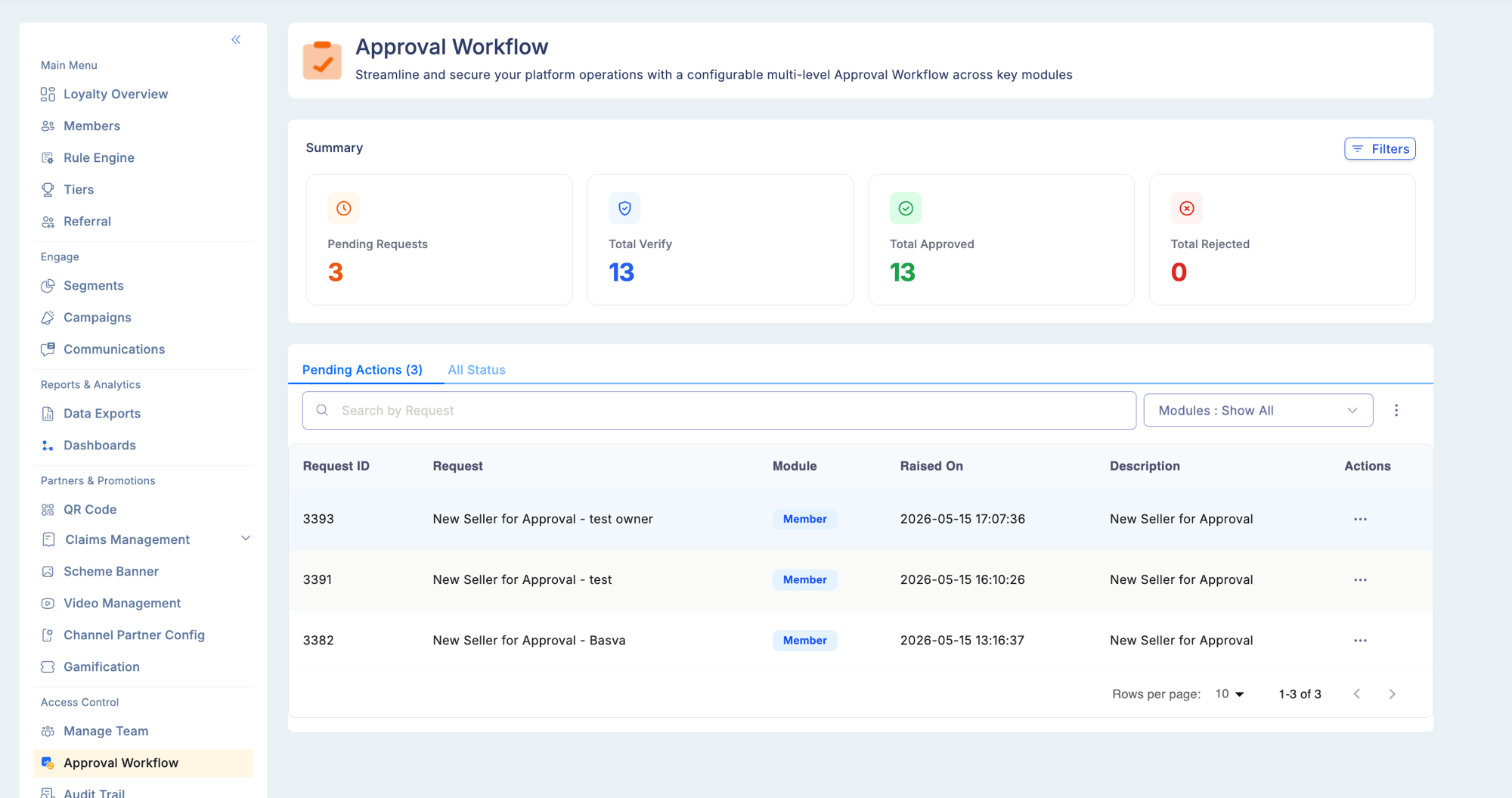
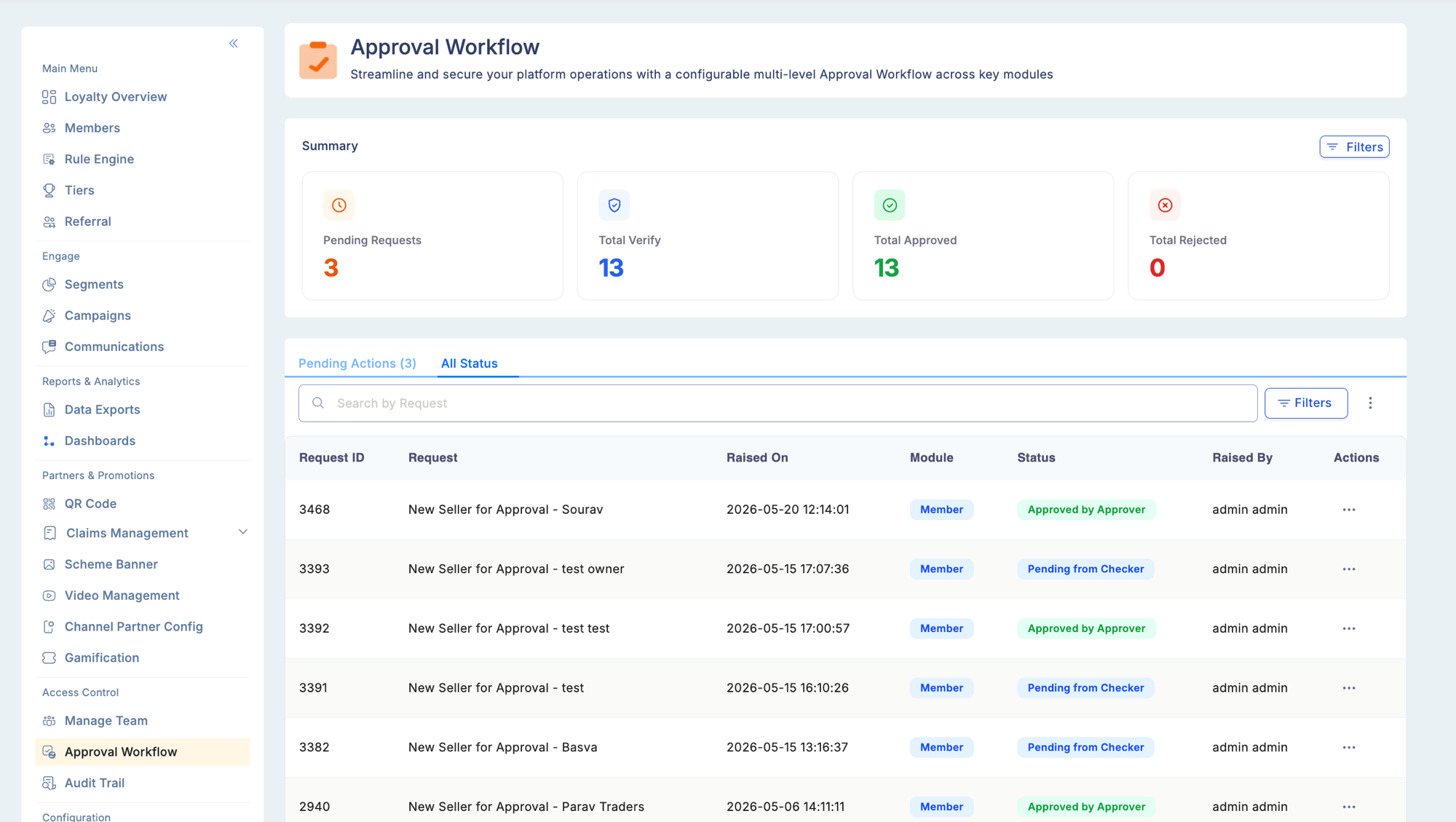
The top of the Approval Workflow page displays real-time summary counters for your role:
| Counter | Description |
|---|
| Pending Requests | Total requests currently awaiting action — split between Checker queue and Approver queue |
| Total Verified | Requests verified by the Checker role |
| Total Approved | Requests approved by the Approver (including direct approvals by users with both roles) |
| Total Rejected | Requests rejected by either Checker or Approver |
Counters update in real time as requests move through the workflow. Counts are role-level and module-specific — they reflect the requests relevant to your role, not a program-wide aggregate.
Counter behaviour as requests progress:
- A Checker verifies → Total Verified +1, Pending −1
- An Approver approves → Total Approved +1, Pending −1
- Either role rejects → Total Rejected +1, Pending −1
When the workflow applies
The Maker-Checker process governs the following action categories, depending on your program’s configuration:
| Category | Actions covered |
|---|
| Manual point adjustments | Adding or removing points from a member account outside the Rule Engine |
| Suspension actions | Blocking, suspending, or re-activating a member |
| Business user management | Locking, unlocking, archiving, or unarchiving an admin user |
| Member and user activation | Activating a new business user or member |
| Onboarding requests | Retailer or partner onboarding submitted from the partner app |
| Rule Engine changes | Activating, modifying, or deactivating earning rules |
| Aggregate attributes | Creating or updating aggregate attributes in the Rule Engine |
| Tier settings | Changing the qualification method, point accumulation timeframe, or assessment method |
| Tier management | Adding or modifying tier levels and their benefits |
| Point definition | Changing points expiry settings or point calculation parameters |
| Campaigns (Rule Based) | Creating or activating rule-based campaigns |
| Communications | Creating or modifying notification templates |
Automated transactions processed by the Rule Engine do not go through this workflow. The workflow only applies to manual or admin-initiated actions.
The three roles
| Role | Responsibility |
|---|
| Maker | Initiates the action — creates the request and submits it for review |
| Checker | Verifies the request — reviews accuracy and adds remarks |
| Approver | Final decision-maker — approves or rejects; the action only takes effect after approval |
Roles are assigned in Access Control → Manage Team → Roles. A user can hold multiple roles, though this reduces the governance benefit.
Request status codes
Each request moves through the following statuses:
| Status code | Label | Meaning |
|---|
| 1 | Pending Checker | Request submitted by maker; awaiting checker review |
| 2 | Pending Approver | Checker has reviewed; awaiting final approver decision |
| 3 | Approved | Approver has approved; action has taken effect |
| 4 | Rejected Checker | Checker has rejected the request |
| 5 | Rejected Approver | Approver has rejected the request |
Accessing the workflow
Go to Access Controls → Approval Workflow. The module has three tabs:
| Tab | What you see |
|---|
| Manual Transaction | Create a manual point adjustment for a specific member |
| Authorise Transaction | All requests awaiting your review or approval (filtered to your role) |
| Functionality Master | Configuration to enable or disable Maker-Checker for each module |
The Authorise Transaction tab has two sub-views:
| Sub-view | What you see |
|---|
| Pending Actions | Requests awaiting your action |
| All Status | Complete history — pending, approved, and rejected |
Manual transactions
The Manual Transaction tab lets authorized users create a manual point adjustment directly from the Approval Workflow module — without navigating to the member profile.
Manual transaction fields
| Field | Description |
|---|
| Transaction Type (TT) | 1 = Credit (add points), 2 = Debit (remove points) |
| Loyalty Transaction Type (LTT) | The specific activity category — e.g., Bonus (2), Purchase (4), Miscellaneous (21) |
| Amount | Transaction amount in program currency |
| Points | Point value of the adjustment |
| Transaction Date | Date to record for this transaction (can be backdated) |
| Expiry Date | Optional expiry date for the points being credited |
| Product Definition | The product category classification |
| Product Code | Specific product code if the adjustment is tied to a product |
| Deal Code | Deal or offer code if applicable |
| Transaction Currency | Currency of the source transaction |
| Membership No | The member’s account or relation reference number |
| Merchant Name | Merchant associated with the transaction |
| Transaction Code | External transaction reference or code |
| MCC | Merchant Category Code |
Manual transactions created here go through the same Maker-Checker approval process as any other manual adjustment. The transaction is not posted until an approver authorizes it in the Authorise Transaction tab.
Functionality Master
The Functionality Master tab is where an administrator enables or disables the Maker-Checker requirement per module. Enabling a module means all changes to that module require approval. Disabling it means changes take effect immediately without a review step.
| Module | Controlled by |
|---|
| Manual Points | Functionality Master |
| User Access (lock/unlock) | Functionality Master |
| User Activation | Functionality Master |
| Rule Engine | Functionality Master |
| Point Definition | Functionality Master |
| Tiers | Functionality Master |
| Campaigns (Rule Based) | Functionality Master |
| Communication Templates | Functionality Master |
| Member Status Changes | Suspension Actions toggle (separate setting) |
| Attribute Management | Functionality Master |
| Reports | Functionality Master |
Editing a pending request
While a request is in Pending status, the maker can edit it before the checker or approver acts on it.
- Open the request from Pending Actions or All Status.
- Click Edit on the request.
- Loyalife navigates you directly to the relevant module and field to make corrections.
- Save your changes — the request updates in place without creating a new submission.
Each request type navigates to the correct module when edited. For example, editing a Point Definition request opens the expiry settings; editing a Tier Settings request opens the tier qualification configuration.
Onboarding requests
When a retailer or partner submits a registration via the partner app, the submission enters the Approval Workflow as an Onboarding Request. This allows your team to review partner details, assign a category and role, and approve before the member account is created.
Viewing an onboarding request
Click View on any onboarding request to see:
Request metadata:
- Request raised by, module, current status, description
Partner details submitted from the app:
| Field | Description |
|---|
| Full Name | Partner’s full name |
| Email Address | Registered contact email |
| Phone Number | Mobile number |
| Store Name | Business name |
| Store Address | Physical location |
| Pincode | Postal code |
| PAN / KYC details | Identity documentation (where captured) |
Approving an onboarding request
Before approving, the approver must assign:
| Required assignment | Options |
|---|
| Partner Category | A1, A2, A3, B1, B2, or other configured categories |
| Role | ASM, RSM, or other hierarchical role mapping |
These assignments ensure structured retailer segmentation and correct role-based hierarchy mapping.
On Approve:
- Enter a mandatory reason for approval.
- Confirm the action.
- The member account is created immediately.
- The selected category and role are applied.
- Member status is set to Active.
- An audit trail entry is generated.
On Reject:
- Enter a mandatory rejection reason.
- No member account is created.
- Status updates to Rejected.
End-to-end onboarding flow
Partner submits registration via app
↓
Onboarding Request appears in Approval Workflow
↓
Maker verifies the request and submits remarks
↓
Approver reviews partner details
↓
Approver assigns Category and Role
↓
Approve → Member created & visible in Members module
Reject → No member created; status = Rejected
Rule Engine changes
When the approval workflow is enabled for the Rule Engine, the following actions require maker-checker authorization:
| Action | What happens |
|---|
| Activate a rule group | Rule group enters Pending; becomes live only after approval |
| Deactivate a rule group | Deactivation requires approval before stopping point evaluation |
| Modify earning rule conditions | Changes are staged until approved |
Aggregate attributes
Creating or modifying aggregate attributes (used for tier qualification or segment conditions) requires approval when the workflow is enabled for Rule Engine attributes:
- Maker creates or edits the aggregate attribute and submits for approval.
- The attribute appears in Pending Actions for the approver.
- The approver reviews the formula, field references, and time window.
- On approval, the attribute is immediately available for use in tiers and segments.
Tier settings
Changes to tier programme configuration that require approval:
| Change | Why it requires approval |
|---|
| Qualification method change | Switching from Points Only to Aggregated Attributes (or Both) affects all existing tier assignments |
| Point accumulation timeframe change | Switching from lifetime to rolling — or changing the rolling window length — recalculates eligibility for all members |
| Assessment method change | Switching from Automated to Manual assessment changes how the system updates tiers |
Approval of a qualification method change triggers a system-wide re-evaluation of all member tier assignments. Test this change in a non-production environment first.
Point definition changes
Modifications to the points configuration — particularly expiry settings — require approval to prevent unintended changes to member balances:
| Change | Covered by approval |
|---|
| Expiry period configuration | Yes |
| Expiry method (rolling vs. fixed date) | Yes |
| Point calculation formula changes | Yes (when enabled) |
Campaigns (rule-based)
When Maker-Checker is enabled for campaigns:
- A maker creates a rule-based campaign (targeting a segment with earn or reward rules).
- The campaign enters Pending status — it does not activate or send communications until approved.
- The approver reviews the segment targeting, earn conditions, and reward configuration.
- On approval, the campaign becomes active on its scheduled start date.
Standard (non-rule-based) campaign activation may have a lighter approval requirement depending on your program configuration. Check with your administrator which campaign types require full Maker-Checker review.
Communications templates
When Maker-Checker is enabled for communications:
- A maker creates or edits a notification template.
- The template enters Pending — it will not fire for any events until approved.
- The approver reviews the channel content, variables, and trigger event mapping.
- On approval, the template becomes active and starts firing for future events.
Enabling the Suspension Actions toggle
Under Program Settings → Approval Workflow, the Suspension Actions toggle enables Maker-Checker governance for:
- Block, suspend, and re-activate a member
- Lock, unlock, archive, and unarchive a business user
- Activation of business users and members
Once the Suspension Actions toggle is enabled, it cannot be reversed. Plan this configuration carefully before enabling it.
Role permissions for approval workflow
Configure who can act in each role under Access Control → Manage Team → Roles:
| Module | Permission | Role function |
|---|
| Onboarding Requests | Verify Onboarding Requests | Maker — can review and verify submissions |
| Onboarding Requests | Approve Onboarding Requests | Approver — can approve or reject |
| Manual Points | Submit Adjustment | Maker |
| Manual Points | Approve Adjustment | Approver |
| Suspension Actions | Submit Suspension | Maker |
| Suspension Actions | Approve Suspension | Approver |
| Rule Engine | Submit Rule Changes | Maker |
| Rule Engine | Approve Rule Changes | Approver |
| Tiers | Submit Tier Settings | Maker |
| Tiers | Approve Tier Settings | Approver |
| Campaigns | Submit Campaign | Maker |
| Campaigns | Approve Campaign | Approver |
| Communications | Submit Template | Maker |
| Communications | Approve Template | Approver |
Maker-Checker report
The Maker-Checker report in Reports & Analytics provides a historical view of all approval workflow requests with their outcomes, timelines, and actors.
| Column | Description |
|---|
| Request ID | Unique identifier for the request |
| Module | Which module the request applies to (e.g., Manual Points, Tier Settings) |
| Created by | The maker who initiated the request |
| Submitted on | Date and time of submission |
| Action | Approve / Reject |
| Actioned by | The approver or checker who took the final action |
| Campaign Name | For campaign requests, the campaign name |
| Status | Current status |
Practical example — manual point adjustment
A member contacts support because their account was not credited for a qualifying purchase.
- Maker (support agent) — opens the member profile, creates a manual point adjustment request with the transaction reference and point amount.
- Checker (supervisor) — reviews the request, verifies the transaction reference, confirms the calculation is correct, and approves it to move forward.
- Approver (manager) — reviews the checker’s confirmation and grants final authorization. Points are credited to the member’s account.
Troubleshooting
A request submitted by a maker is not appearing in the approver’s queue.
- Confirm the approver has the correct approval permission for that module in their role settings.
- Check whether the request was accidentally rejected at an earlier stage.
An onboarding request is stuck in Pending.
- Verify there is an active user with the Approve Onboarding Requests permission.
- Check if the Approval Workflow module is enabled in Program Settings.
A tier settings change is not taking effect after approval.
- If the change involves a qualification method switch, the system re-evaluates all member tiers — this may take several minutes for large programs.
- Check the Audit Trail for the approval event confirmation.
The edit button is not visible on a pending request.
- Only the original maker can edit a pending request.
- If you are the maker but cannot see the edit button, confirm the request is still in Pending status — once a checker or approver has acted, editing is no longer available.