The Audit Trail records every configuration change and administrative action performed in Loyalife. Each entry captures the actor, the action, the page, the timestamp, the IP address, and the browser. This gives your compliance, security, and operations teams a complete, non-repudiable history of how your program has been managed.
What the audit trail captures
The audit trail logs actions across all Loyalife modules. Common entries include:
| Module | Examples of logged actions |
|---|
| Members | Status changes (suspend, block, activate), profile edits, point adjustments |
| Rule Engine | Rule group activation/deactivation, rule creation, rule edits |
| Tiers | Tier creation and deletion, milestone changes, tier retention period updates |
| Segments | Segment creation, filter changes, rule group linkage |
| Campaigns | Campaign creation, start/end date changes |
| Communications | Template creation and edits |
| Access Control | User invite, role assignment, user lock/unlock, password reset |
| Approval Workflow | Request submission, approval, rejection |
| Program Settings | Calculation method changes, decimal precision configuration, nomenclature edits |
| Reports | Custom report creation, manual generation runs |
Audit entry fields
Each audit trail entry contains:
| Field | Description |
|---|
| Date & Time | Timestamp of the action (shown in your configured timezone) |
| Username | The admin user who performed the action |
| Action | A human-readable description of what was done |
| Page URL | The specific Loyalife page where the action occurred |
| Activity | Detailed description — often includes before and after values |
| IP address | The user’s IP at the time of the action |
| Browser | Browser and version used |
Accessing the audit trail
Navigate to Reports & Analytics → Data Exports → Administrative Data tab.
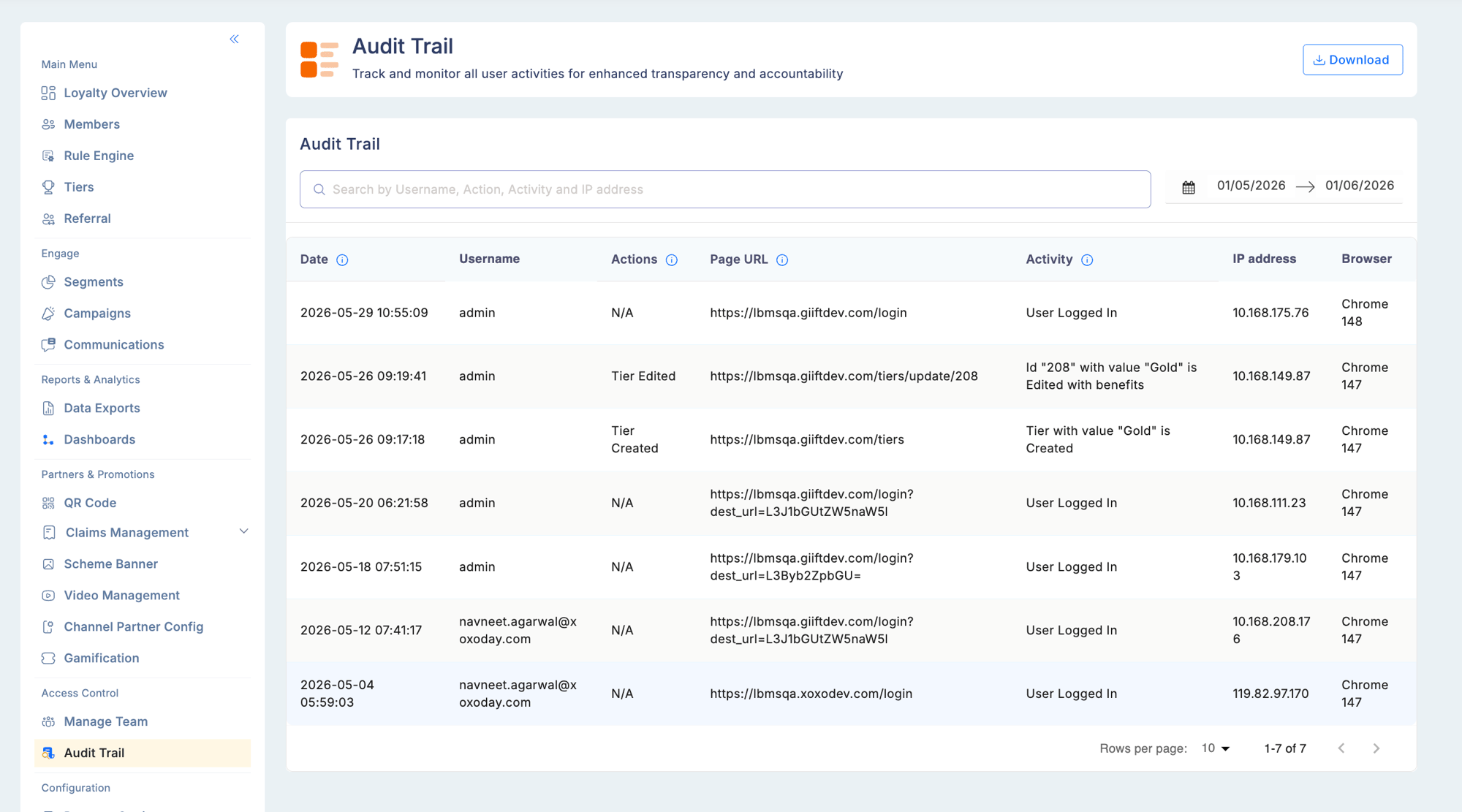
The Audit Trail is listed here and can be filtered and downloaded.
Alternatively, some audit trail entries are visible directly within module detail views (e.g., the timeline on a claims management record).
Key audit scenarios
Tier retention period changes
When an admin updates the Tier Retention Period — either toggling it on or off, or changing the duration — an entry is created:
| Change | Activity logged |
|---|
| Toggle Disabled → Enabled | ”Tier Retention Period toggled from Disabled → Enabled” |
| Toggle Enabled → Disabled | ”Tier Retention Period toggled from Enabled → Disabled” |
| Value change | ”Tier Retention Period updated from 365 → 730 days” |
Calculation setting changes
When the calculation method (e.g., billing cycle) is changed in Program Settings, the audit trail captures:
- The user who made the change
- The previous calculation setting
- The new calculation setting
- Timestamp and IP
User reactivation (locked or archived users)
When a locked or archived admin user is re-added to the system:
At the Maker stage (when the request is submitted):
“Request submitted to unlock/unarchive existing user [username] for email [email]”
At the Checker stage (when approved):
“User [username] unlocked” or “User [username] unarchived”
This replaces the previous misleading “User created” log message and makes the actual action clear in the audit record.
If a duplicate email is detected at the Maker stage, an information message is shown:
“This email is associated with a locked/archived user. The existing user will be reactivated upon approval.”
Personal data access
When an admin views the Personal Information section of a member profile, the access event is logged with the viewer’s identity and timestamp. This provides accountability for access to sensitive personal data.
Filtering the audit trail
From the Administrative Data export view, filter audit entries by:
| Filter | Options |
|---|
| Date range | Custom start and end dates |
| Username | Filter to a specific admin user’s actions |
| Module | Filter by the Loyalife module where the action occurred |
| Action type | Filter by specific action categories |
Exporting audit data
Click Download to export the filtered audit trail as a CSV file. Exports include all fields listed above and are suitable for compliance reviews, security audits, and stakeholder reporting.
Permissions
| Action | Required permission |
|---|
| View audit trail | View Audit Trail |
| Export audit trail | Export Reports |
The audit trail is append-only — entries cannot be edited or deleted. This ensures the integrity of your compliance records.
Compliance use cases
Internal audit reviews: Filter by date range to export all admin actions during a specific review period. Cross-reference with role change history to verify separation of duties.
Investigating a configuration issue: Filter by module and date to see every change made to a specific module. The before/after values in the Activity field identify exactly what changed and when.
Regulatory reporting: Export audit records demonstrating that sensitive actions (member data access, point adjustments, approval decisions) followed defined workflows and were performed by authorized users.