The Manage Team section gives program administrators control over who has access to Loyalife and what each person can do. It’s split into two areas: Users and Roles.

Accessing team management

Go to Access Controls in the left sidebar. The Users tab is shown by default.
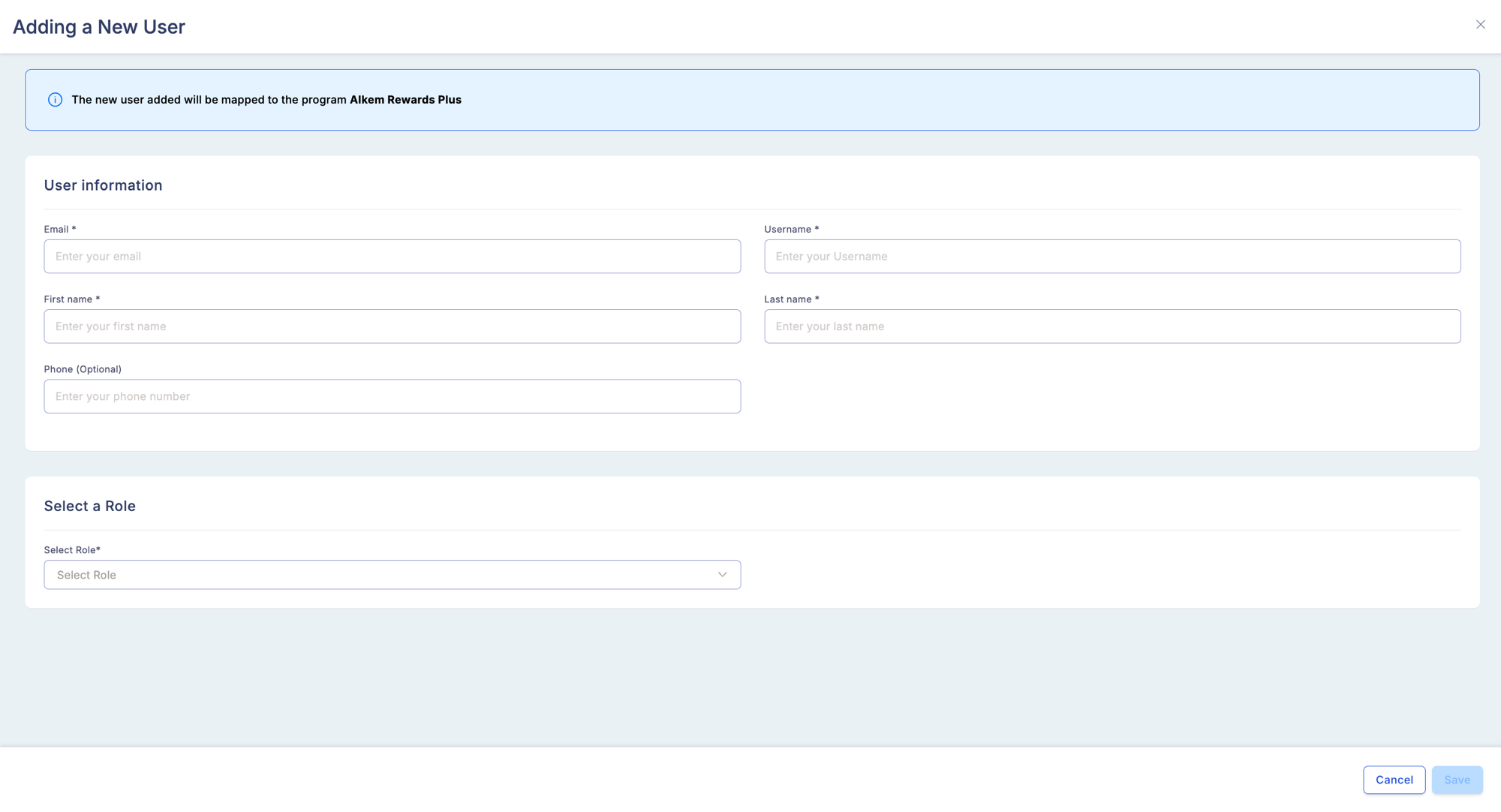
Manage Team — Manage Users tab listing all admin users with Name, User Name, role, Date Created, Last Login columns and an Add New User button

User management

Inviting a user

1

Go to Access Controls → Users

Click Invite User.
2

Enter user details

Provide the user’s name and email address.
3

Assign a role

Select one or more roles for this user. Roles determine which modules they can access and what actions they can take.
4

Send the invitation

The user receives an email invitation with a link to set up their password and activate their account.
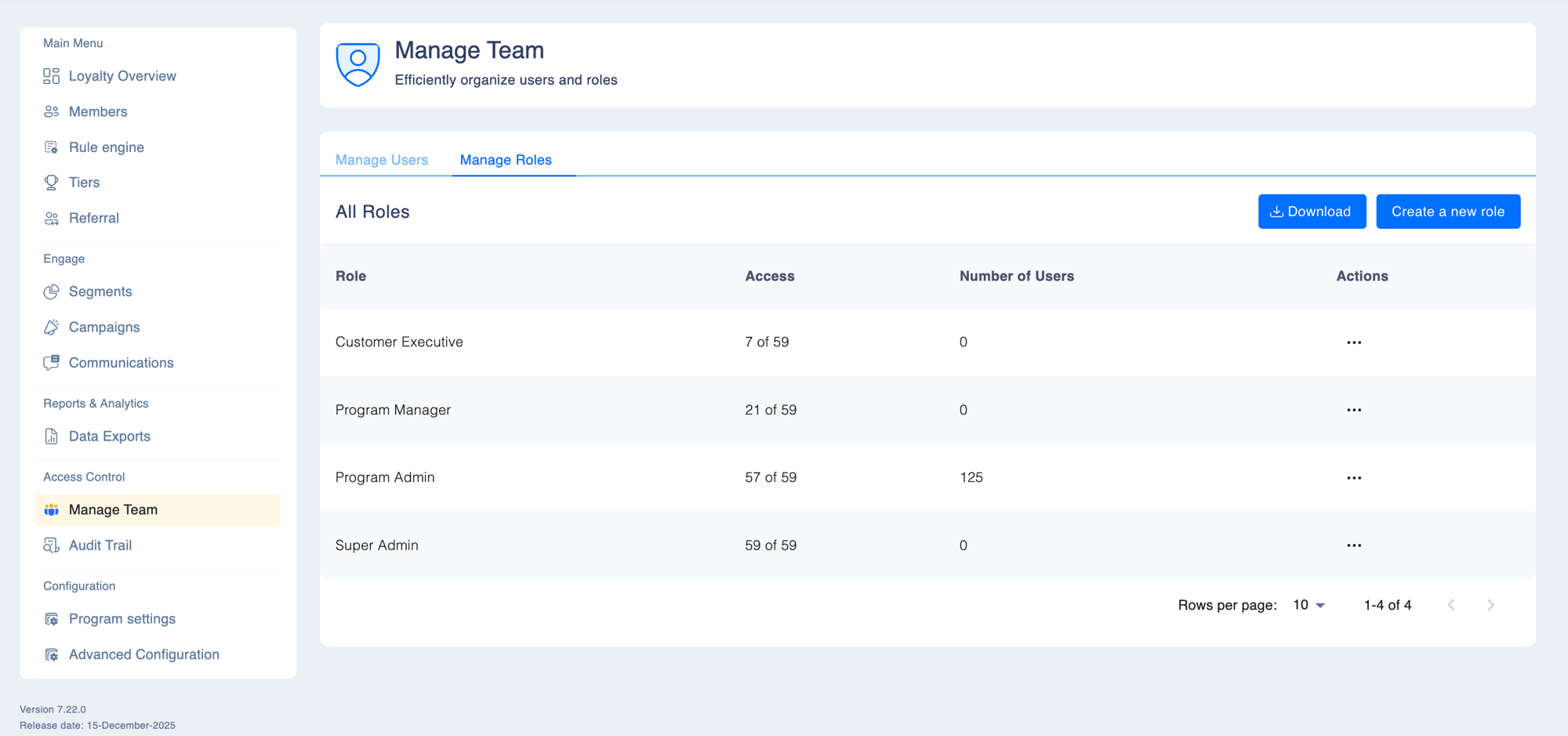
Adding a New User modal showing User Information section with Email, Username, First Name, Last Name, and Phone fields, plus a Select a Role dropdown at the bottom

Managing existing users

From the Users list, open the three-dot Actions menu on any user to access management options:
ActionWhen to use
Edit userUpdate name, email address, or role assignments
Reset passwordTrigger a password reset email for a locked-out user
Lock accountTemporarily prevent the user from logging in
Unlock accountRestore login access to a locked account
Archive userRemove a user who has left the organisation — their audit history is preserved
Unarchive userReactivate a previously archived user
Download user listExport all users and their role assignments as a CSV
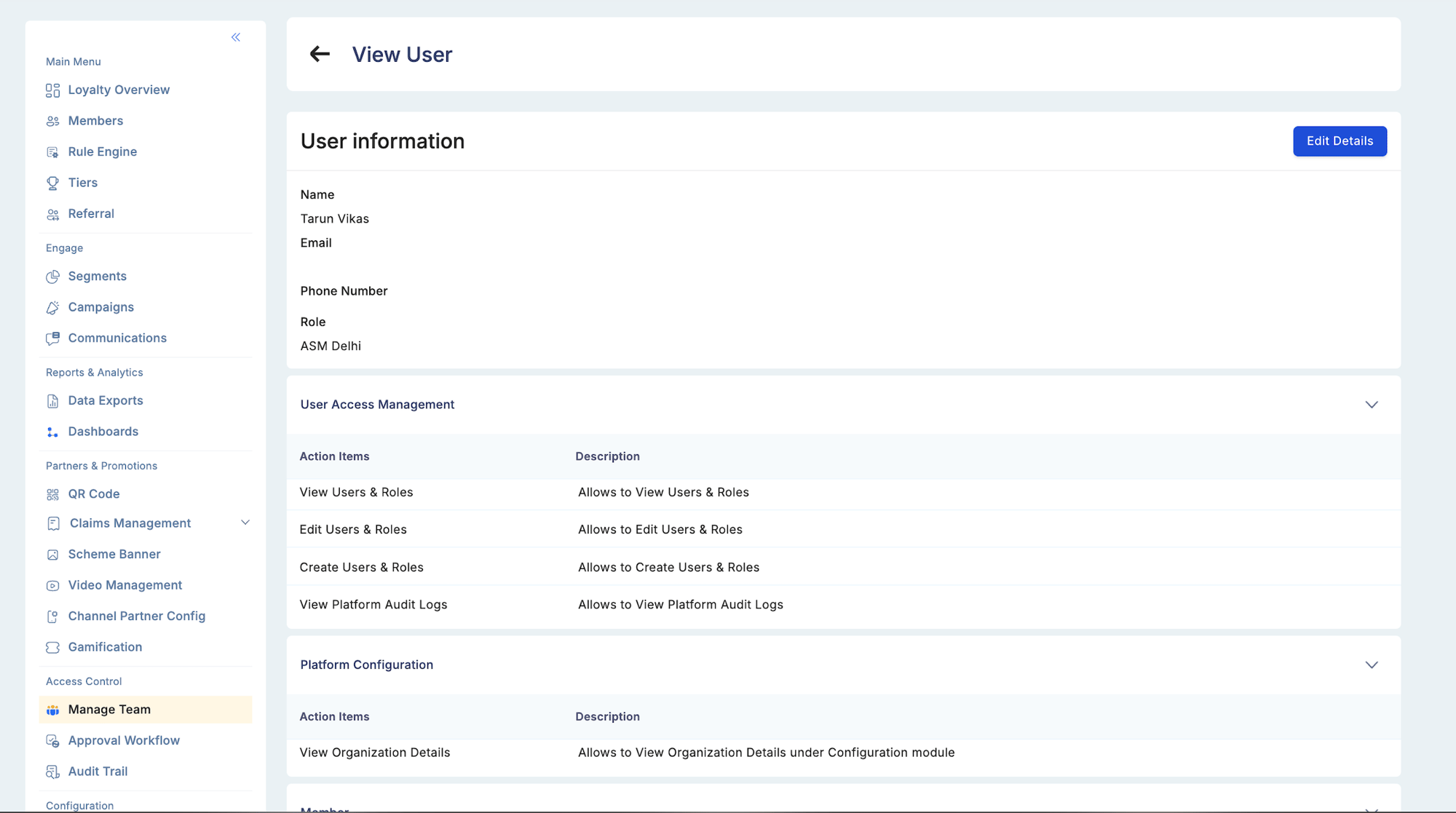
View User detail page showing User Information panel with Name, Email, Phone, and Role fields, followed by collapsible permission sections for User Access Management, Platform Configuration, and Member modules listing each granted action item

Reactivating locked or archived users

If an admin tries to invite a user with an email that belongs to a currently locked or archived account, Loyalife detects the duplicate and shows:
“This email is associated with a locked/archived user. The existing user will be reactivated upon approval.”
When the Maker-Checker workflow is enabled, this reactivation request enters the approval queue. The audit trail records:
  • At the Maker stage: “Request submitted to unlock/unarchive existing user [username] for email [email]”
  • At the Checker stage: “User [username] unlocked” or “User [username] unarchived”
This prevents confusion with the previous “User created” message, which was misleading because the user already existed.

Role management

Roles define what a user can see and do. Every module in Loyalife has configurable permissions, and a role is a named bundle of those permissions.

Viewing roles

Click the Roles tab to see all existing roles.
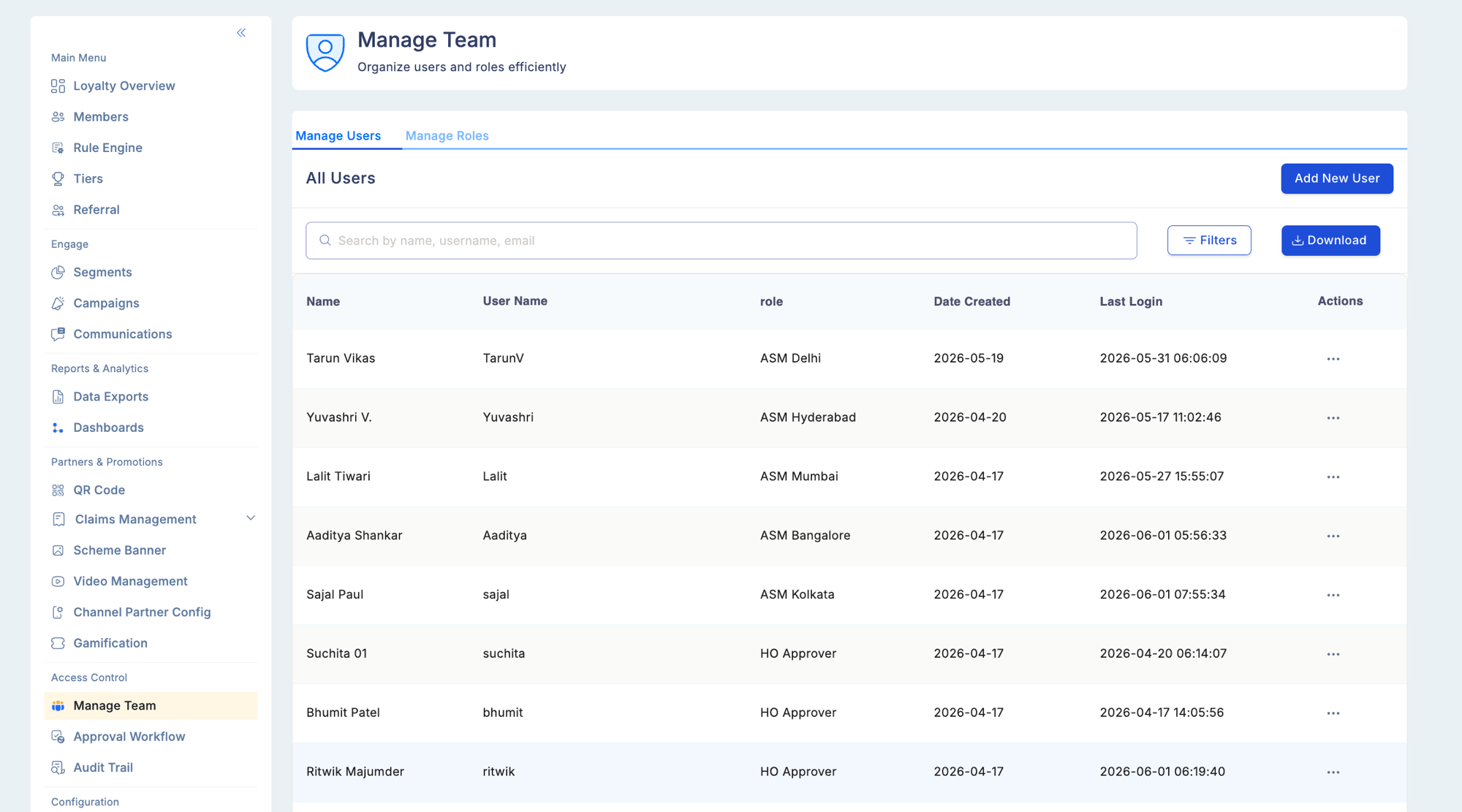
Manage Team — Manage Roles tab showing All Roles list with Role name, Access (X of 59 permissions), Number of Users, and Actions columns — displaying Customer Executive, Program Manager, Program Admin, and Super Admin roles
Each role entry shows:
  • Which modules it grants access to
  • The permission level per module (View, Edit, Create)
  • How many users currently hold this role

Creating a custom role

1

Click Create Role

From the Roles tab, click Create Role.
2

Name the role

Give the role a descriptive name that reflects its function — for example, “Claims Approver” or “Campaign Manager — View Only”.
3

Set permissions per module

For each module, select the permission level:
LevelGrants
NoneNo access — module is not visible to this role
ViewRead-only access
EditCan modify existing records
CreateFull access including creating and deleting
Some modules have additional permissions beyond the standard levels. For example:
  • Approve Assigned Invoices — for Claims approvers
  • Verify Onboarding Requests and Approve Onboarding Requests — for the Maker and Checker in partner onboarding
  • PI Data Access — for exporting personally identifiable member data
4

Save

Save the role. It is immediately available for assignment when inviting or editing users.
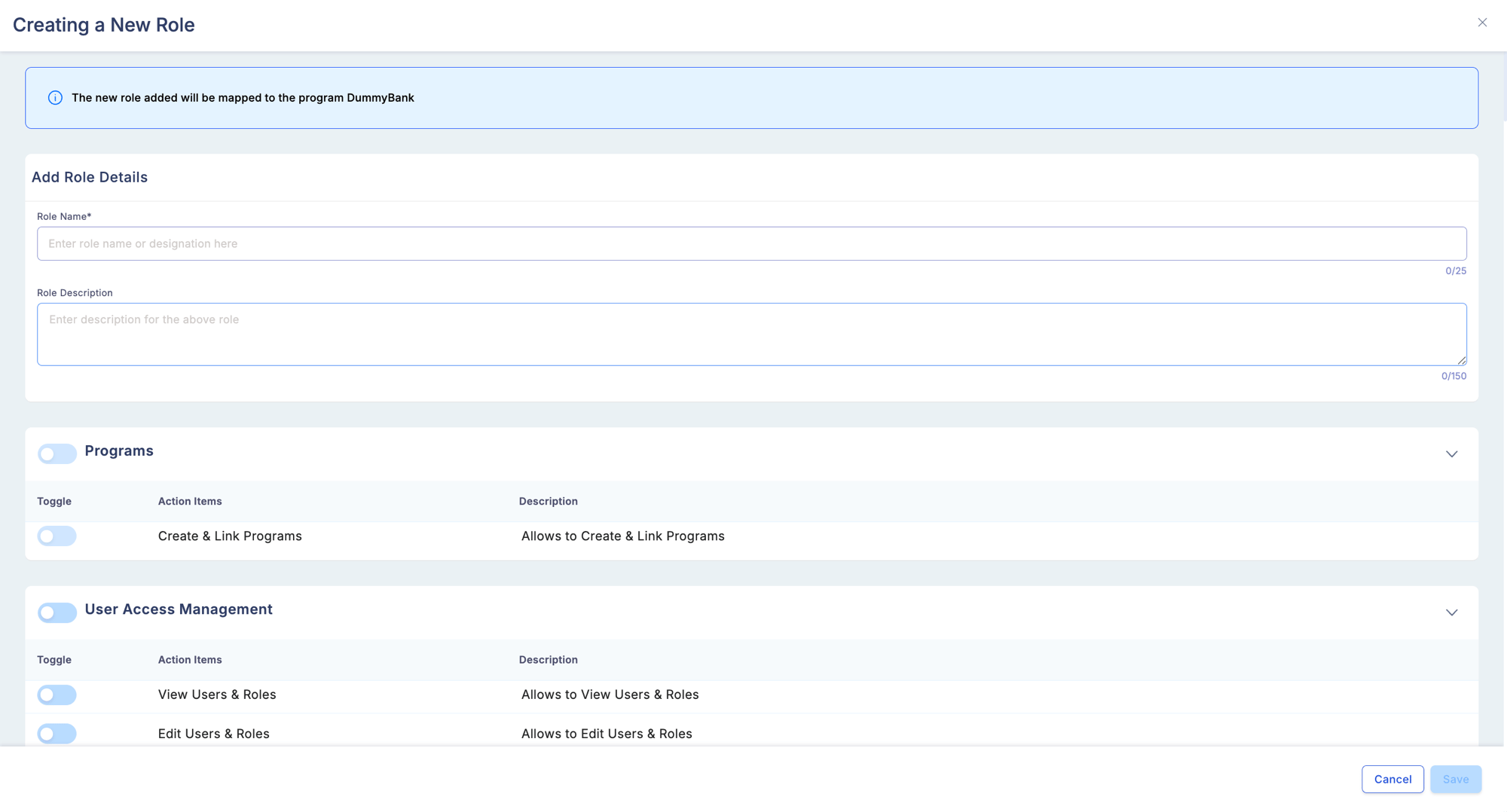
Creating a New Role modal showing Add Role Details section with Role Name and Role Description fields, followed by permission sections for Programs and User Access Management with individual toggle switches per action item
The Create permission on most modules also grants the ability to delete. Review the specific module’s permission details before assigning broad roles.

Built-in roles

Loyalife includes default roles that cover the most common team structures. These can be used as-is or cloned as a starting point for customisation.

Downloading role reports

Click Download from the Roles tab to export a CSV of all roles and their full permission configurations. Use this for internal access reviews, audit documentation, or onboarding new team members.

Permissions reference

ActionRequired permission
Invite usersManage Users
Edit user rolesManage Users
Lock/unlock accountsManage Users
Archive/unarchive usersManage Users
Create/edit rolesManage Roles
Download user listView Users