
Accessing campaigns
Navigate to Campaign Management → Broadcast Campaigns in the left sidebar.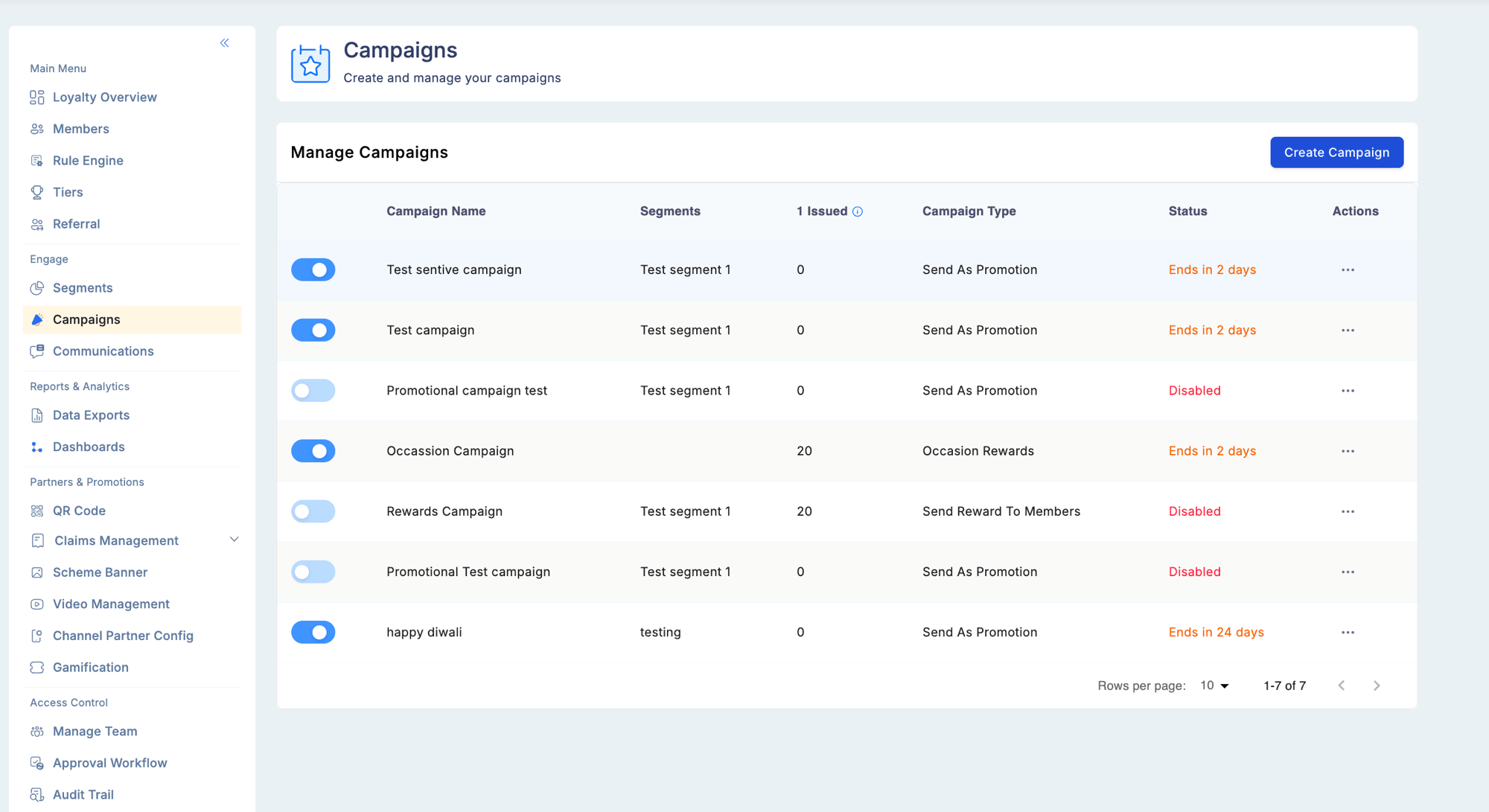
What makes campaigns distinct from rules
The Rule Engine defines your program’s baseline earning logic — rules that always apply. Campaigns are time-limited promotions layered on top. A campaign starts on a specific date, ends on a specific date, and targets only members in a selected segment. When the campaign ends, earning logic reverts to the baseline. This separation means you can run aggressive promotions without permanently changing your core earning structure.Campaign components
Creating a campaign
1
Go to Campaign Management → Broadcast Campaigns and click Create Campaign
The campaign creation form opens.
2
Name and schedule the campaign
Enter a campaign name and set start and end dates.
- Start date must be today or a future date — you cannot create a campaign with a past start date.
- End date must be on or after the start date.
- Once a campaign is live (past start date), the start date cannot be moved to a future date.
3
Select a target segment
Choose the segment this campaign targets. Only members in that segment at the time of a qualifying transaction receive the campaign reward. Dynamic segments are evaluated in real time; Frozen segments use the membership snapshot from when the segment was created.
4
Define the incentive
Set what members earn for qualifying transactions during the campaign window:
5
Preview qualified members (optional)
Before launching, preview the count and list of members who currently qualify based on the selected segment. Use this to validate targeting before going live.
6
Link a communication (optional)
Attach a Communication template to notify members about the campaign. Members who know about the offer are significantly more likely to act on it.
7
Publish
Review all settings and publish. The campaign becomes active on the configured start date.
Qualified members view
After a campaign is created, you can view members who qualify based on the linked segment:- A count of qualifying members
- Individual member details
- Cashback or reward data per member (useful for reconciliation and performance review)
Schedule date validation
These validations prevent creating campaigns that can never run or that retroactively claim to have started in the past.
User permissions
Push notifications in campaigns
Push Notification is now available as a delivery channel in campaigns alongside Email, SMS, and WhatsApp:- Link any active push notification template from the Communication module to a campaign
- Supported campaign types: Promotional, Occasion Reward, and Reward to Members
- Performance metrics per campaign show Total Sent, Success, and Failed counts for push delivery
- Notifications are delivered after the campaign cron executes, not immediately on activation
Rule-Based Campaigns
Campaigns (Rule Based) is a separate campaign type available when enabled via a program-level feature flag under Program Settings → Modules → Engage:- The toggle is independent of the standard Campaigns module and defaults to OFF
- When enabled, rule-based campaigns appear in the Campaign module alongside standard Broadcast campaigns
- Contact your Loyalife administrator to enable this feature for your program
Maker-Checker approval support for rule-based campaigns will be available in a future release.
Troubleshooting
A member who should qualify is not receiving the campaign reward.- Verify the campaign is Active (past start date, before end date).
- Check that the member is in the target segment. Dynamic segments update in real time; Frozen segments use the snapshot from when the segment was frozen.
- Confirm the qualifying transaction occurred within the campaign’s start and end date window.
- Check their role permissions — they need at least View access for the Campaigns module.
Points awarded by campaigns — broadcast or triggered — are recorded as Credit By Bonus entries on the member’s ledger. To report on campaign-driven point awards, filter Transactional reports by Credit By Bonus and check the Narration column for the campaign source.