The Communications module is where you build and manage all member-facing message templates. Templates fire automatically when a loyalty event occurs (transactional) or are dispatched by a campaign targeting a specific member segment (promotional).

Supported channels

ChannelProviderDetails
EmailSendGrid (by Twilio)Rich HTML; drag-and-drop editor; images, buttons, layouts
SMSPlivo (India); varies by regionPlain text; DLT registration required for India
WhatsAppConfigurable WABA gatewayPre-approved templates only; template ID required
PushFirebase Cloud Messaging (FCM)Requires Loyalife mobile app installed on device
Each channel can be independently enabled per template. A single template can send across all four channels simultaneously.

Template types

TypeHow it fires
TransactionalFires automatically when a specific loyalty event occurs — immediately, no scheduling required
PromotionalAttached to a campaign; dispatched to a segment immediately on campaign activation or at a scheduled future date

Creating a template

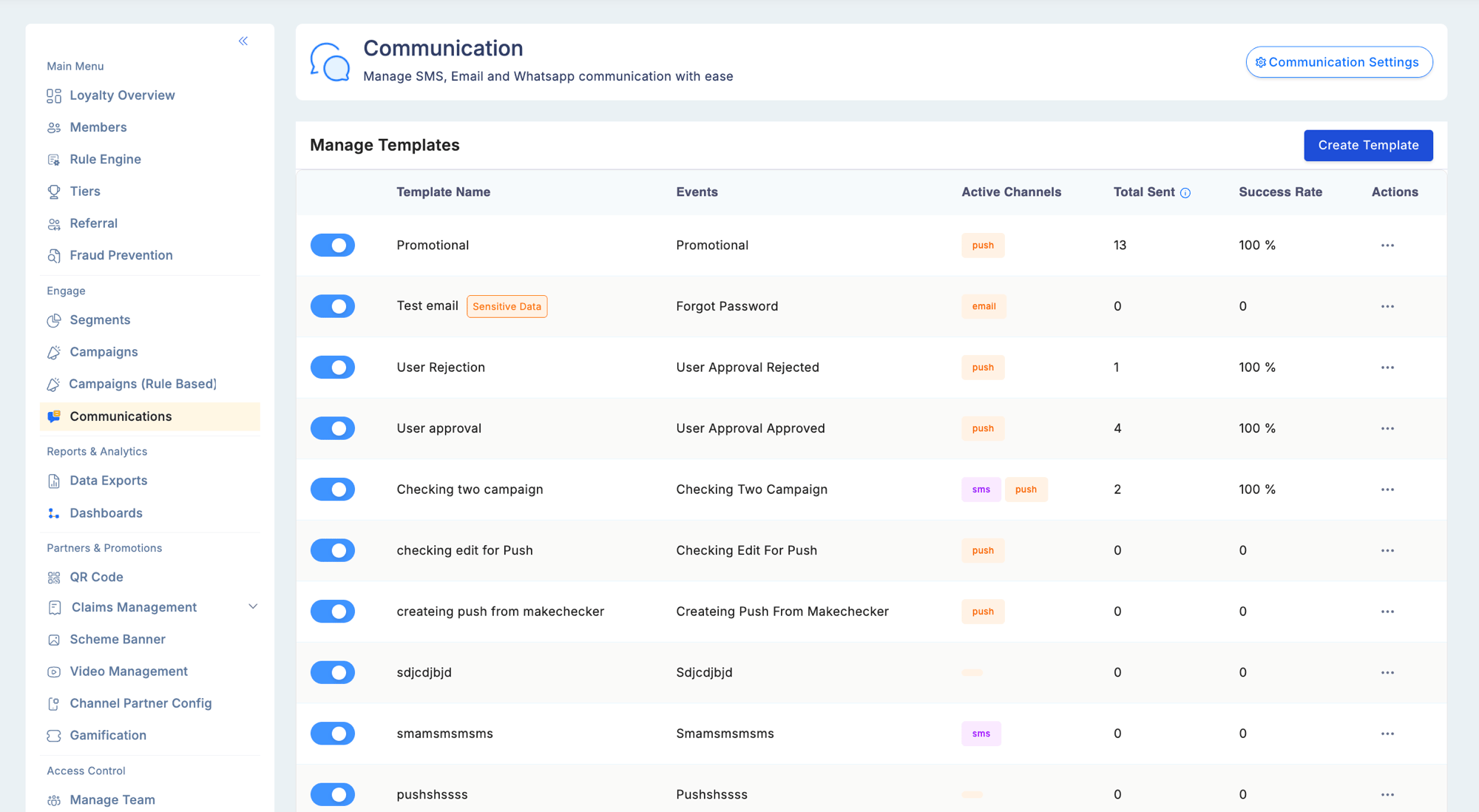
Manage Templates screen listing communication templates with Template Name, Events binding, Active Channels badges (Email, SMS, WhatsApp, Push), Total Sent count, and Success Rate columns, with Create Template button in the upper right
1

Go to Engage → Communications and click Create Template

2

Name the template and choose its type

Select Transactional or Promotional. This determines whether you pick a trigger event or link to a campaign.
3

Select the trigger event (Transactional only)

Pick the loyalty event that will send this message. Each event supports one active template per channel.
4

Enable channels

Toggle on each channel — Email, SMS, WhatsApp, Push. Each has its own content section.
5

Configure content for each channel

See the per-channel pages for field requirements, character limits, and constraints.
6

Set a scheduled send date (Promotional only)

Leave blank to send immediately when the campaign activates, or pick a future date within the campaign window.
7

Save or submit for approval

If Maker-Checker is enabled for Communications, saving creates a pending approval request. The template does not go live until an approver authorises it.
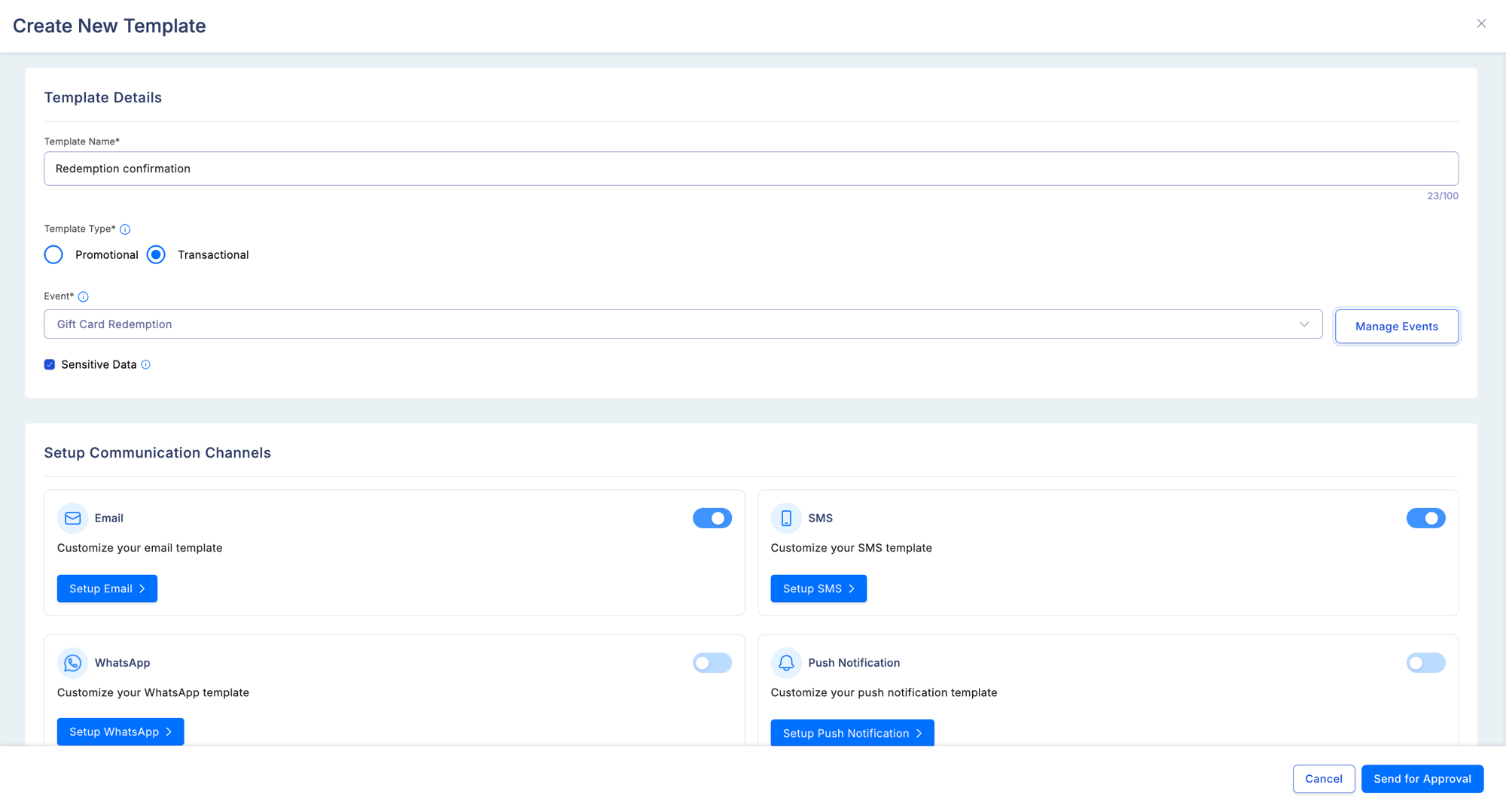
Create New Template form with Template Name field, Transactional type selected, trigger event dropdown showing Gift Card Redemption selected, Sensitive Data checkbox, and Setup Communication Channels section with Email, SMS, WhatsApp, and Push Notification channel toggles

Trigger events

Member lifecycle

EventDescription
member_activationMember account is activated
member_otpOTP sent for login or verification
two_factor_otpOTP sent for two-factor authentication
user_access_sharedAdmin user is invited to the program
role_modifiedA user’s role is changed
pending_maker_checkerA Maker-Checker approval request is pending

Points and transactions

EventDescription
points_accrualPoints credited after a qualifying transaction
points_redeemedMember completes a redemption
point_reversalA previously credited transaction is reversed
points_expiringPoints approaching expiry (triggered N days before)
points_expiredPoints have expired
bonus_points_creditedBonus points awarded (campaign, milestone, or manual)
gift_card_redemptionMember redeems a gift card

Tier events

EventDescription
tier_upgradedMember’s tier increases
tier_downgradedMember’s tier decreases
tier_retainedMember’s tier is retained during a retention period

Referral events

EventDescription
referral_completedA referred member completes the qualifying action
referral_bonus_creditedReferral reward is credited to the referrer

Channel partner events

EventDescription
onboarding_approvedPartner account approved and activated
onboarding_rejectedPartner registration rejected
claim_approvedPartner invoice claim approved
claim_rejectedPartner invoice claim rejected
new_scheme_launchedA new earning scheme is made available

Fraud and compliance

EventDescription
pending_fraud_reviewA transaction has been flagged and is pending review
redemption_fraud_reviewA redemption transaction has been flagged for review
Adding new custom events is managed by the Loyalife team during program setup and is not currently self-serve.

Dynamic variables

Use {{variable_name}} syntax anywhere in template content. Available variables:
VariableValue
{{member_name}}Member’s full name
{{points_balance}}Current points balance
{{tier_name}}Current tier name
{{points_earned}}Points credited in the triggering transaction
{{points_redeemed}}Points redeemed in the current transaction
{{expiry_date}}Date when points expire
{{referral_code}}Member’s referral code
{{transaction_amount}}Transaction value that triggered the event
{{merchant_name}}Merchant where the transaction occurred
{{bonus_points}}Bonus points awarded in this event
{{program_name}}The loyalty program’s name
{{otp}}One-time password (OTP events only)

Multi-language templates

Each template supports a primary language and one or more secondary languages. Loyalife selects the correct variant at send time based on the member’s Preferred Language attribute. Secondary language templates are configured per channel independently.

Communication settings

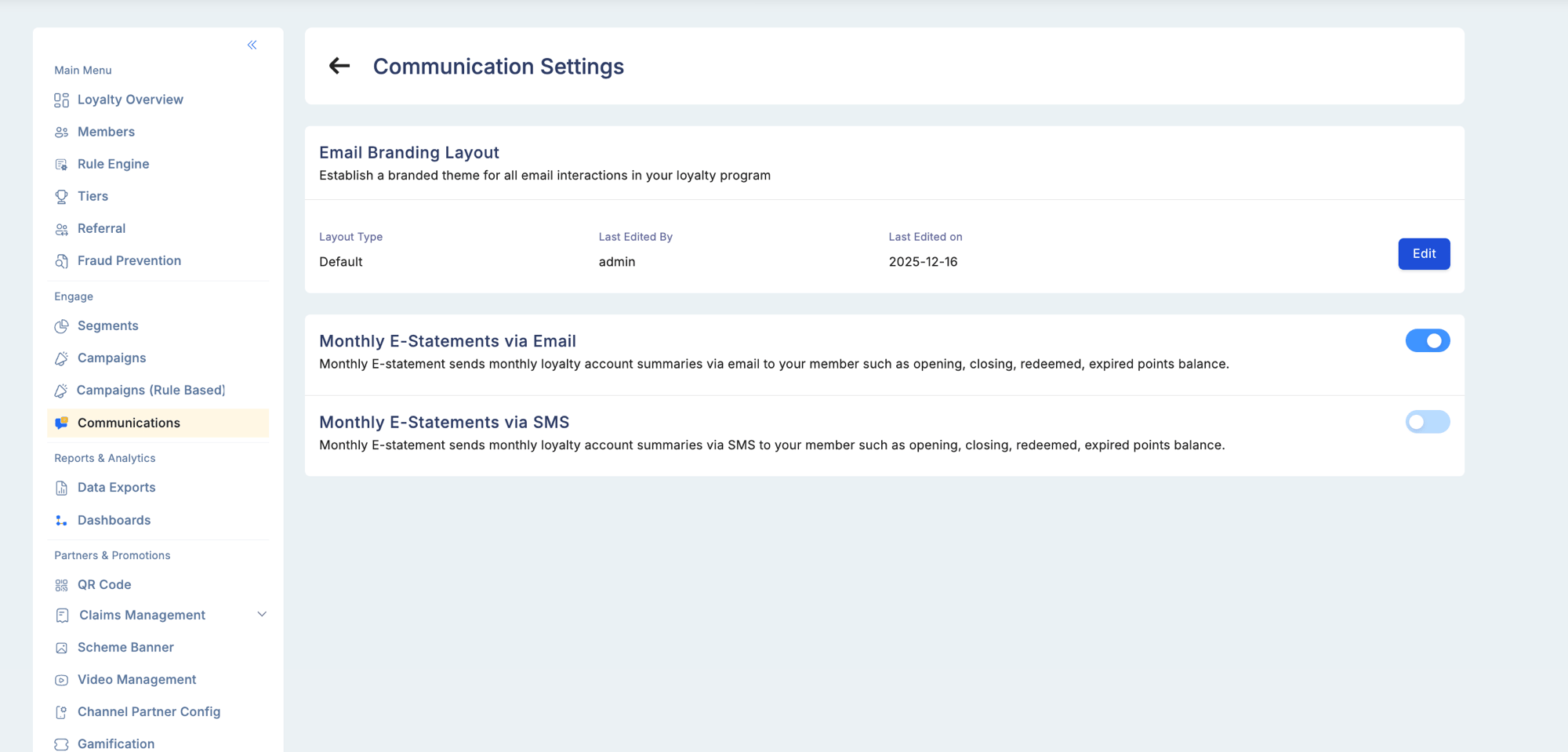
Communication Settings screen showing Email Branding Layout selector with template preview thumbnails, and Monthly E-Statements toggle for enabling automated member statements via email
Navigate to Engage → Communications → Settings to configure program-wide communication preferences, including email branding layouts and monthly e-statement delivery options.

Delivery history and resend

From a member’s profile, go to Account Info → Communications to see the full delivery log across Email, SMS, and WhatsApp. From this view you can resend any notification directly to the member or view the content of what was sent (hidden for templates marked Sensitive).

Permissions

PermissionWhat it allows
ViewReview existing templates and delivery metrics
EditModify template content, variables, and scheduled dates
CreateCreate, modify, and delete templates