
What are visibility claims
When a visibility program is active, retailers and merchandisers can submit photo evidence directly from the mobile app.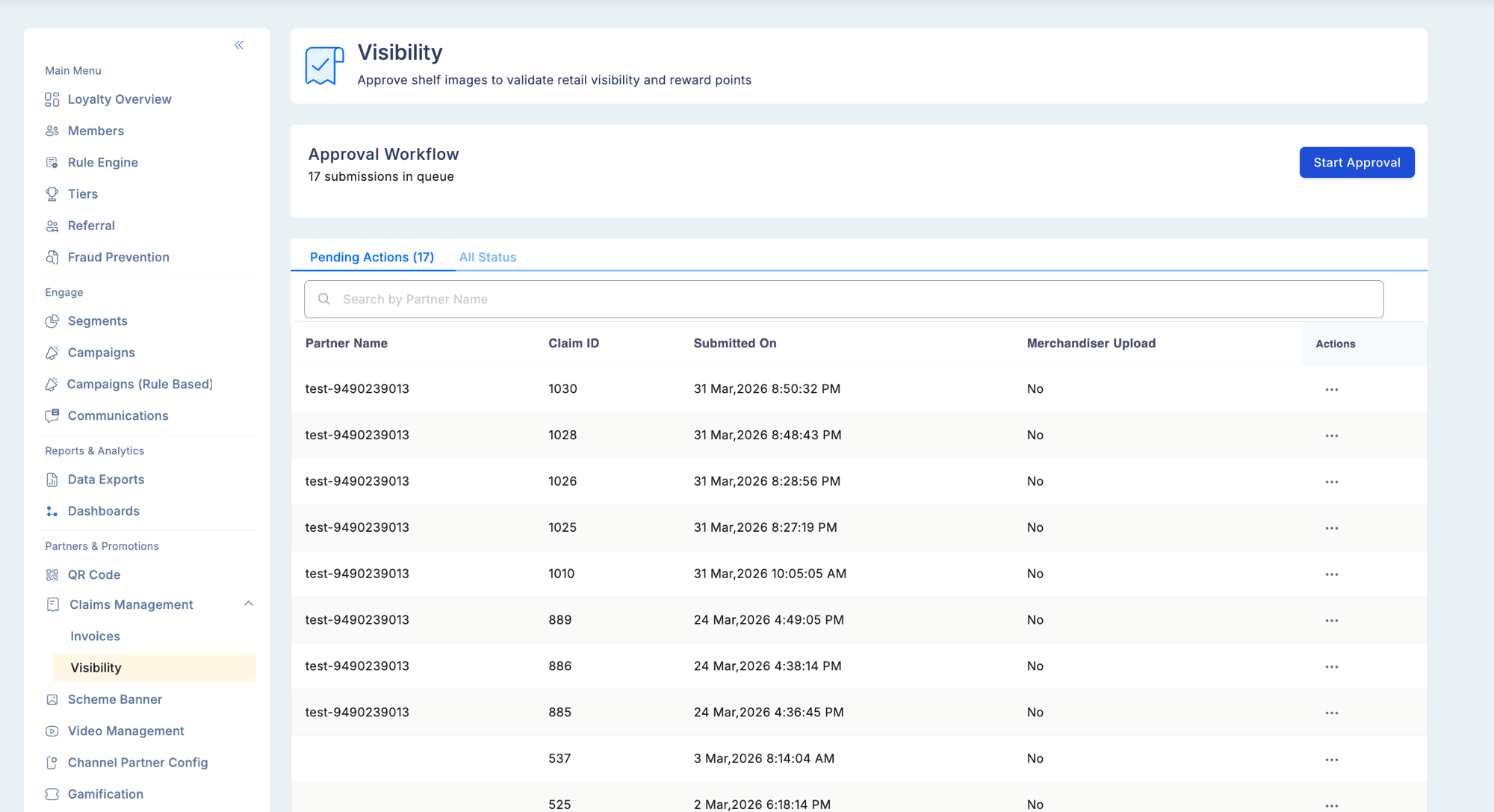
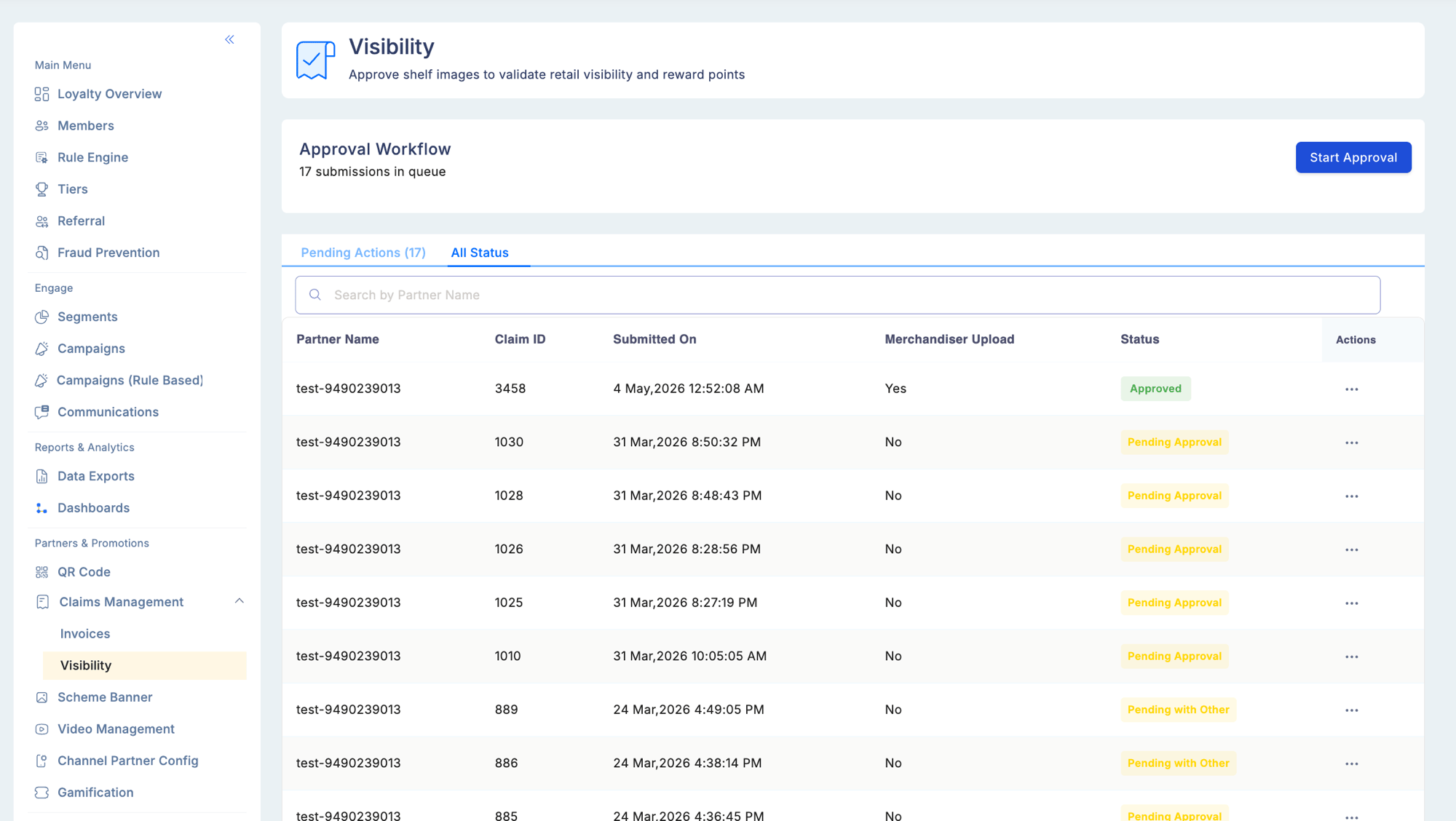
Reviewing a visibility claim
Open a claim to see the full detail view, which is divided into the following sections.Approval workflow header
Shows how many claims are currently in the queue and your position within it. Use this to navigate between claims without returning to the list.Claim details
Image evidence
Two image slots may be present, either separately or together.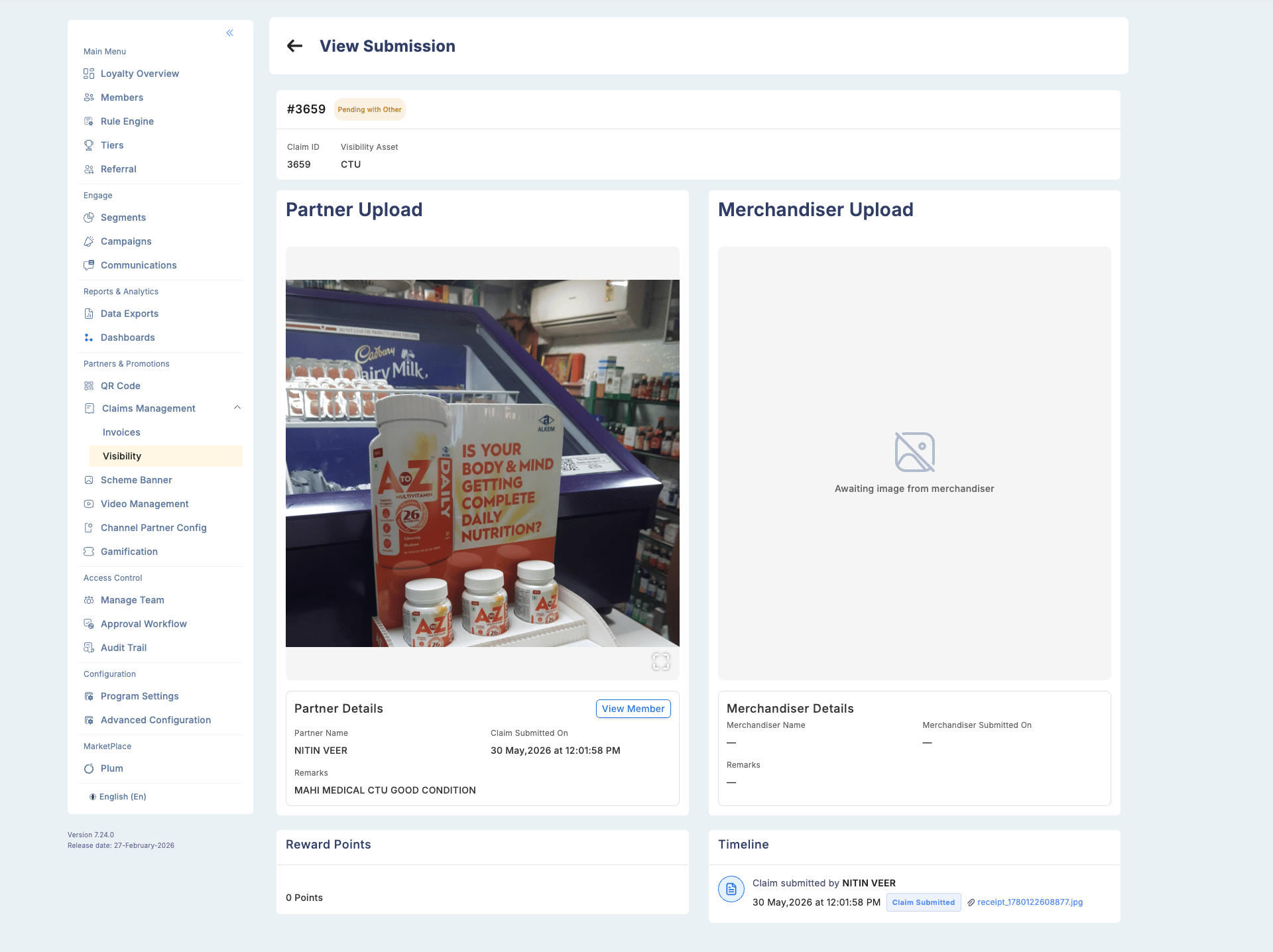
Both images can coexist on the same claim. Review each image independently before making a decision.
Partner details
Merchandiser details
This section is shown only when a merchandiser image is present on the claim.Reward points
Displays the points that will be credited if the claim is approved. This value is read-only and calculated by the system based on the visibility asset configuration.Timeline
A full audit trail of every action taken on this claim, including timestamps and user details. See Timeline and audit trail below.Taking action
1
Open a pending claim
Go to Partners & Promotions > Claims Management > Visibility and select Pending Actions. You can open a claim from the list or use the Start Approval button in the Approval Workflow section to work through the queue in order. You can also open a claim from the row-level action menu.
2
Review image evidence and partner details
Examine both the Partner Upload and the Merchandiser Upload (if present). Check the coordinates, submitted date, and any remarks.
3
Approve or reject
Select the appropriate action:
- Approve — opens a confirmation modal. Enter a mandatory reason (maximum 50 characters) and confirm. Points are credited to the partner immediately. This action cannot be reverted.
- Reject — enter a mandatory reason. No points are credited.
- Exit Workflow — closes the current claim and returns you to the queue without taking any action.
Timeline and audit trail
Every approval and rejection is recorded in the timeline section of the claim, showing the approver’s name, action taken, reason provided, and timestamp. Use the timeline to understand the full history of a claim.Permissions
Access to visibility claims is controlled by two permissions.At least one of Approve Visibility or Approve Assigned Visibility must be assigned to a user before they can access the visibility claim approval workflow.