
Claim types
Every claim is tagged with a type badge that is visible in the list and in the detail view.For Warranty claims, the Points Awarded field is hidden in the approval modal and the system enforces a points value of zero server-side. Approving a Warranty claim never credits points.
How a claim is submitted
1
Partner initiates the claim
In the channel partner mobile app, the partner taps New Claim, selects the claim type (invoice or warranty), and chooses how to capture the invoice.
2
OCR extraction (Scan Receipt)
If the partner selects Scan Receipt, they upload one or more invoice photos. Loyalife’s OCR engine reads the image and automatically populates:
- Product names and descriptions
- Product codes / SKU identifiers
- Quantities, unit prices, and line totals
3
Product catalogue matching
Extracted product codes and names are matched against the program’s product catalogue using approximate (vector-embedding) matching. The system attaches a match confidence score to each line item.
4
Partner reviews and corrects
On the review screen, the partner sees all extracted line items and can edit any field, add missed items, or remove incorrect ones. Edited fields are flagged so admins can distinguish OCR-extracted values from manual corrections.
5
QR code scanning (if applicable)
For QR-linked claims, the partner scans the product QR code instead of uploading a photo. The system validates the code and pre-fills product details automatically.
6
Submission
The partner submits the claim. It enters the admin approval queue with all extracted data, confidence signals, and any corrections attached.
OCR signals in the admin view
When an admin opens a claim submitted via Scan Receipt, the line items table shows additional signals to help prioritise review:OCR confidence scores reflect the original extraction snapshot. Even if a partner edited a field, the admin view shows the original OCR reading alongside the corrected value so you can compare what was read vs. what was changed.
Handling low-confidence extractions
When a field’s OCR confidence is low (typically below 0.7):- Open the original invoice image from the claim detail.
- Manually verify the field value against the source document.
- Edit the line item if the extracted value is incorrect.
- Enter remarks explaining any corrections before approving.
Duplicate invoice detection
Loyalife checks whether the same invoice number has been used in a previously processed claim. If a duplicate is detected:- The admin review screen shows a warning banner listing the related claim IDs.
- The claim is not automatically rejected — the admin must decide whether the duplicate is legitimate (e.g., a split shipment on a single invoice) or fraudulent.
Photo upload limits
Product codes must exist in the Rule Engine’s Attributes Manager before they are available for OCR matching. If a product is not in the catalogue, it appears as an unmatched item and requires admin intervention.
Filtering claims
The filter bar is available on both the Pending Actions tab and the All Status tab.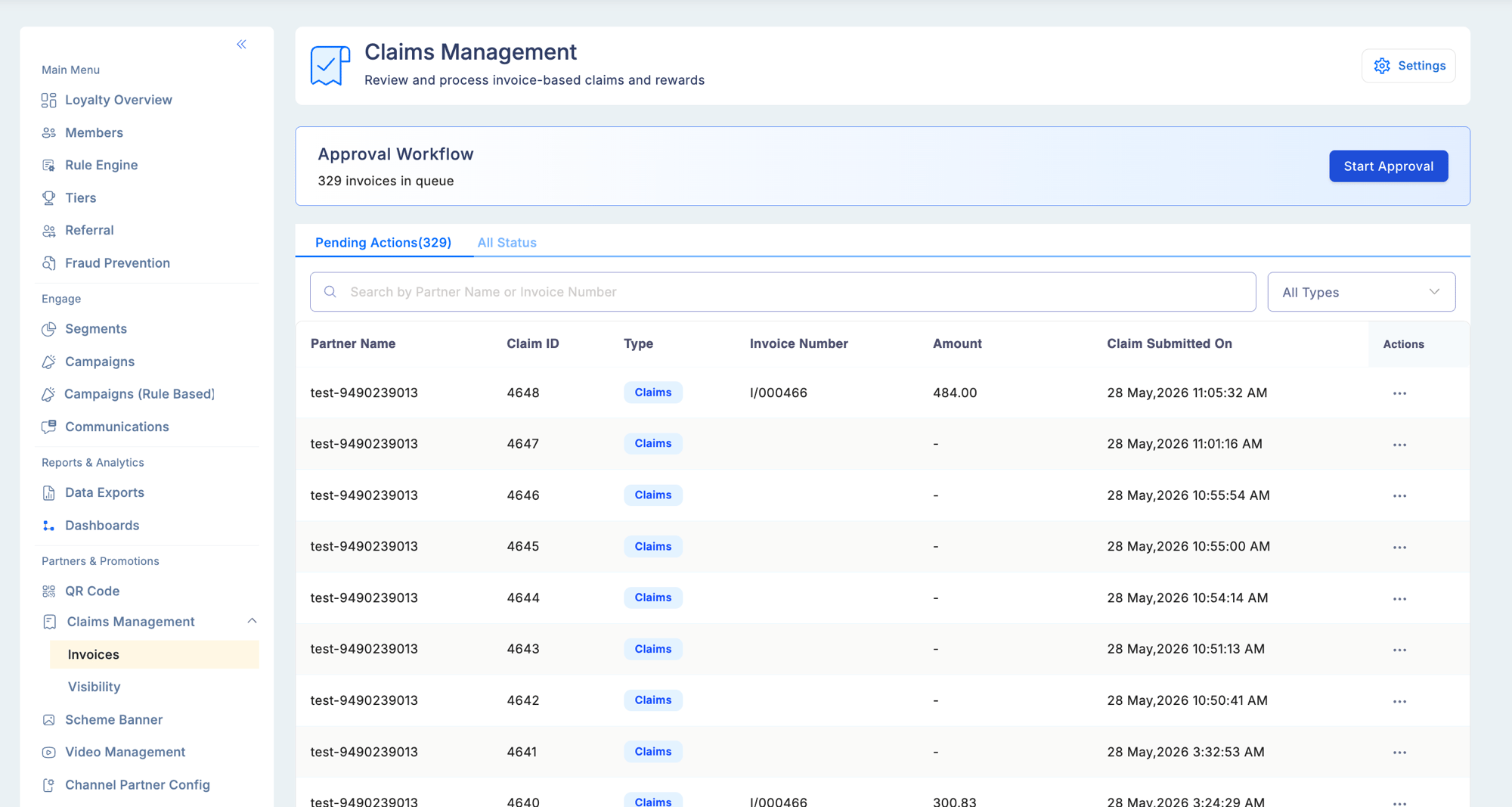
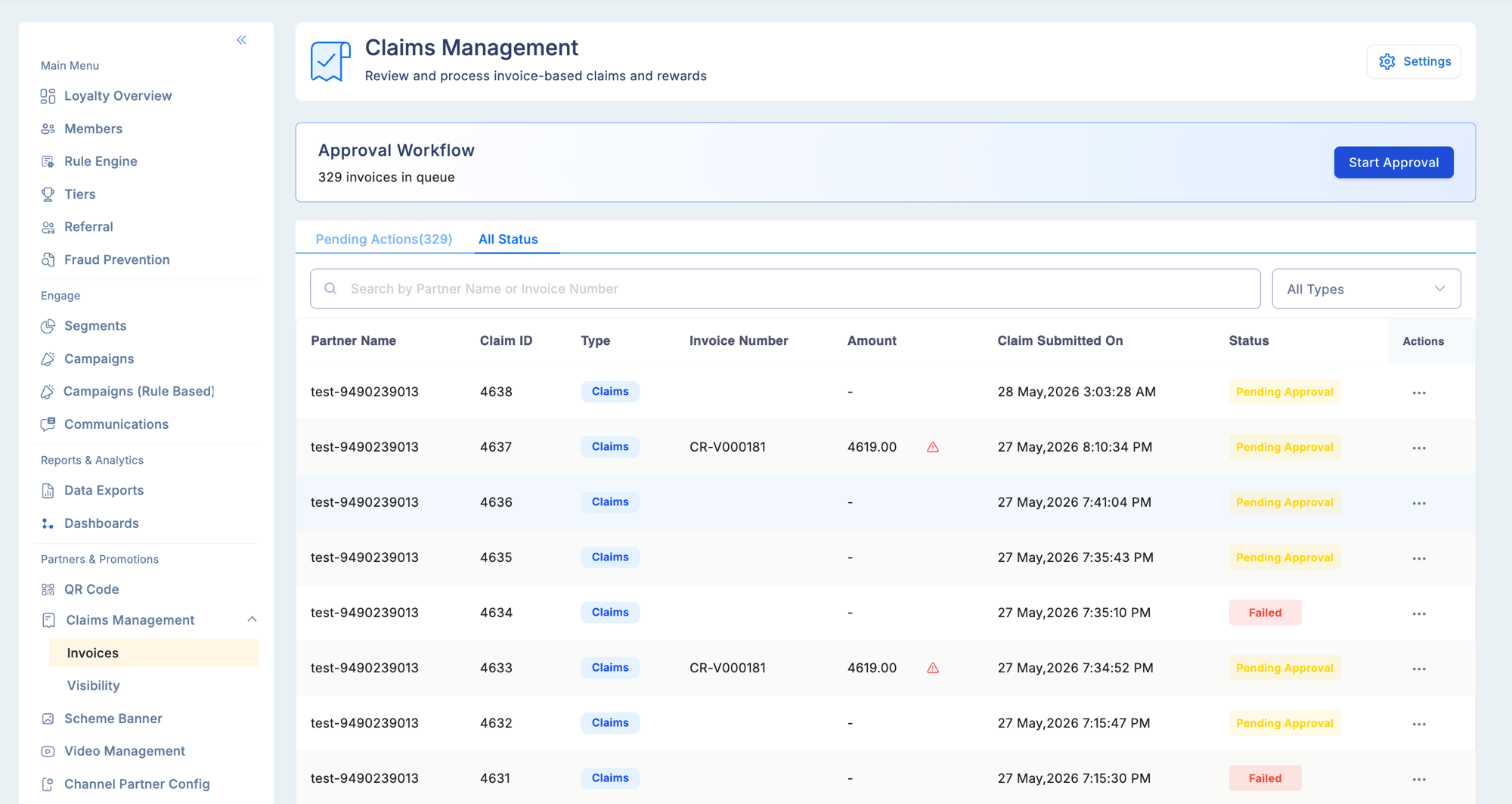
Filters are combinable — for example, you can filter for Warranty claims submitted by a specific partner.
The approval workflow
Invoice claims go through two levels of approval before they are finalised.Step 1 — Approver 1
Approver 1 is the first-level reviewer. The role assigned to this step varies by program — it could be a field manager, area coordinator, or any equivalent role (e.g., ASM, RSM). This step requires the Approve Assigned Invoices permission.1
Open a pending claim
Go to Partners & Promotions → Claims Management → Invoices and select a claim from the Pending Actions tab.
2
Verify the invoice
Review the claim details, line items, and any attached documents submitted by the partner. For OCR claims, check confidence signals and correct any low-confidence fields.
3
Add mandatory remarks
Enter remarks explaining your verification decision. Remarks are required before the claim can move forward.
4
Upload a supporting document (optional)
Attach a supporting file if needed. Accepted formats: JPG, JPEG, PNG, PDF. Maximum file size: 5 MB.
5
Submit
Submit your verification. The claim status changes to Pending From Others and moves to Approver 2’s queue.
Step 2 — Approver 2
Approver 2 is the final decision-maker.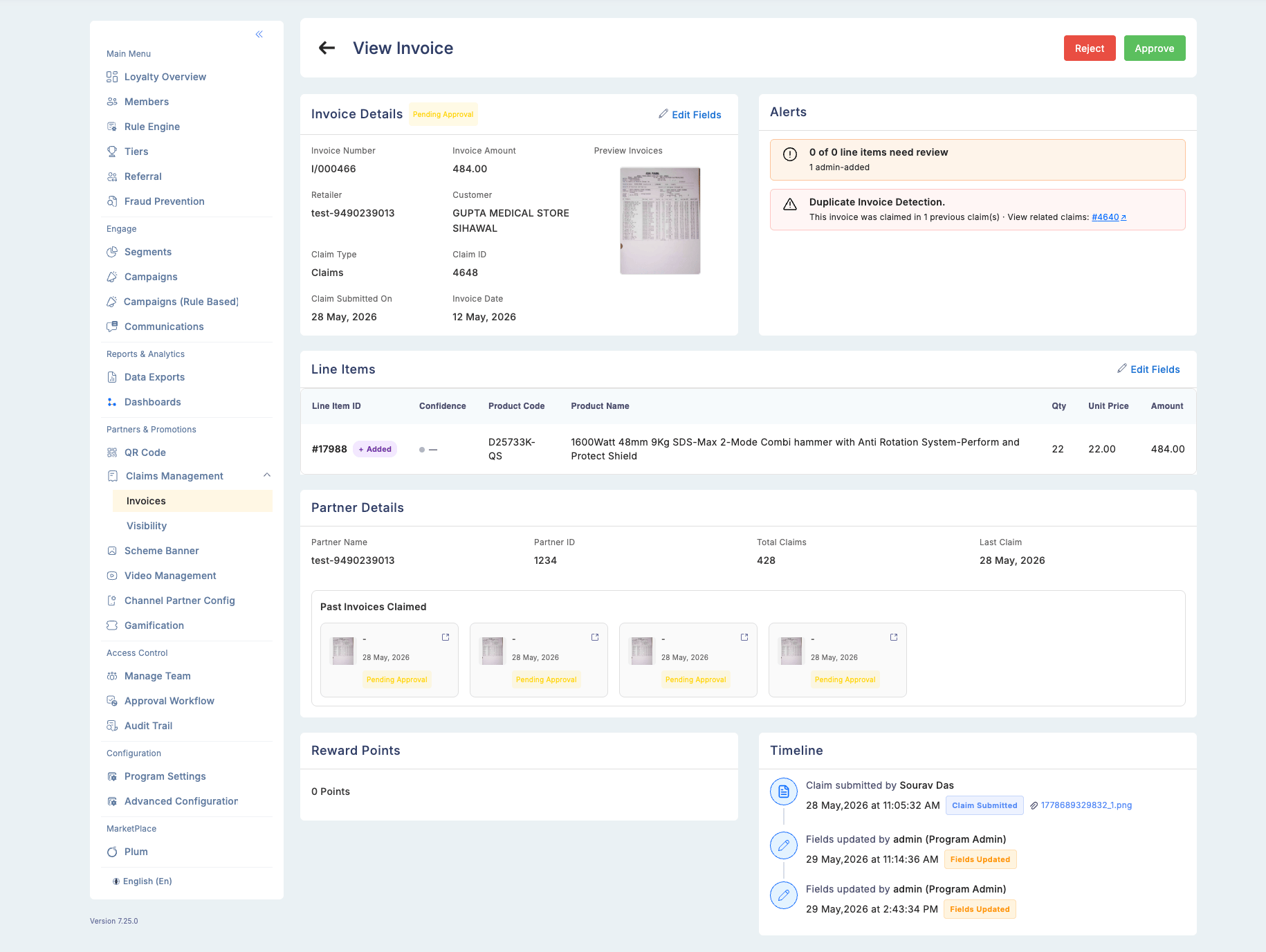
1
Open the claim
Claims awaiting final action appear in the Pending Actions tab for Approver 2. Open the claim to see the full detail view.
2
Review all information
The detail view shows invoice details, any system alerts (including duplicate warnings), line items with OCR signals, and the remarks and supporting document uploaded by Approver 1.
3
Take a final action
Select one of the three available actions:
- Approve — finalises the claim; points are credited (for Claims type) or no points are credited (for Warranty type)
- Reject — rejects the claim; no points are credited
- Skip — defers the claim without approving or rejecting it
Supporting documents
Approver 1 may attach a supporting document during verification. Documents must meet the following requirements:Timeline and audit trail
Every action taken on a claim is recorded in the timeline section of the claim detail view. Each timeline entry shows:- The user who performed the action
- Their role
- The date and time of the action
- Any remarks they entered
- Any supporting document they attached (with a download link)
Claim statuses
Access to invoice claims requires the View Claims permission. Approving requires Approve Assigned Invoices for Approver 1, and the corresponding approval permission for Approver 2.
Claim alerts and settings
Navigate to Partners & Promotions → Claims Management → Settings (gear icon in the top right) to configure program-wide claim validation rules.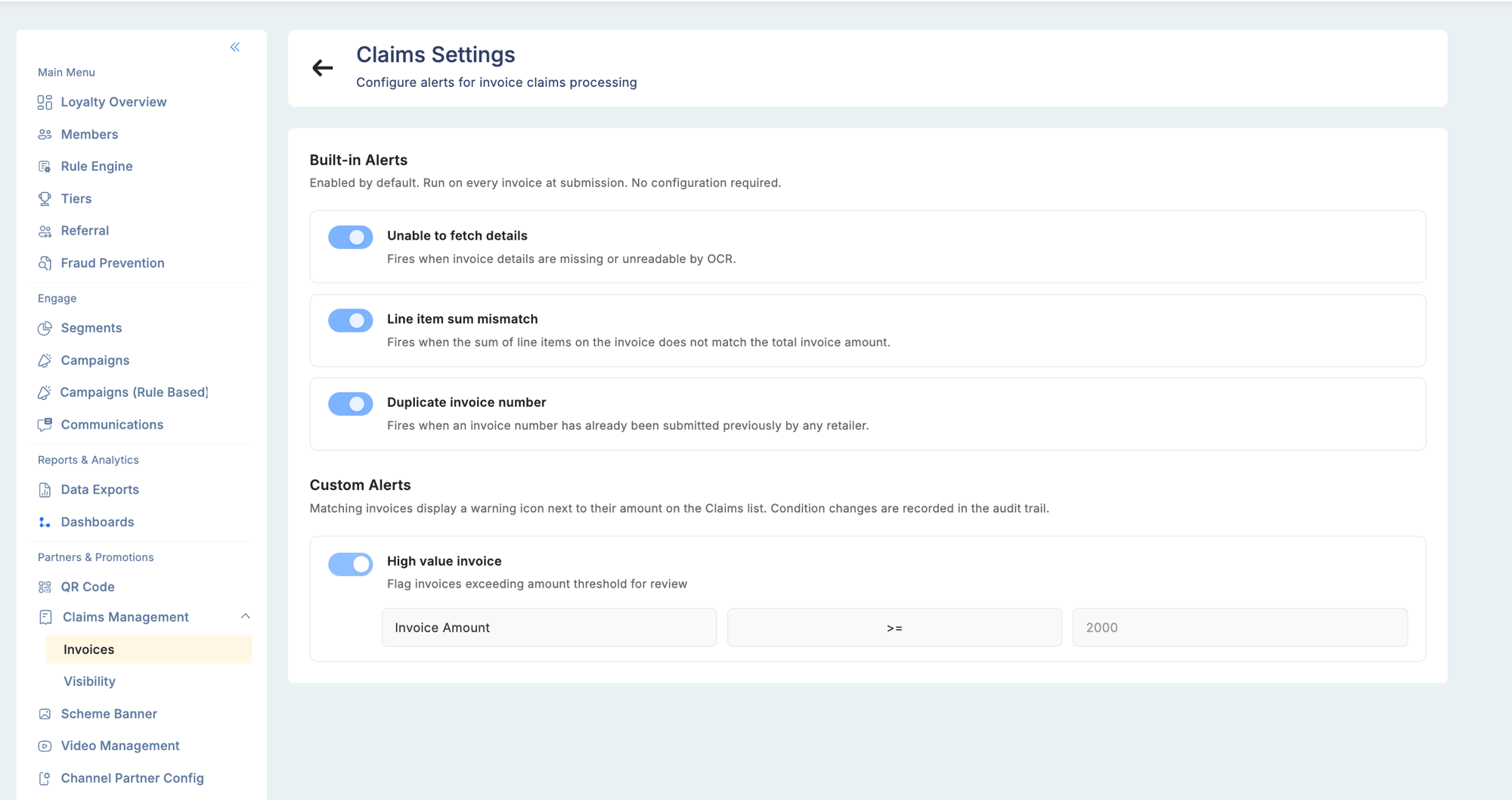
Custom alerts flag matching invoices with a warning icon in the claims list and are configurable per program (for example, flagging all invoices above a certain amount threshold for extra scrutiny).
Troubleshooting
OCR extracted incorrect product details.- Review the original invoice image in the claim detail.
- Edit the line items manually and enter the correct values before approving.
- Verify the product code exists in Rule Engine → Attributes Manager.
- If the product was recently added, allow time for the catalogue index to update.
- Manually enter the correct product code in the line item editor.
- Partners should photograph invoices flat, in good lighting, without glare or shadows.
- A minimum resolution of 1 MP significantly improves extraction reliability.