
Step 1: Enable the referral program
Navigate to Referral in the left sidebar and click Enable Referral Program. You will be prompted to confirm before the module is activated.Step 2: Auto-created member attributes
When you enable referrals, Loyalife automatically creates two member attributes. These appear on every member profile and are available in reports and rule conditions:
These attributes are system-managed. You cannot manually edit their values through the admin portal, though they can be set via API during bulk member imports.
Step 3: Configure code generation
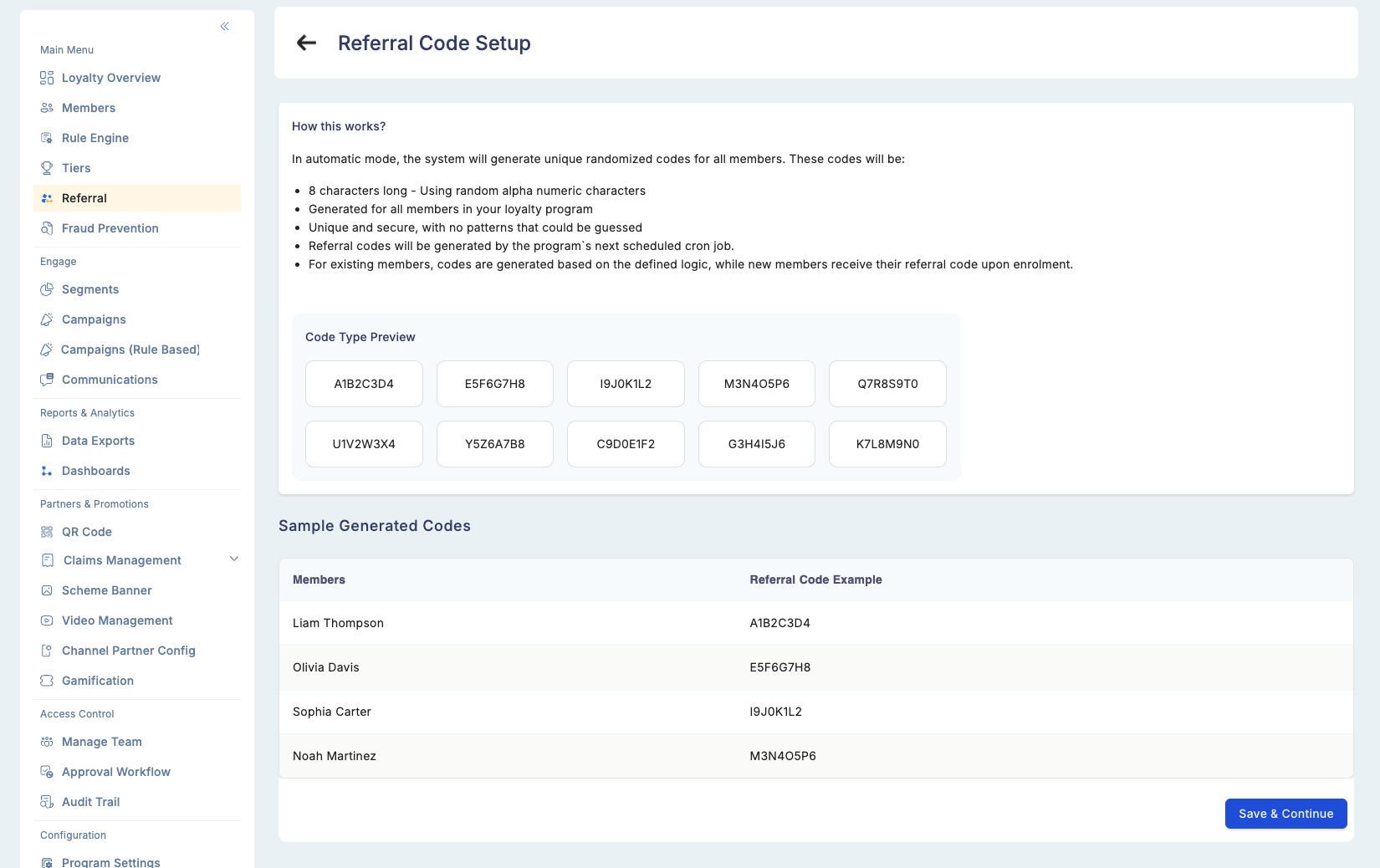
Choose how referral codes are generated for your member base.Auto-generate (recommended)
Loyalife generates an 8-character uppercase alphanumeric code for each member (e.g.,X3FJ92B7). Codes are:
- Unique across all members
- Immutable — cannot be changed after generation
- Automatically assigned to new members on enrollment (when Auto-generate for new enrollments is enabled)
External code management
If your platform manages referral codes independently, disable Loyalife’s code generation. Supply custom codes via API or file upload instead. TheReferral Code attribute is available as a field in the member import file.
Step 4: Configure the deep link (AppsFlyer OneLink)
If your mobile app uses AppsFlyer OneLink for deep linking, configure the OneLink template URL in the referral settings. This enables:- Device-aware redirects (iOS App Store vs. Google Play Store)
- Direct app open with referral context if the app is already installed
- Correct attribution of installs to the referring member
Step 5: Set the reward trigger
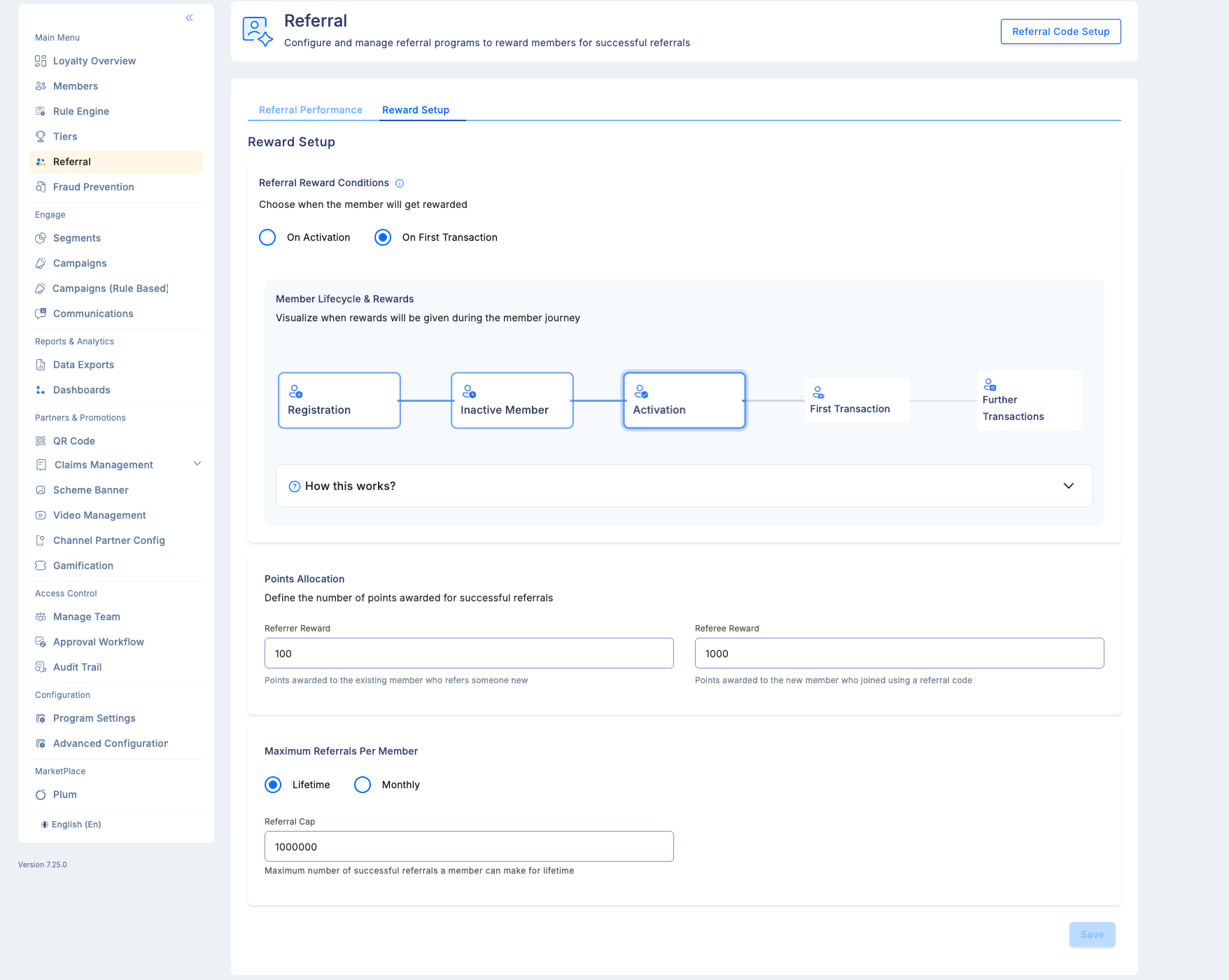
Define when rewards are distributed to both the referrer and the new member:“First transaction” is the more common trigger because it ensures the referred member is genuinely engaged before rewards are paid out, reducing the risk of fraudulent or low-quality acquisitions.
Step 6: Define point allocations
Set the reward amounts for each party:
Setting a referee reward (welcome bonus) increases the new member’s motivation to use the referral code and complete the trigger action.
Step 7: Set a referral cap
Limit how many successful referrals a single member can earn rewards for. This prevents a small group of power users from dominating your referral budget:
Once a member reaches their cap, any additional referrals they generate will not award them points (though the new member’s welcome bonus, if configured, is still issued).