
Step 1: Enable tiers
Navigate to Tiers in the left sidebar and click Enable Tiers. Confirm the prompt. The Tiers module is now active and will begin evaluating member qualification on the next scheduled assessment run.Step 2: Choose an assessment method
Select how Loyalife evaluates and updates member tier status:Automated assessment
Loyalife runs tier evaluation daily and automatically moves members between tiers based on their qualifying activity. Choose a qualifying time window:Manual assessment
Tiers are managed externally through: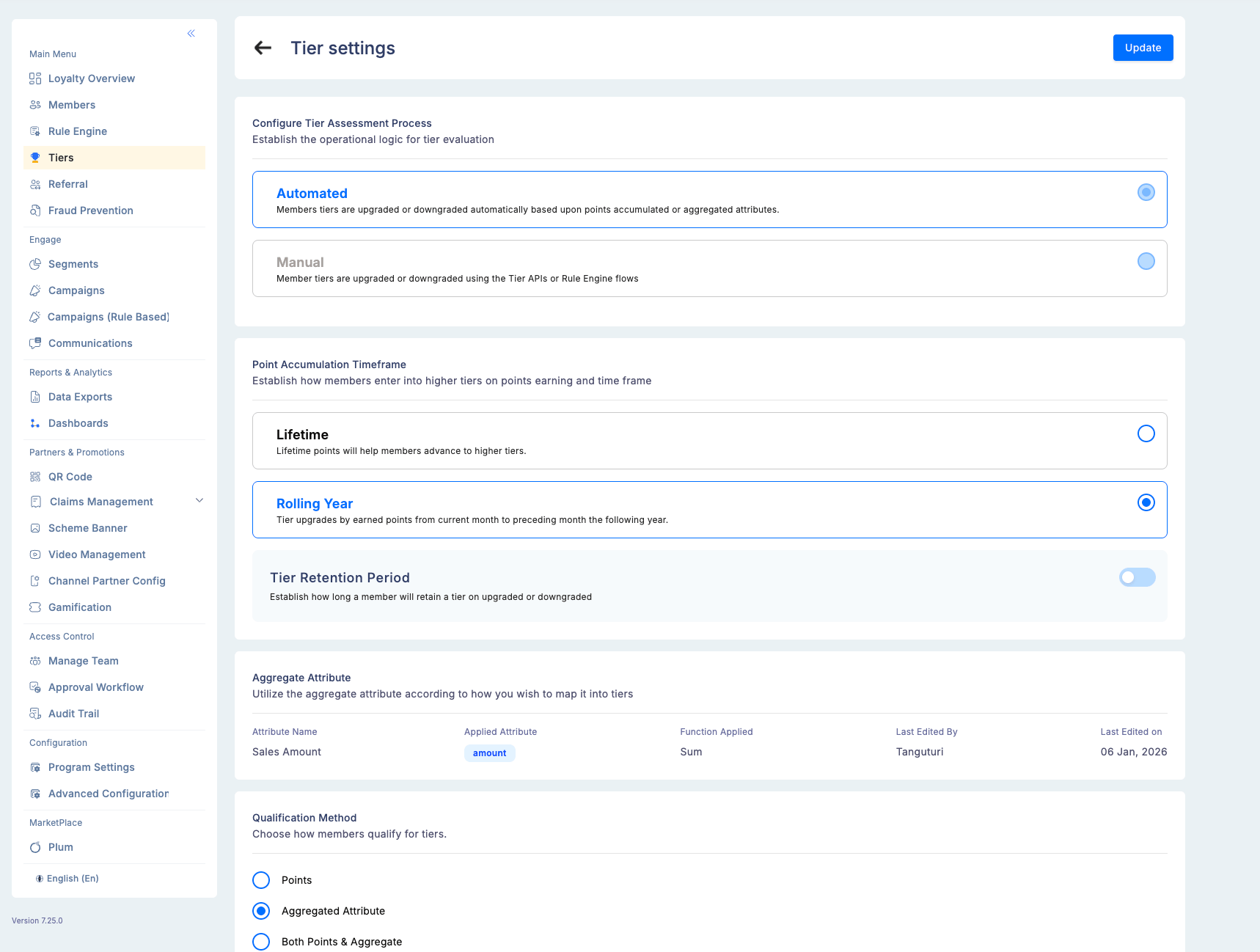
Step 3: Set the qualification method
Choose what data determines tier eligibility:Aggregated attributes are defined in the Rule Engine’s Attributes Manager. Any aggregate attribute you create automatically becomes available as a tier qualification criterion.
Changing the qualification method
If you need to switch the qualification method after the program has launched (for example, from Points only to Both), the system will:- Ask you to confirm the change.
- Request any additional data required for the new method.
- Discard the data stored for the previous method.
Step 4: Configure the base tier
The base tier is the entry level that all members start in. It cannot be deleted after creation.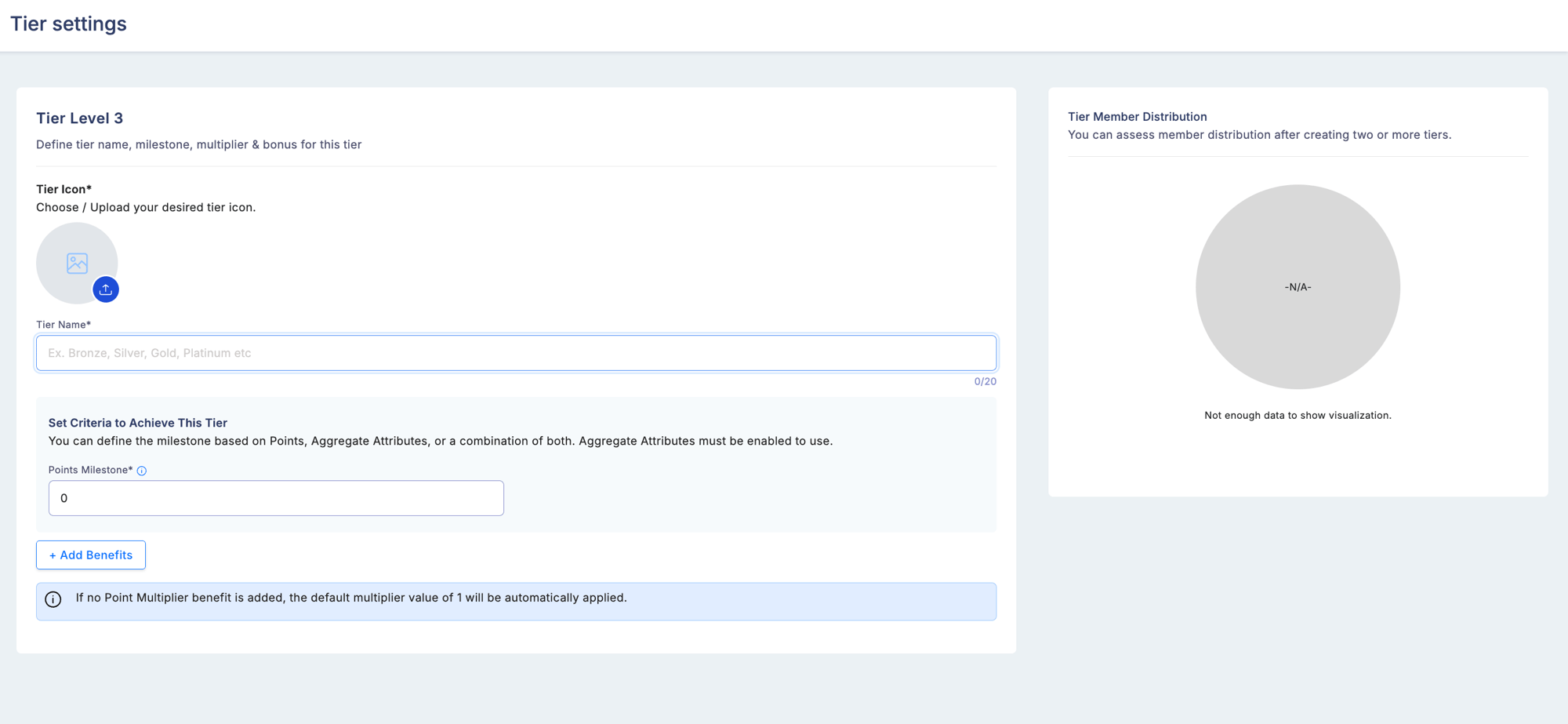
1
Upload a tier icon
Upload an image (square format recommended) that visually represents this tier in member-facing interfaces. This icon appears in the member app, on tier upgrade notifications, and in communications.
2
Name the tier
Enter a name that your members will recognize — e.g., Member, Bronze, Silver, Classic. This label appears across the member app, admin portal, and all communications.
3
Set milestone criteria
Define the minimum threshold for the base tier. Typically 0 for the base tier — all members qualify automatically.
4
Define tier benefits
Choose what members in the base tier receive:
The multiplier for the base tier defaults to 1.0× and the milestone defaults to 0. These values are typically left at default for the base tier. Upper tiers have fully editable milestone thresholds and multipliers.
Step 5: Configure tier retention (optional)
After the base tier is created, you can configure the Tier Retention Period — the number of days a member keeps their tier status after dropping below the qualifying threshold. Go to Tiers → Update Settings to enable and set the retention period. See Manage tiers for details.After setup
Once the base tier is configured, add additional tier levels from Tiers → Add a new tier. See Manage tiers for the full workflow.If you configure entry-bonus points on a tier, those points are posted as Credit By Bonus entries when a member achieves that tier. You can track tier bonus distributions in Transactional reports by filtering on Credit By Bonus and checking the Narration column.