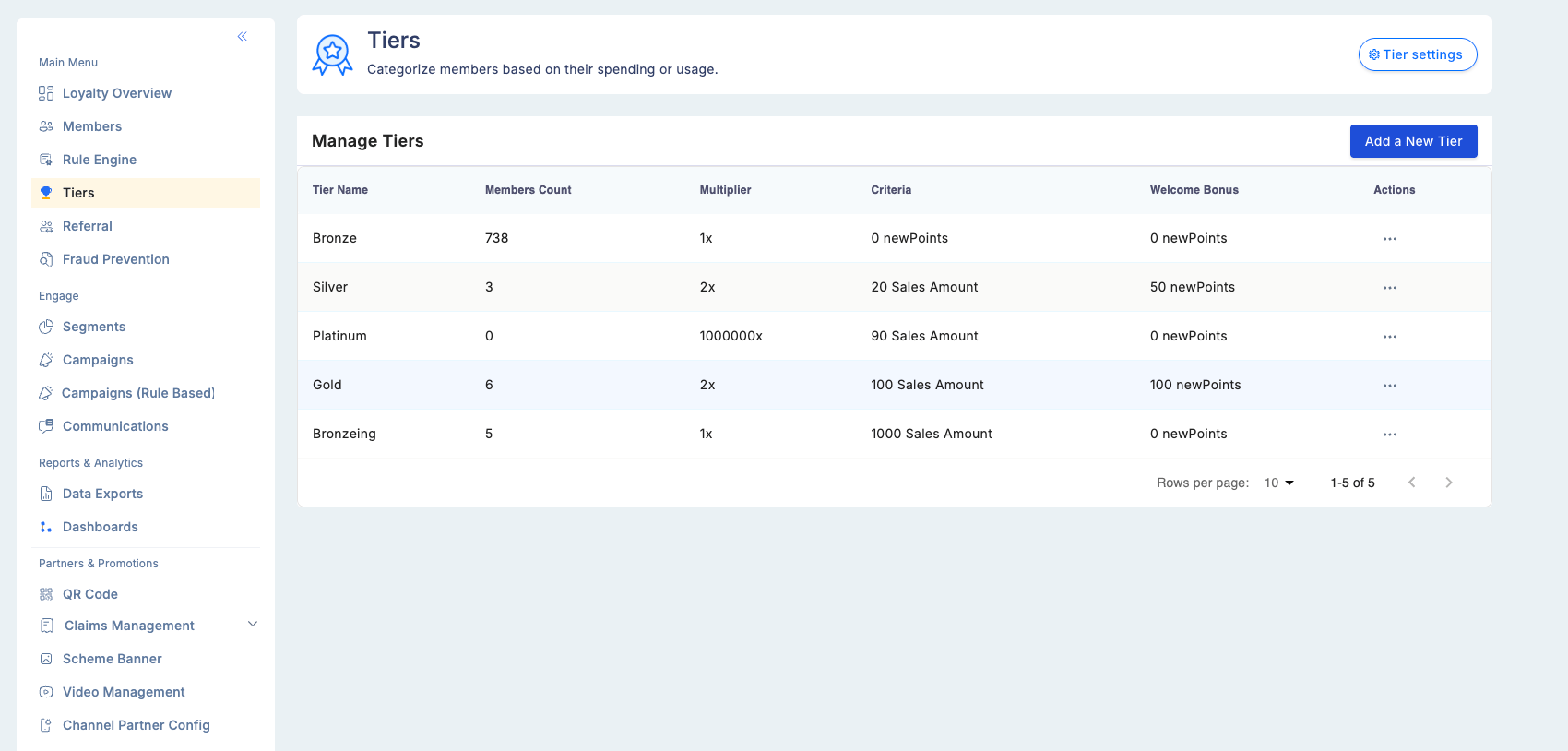
Once your base tier is configured, add additional levels above it to create a full tier hierarchy — for example, Silver → Gold → Platinum → Diamond. Each tier has its own milestone threshold, earning multiplier, and upgrade benefit.
Manage Tiers screen listing five configured tier levels — Bronze, Silver, Platinum, Gold, and a new tier — with columns for Tier Name, Members Count, Multiplier, Criteria (points threshold), Welcome Bonus, and Actions menu

Adding a new tier

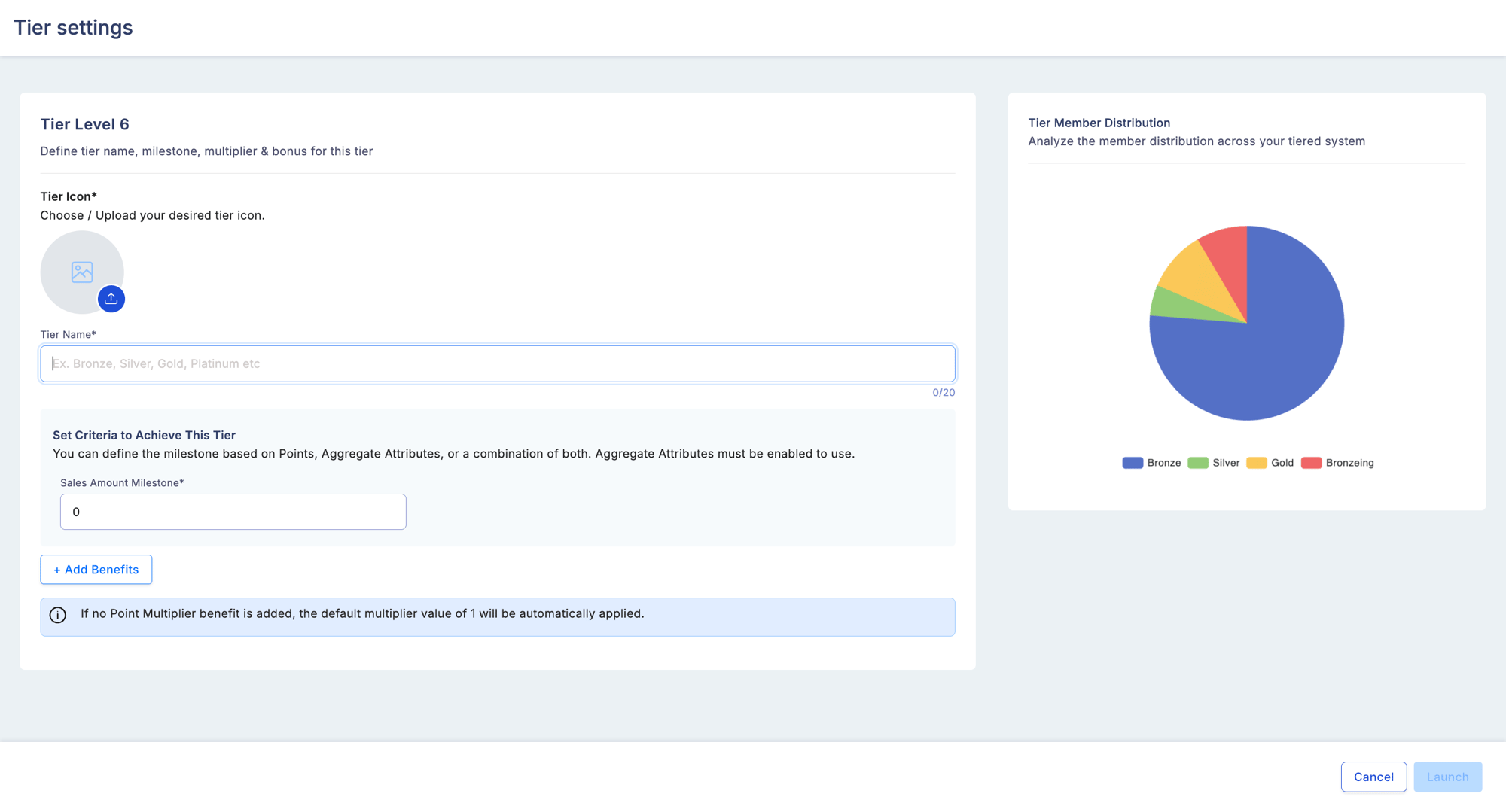
Navigate to Tiers → Add a new tier and fill in the required fields:
FieldRequiredDescription
Tier iconYesImage representing this tier in member-facing interfaces
Tier nameYesUnique label — e.g., Gold, Platinum, Diamond
MilestoneYesPoints threshold or attribute value required to reach this tier
BenefitsOptionalReward granted when a member first achieves this tier
Milestone attributeOptionalA custom aggregate attribute for advanced qualification calculations
Add New Tier form showing Tier Icon upload, Tier Name field, Set Criteria section with Points Milestone input and Milestone Attribute selector, Add Benefits button, and a Tier Member Distribution pie chart on the right showing current member spread across tiers
Benefits are awarded only when a member first achieves a tier milestone. Members already in the tier when you configure or edit the benefit do not receive it retroactively.

Tier hierarchy example

TierMilestone (lifetime points)MultiplierUpgrade benefit
Silver (base)01.0×
Gold5,0001.5×200 bonus points
Platinum15,0002.0×500 bonus points + exclusive voucher
Diamond50,0003.0×Premium access benefit

Configuring tier retention

The Tier Retention Period lets you give members a grace period before being downgraded when their qualifying activity drops below a tier’s threshold. Accessing tier retention settings: Go to Tiers → Update Settings.
SettingDescription
Enable/Disable toggleTurn retention on or off for all tiers
Retention period (days)How long a member keeps their tier after dropping below the threshold
Example: With a 365-day retention period, a member who earned Gold by June 2025 retains Gold status until June 2026 — even if they make no further transactions.
All changes to the Tier Retention Period — both toggling the setting and changing the number of days — are recorded in the Audit Trail with the before and after values.

Editing a tier

  1. Go to Tiers.
  2. Select the tier you want to edit.
  3. Click Menu → Edit.
  4. Update the name, milestone, benefits, or multiplier as needed.
  5. Save.
Changes to milestone thresholds apply on the next tier evaluation run (daily schedule). Members may take up to 24 hours to move into or out of the tier after a threshold change.

Deleting a tier

  1. Go to Tiers.
  2. Select the tier to delete.
  3. Click Menu → Delete.
  4. Confirm the deletion.
Deleting a tier automatically demotes all current members in that tier to the next lower tier. This process runs within 24 hours and cannot be reversed. Before deleting a tier, verify whether affected members need to be migrated to a specific alternative tier first.

Tier evaluation schedule

Tier status updates run on a daily automated schedule. Changes to tier configuration — milestones, multipliers, or retention settings — take effect on the next scheduled evaluation run. For most programs, this means up to a 24-hour delay between a configuration change and visible member tier changes. If immediate tier assignment is required (for example, when a campaign involves instant tier upgrades), use the Tier API to set tier status programmatically.

Troubleshooting

A member who crossed the Gold milestone is still showing as Silver.
  • Tier evaluation runs daily. If the qualifying transaction was recent, wait until the next evaluation cycle.
  • Check whether the member’s qualifying metric (points or attribute) actually meets the threshold after any reversals are subtracted.
A tier benefit was not credited when a member upgraded.
  • Confirm the benefit was configured before the member crossed the threshold.
  • Benefits defined after a member has already achieved a tier are not backdated.
Members are not being downgraded when they drop below a threshold.
  • Check whether the Tier Retention Period is enabled — a grace period may be preventing the downgrade.
  • If retention is enabled, confirm how many days remain in the member’s retention window.