
Accessing configuration
Select Configuration from the left sidebar.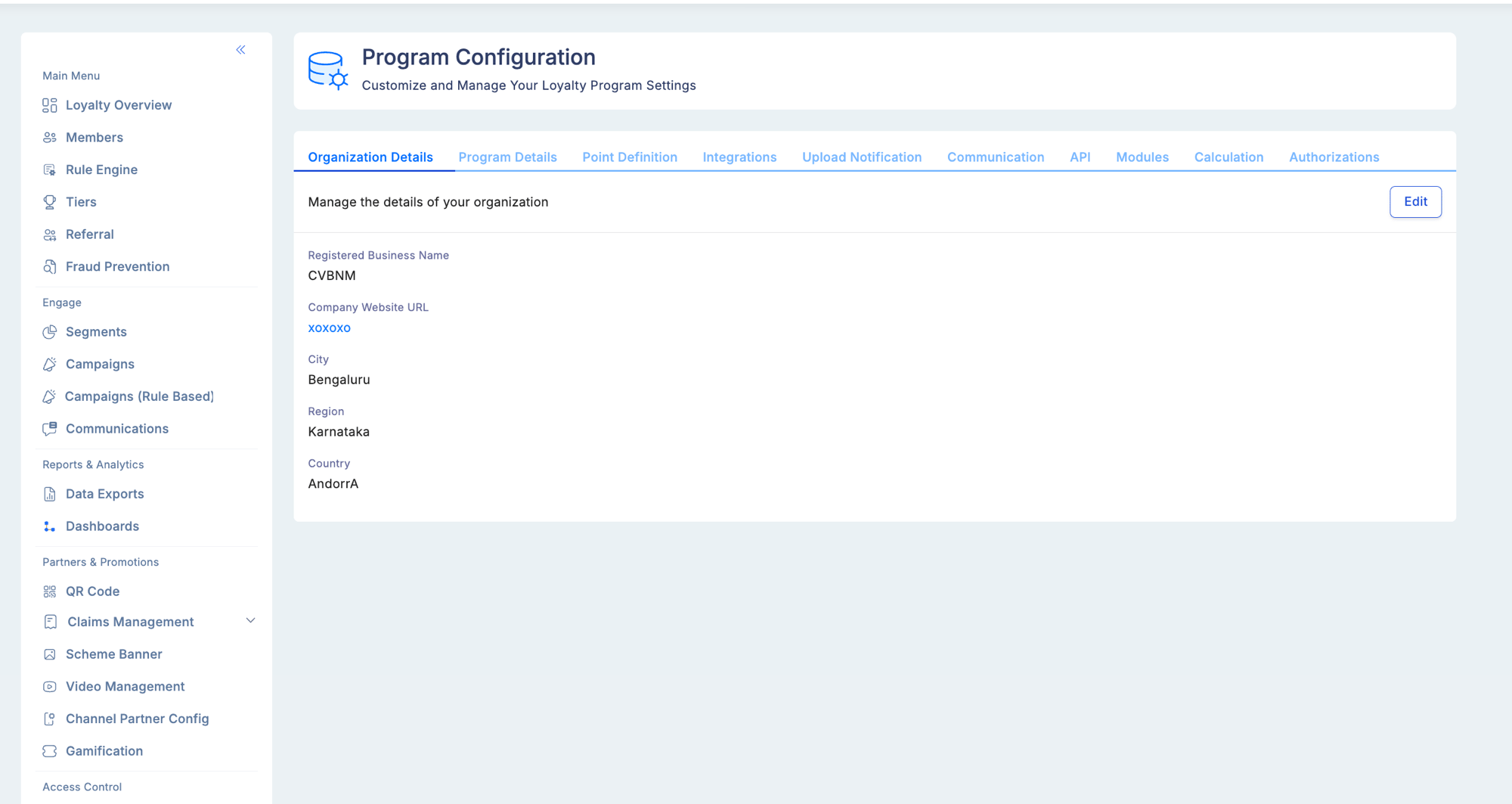
Configuration sections
Organisation configuration
Edit your company’s details to keep business information current within the platform: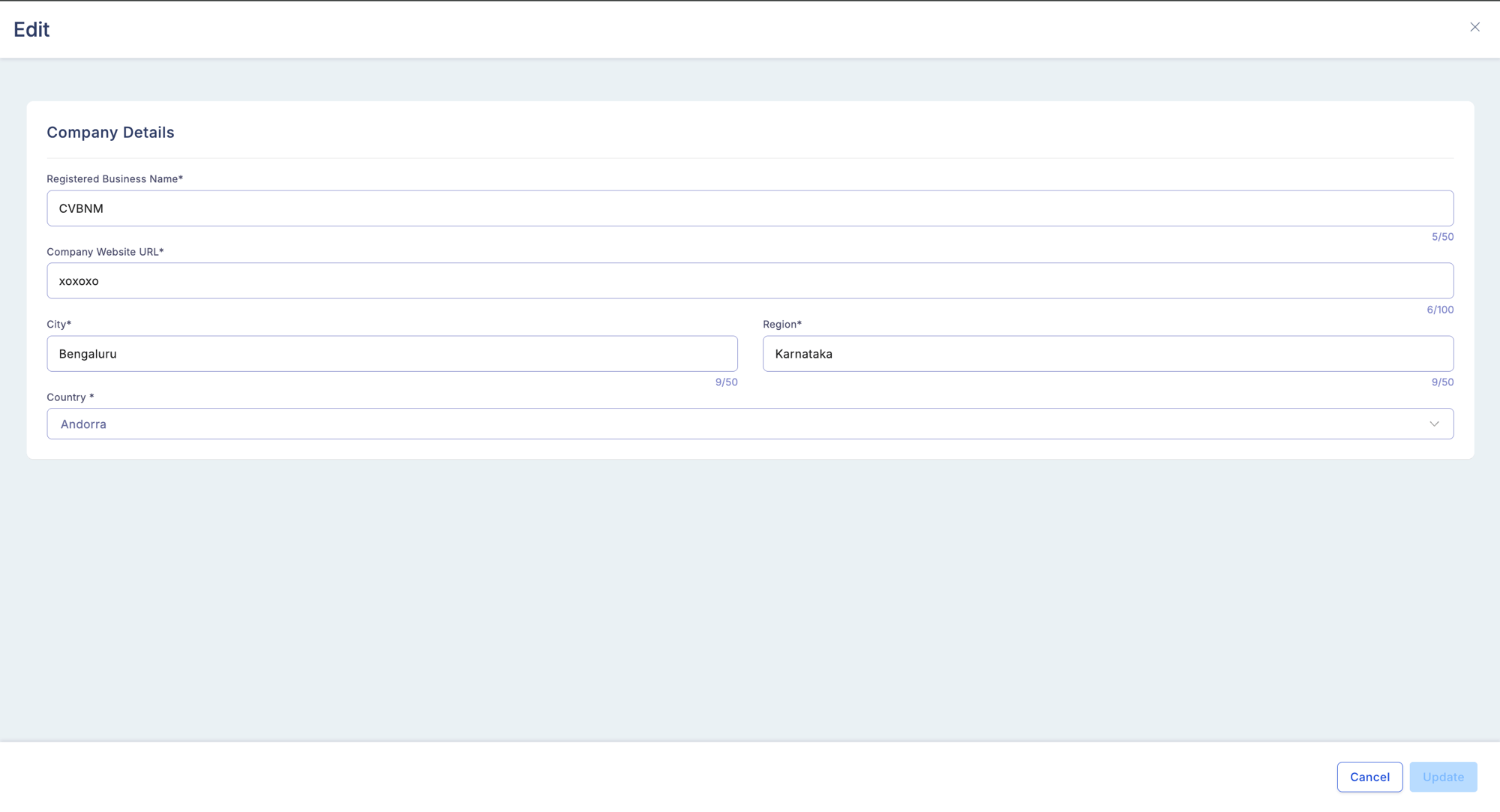
- Company name
- Business address
- Contact information
- Organizational hierarchy settings
Program details
Manage and customize program-specific settings: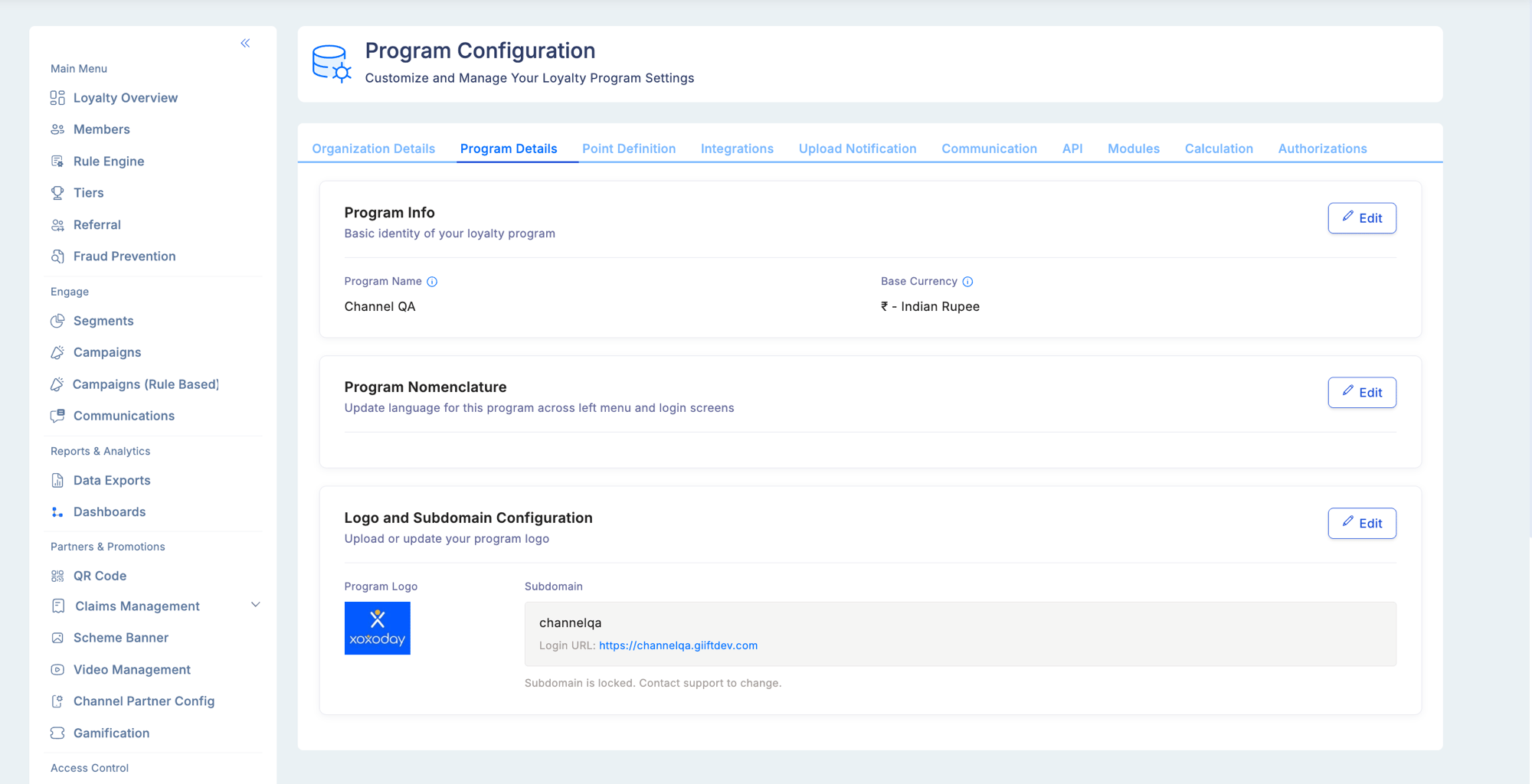
On-premise deployments: The Program Details page shows a Logo Configuration card instead of the Subdomain Configuration card. On-premise clients configure their program logo here, but subdomain assignment is not available — the login URL is managed at the infrastructure level by your IT team.
Program Nomenclature
Loyalife supports full UI text customisation through Program Nomenclature. Every string displayed in the member-facing app — labels, button text, messages, and error text — can be replaced with your program’s branded language. Accessing nomenclature: Go to Program Settings → Program Details → Program Nomenclature. Use the module filter to view strings by page:Only string keys belonging to the selected module appear when a filter is applied. Keys from other pages (e.g., Reset Password, Compass navigation) are excluded from each filter to keep the list manageable.
Point definitions
Configure how points are structured and valued: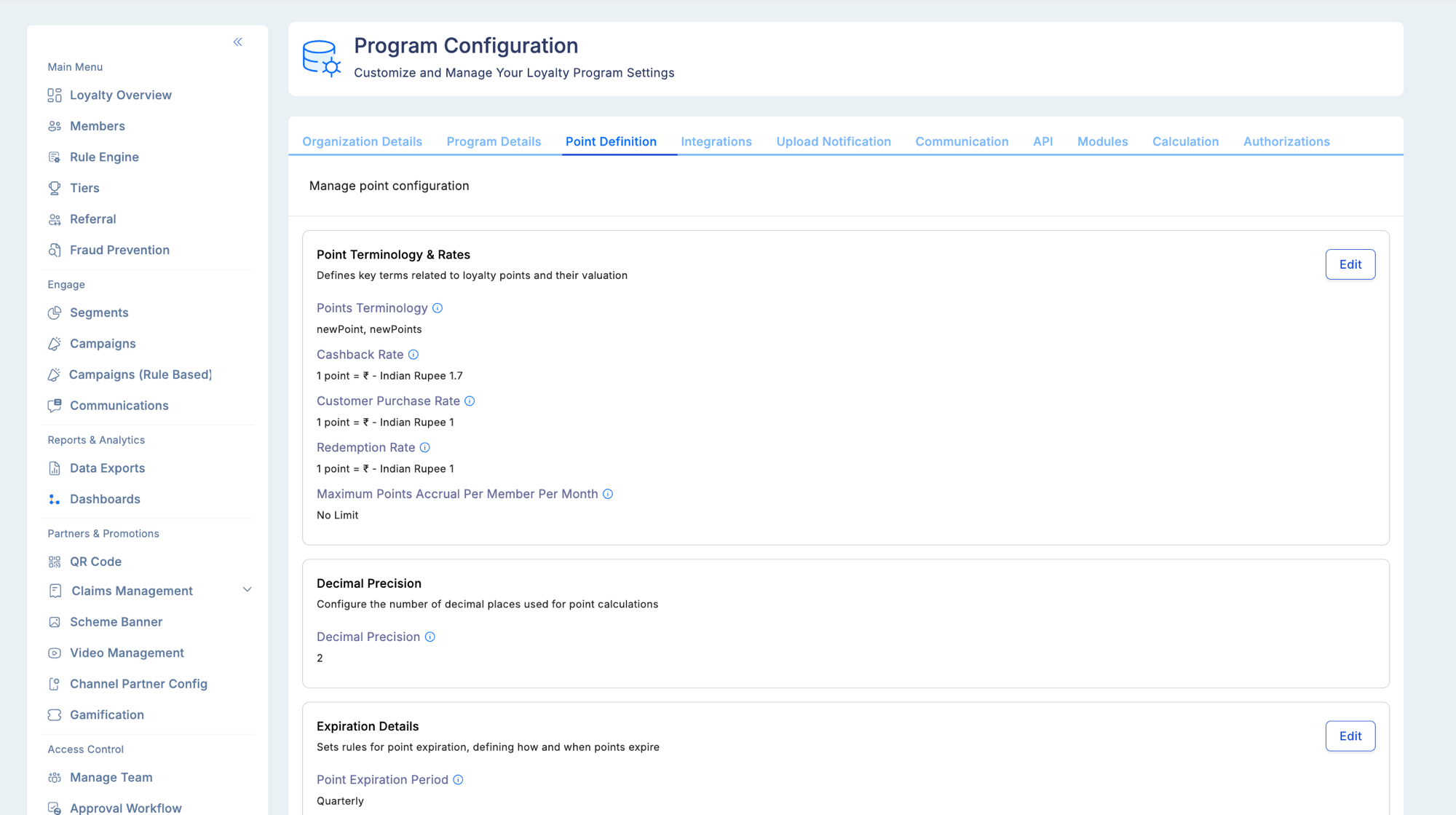
Expiry condition
When configuring expiry, you specify whether points expire relative to:
Choose Processing Date for programs where points become available immediately. Choose Point Availability Date for programs where points are held before posting.
Decimal precision (important note)
The decimal precision setting determines how many decimal places are stored and displayed in all point calculations across your program. Once configured, this value cannot be changed. This is intentional: changing decimal precision after transactions have been recorded would create inconsistencies in balances, reports, and member statements. Set this value correctly at program setup.Marketplace settings
Configure the reward redemption options available to members:- Minimum redemption threshold (minimum points required to access the catalogue)
- Available reward categories
- Plum integration settings (redemption rate token configuration)
- Redemption rate (points-to-currency conversion for redemption)
Upload notifications
Configure alerts for file upload events:- Who receives notifications for TXN file processing outcomes
- Alert thresholds (notify when rejected row count exceeds X%)
- Notification channels (email)
- Which upload types trigger notifications
Communication
Set up messaging infrastructure: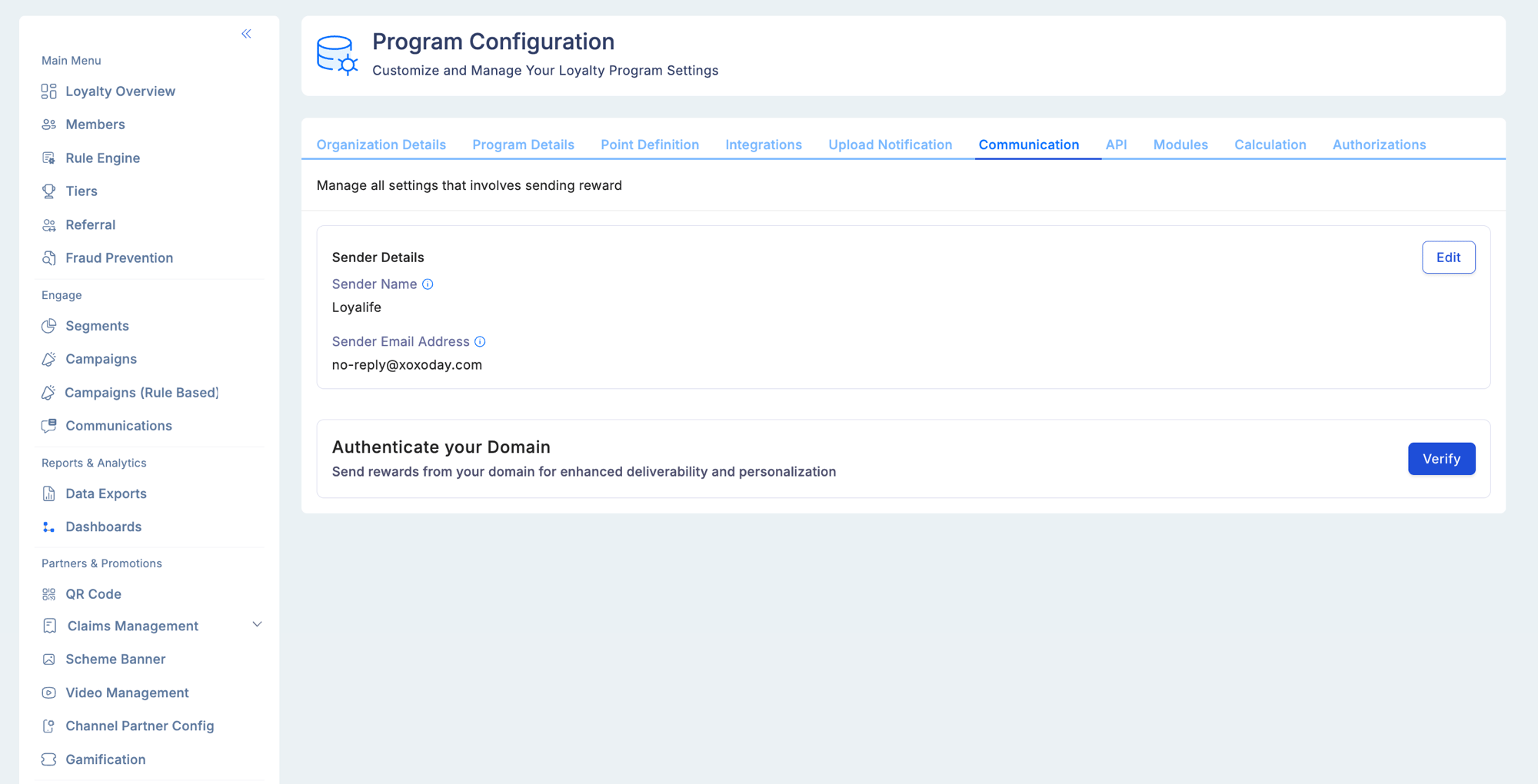
- Sender email address and display name
- SMS sender ID
- Default reply-to address
API integrations
Manage third-party connections: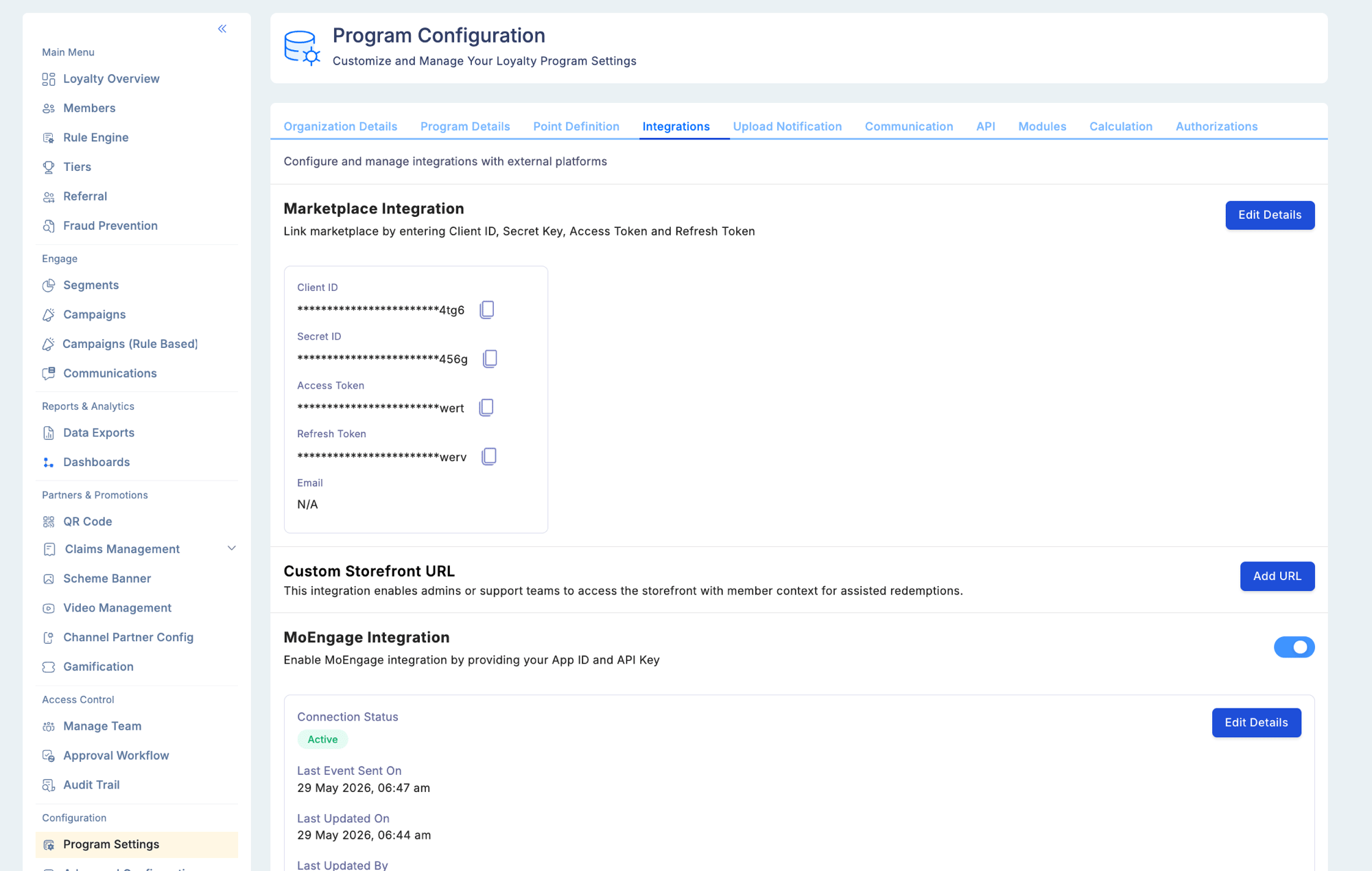
- API keys for your systems integrating with Loyalife
- Webhook endpoint configuration
- Integration health status
- Token management for partner integrations (e.g., Plum SSO token, Redemption Rate token)
Modules
Control which Loyalife features are active for your program: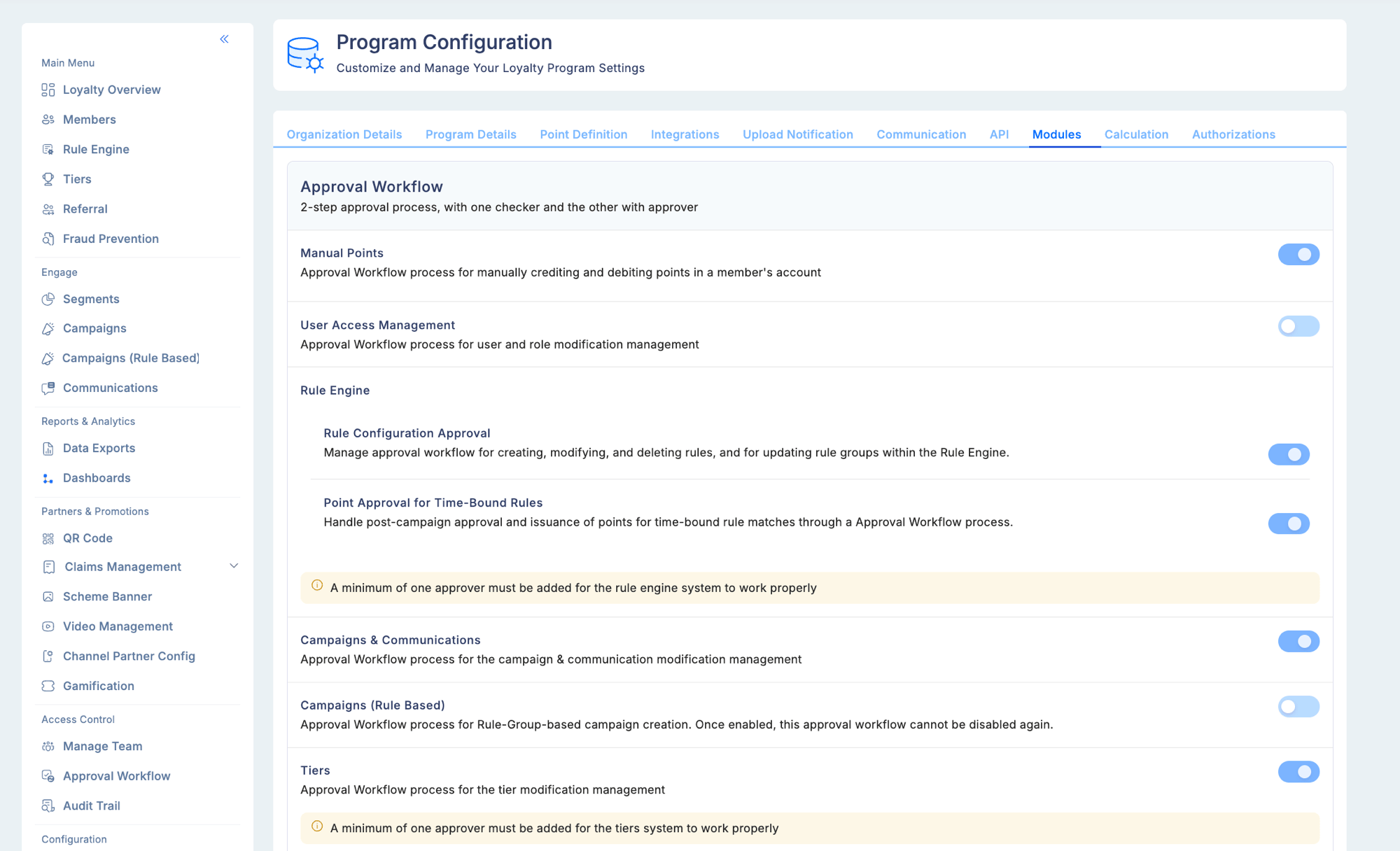
Disabling a module hides it from the admin portal and stops its functionality without deleting historical data.
Calculation settings
Define computational rules for point processing:SAML 2.0 SSO
Enterprise programs can enable SAML 2.0 Single Sign-On as an alternative to password-based login under Program Settings → Program Details:- Supported identity providers: Okta and Microsoft Azure AD
- When enabled, users are redirected to the IdP for authentication; Loyalife issues a session token on successful SAML verification
- Disabling the SAML SSO toggle immediately reverts all logins to standard username/password
- LDAP authentication continues to work when SAML is concurrently enabled
- MFA is compatible with both authentication flows
- Programs with SSO enabled cannot change their subdomain configuration after it is set
API Credential Management
Multiple API credentials can be generated per program under Program Settings → API:- Generate multiple Client ID / Client Secret pairs, each with independent expiry
- Module-level API keys support Read or Write access scopes
- Default credential expiry: 90 days; configurable up to a maximum of 2 years
- The credential listing page shows Expiring Soon and Expired status badges
- Automated email notifications are sent at: credential generation, revocation, 7 days before expiry, 1 day before expiry, and on the expiry day
- Rotating a credential generates a new pair — the old credential is immediately revoked