The MoEngage integration connects Loyalife to your MoEngage workspace. Loyalife pushes loyalty events and member profile data to MoEngage every night via a scheduled sync. Your marketing team can then use that data in MoEngage to send Push notifications, Emails, and SMS messages — for example, a “You just earned points — redeem now” push the morning after a purchase, or a tier upgrade email when a member reaches Gold.
How it works
Every night at 12 AM, Loyalife runs a sync that sends two types of data to MoEngage:
| Data type | What’s sent | When |
|---|
| Loyalty events | Event name, member identifier, points, earning type, transaction details | Nightly, for all events that occurred during the day |
| Member profile attributes | Points balance, tier, enrollment date, activity metrics, expiry forecasts | Nightly, full refresh per member |
Each record is matched to a MoEngage user profile using the member’s Relation Reference — this becomes the Customer ID in MoEngage. Loyalife does not create new MoEngage profiles; members must already exist in MoEngage with the same identifier.
Once the data lands in MoEngage, your team can build campaigns that trigger on any loyalty event or segment members by attribute — and send via Push notification, Email, or SMS.
Enabling the integration
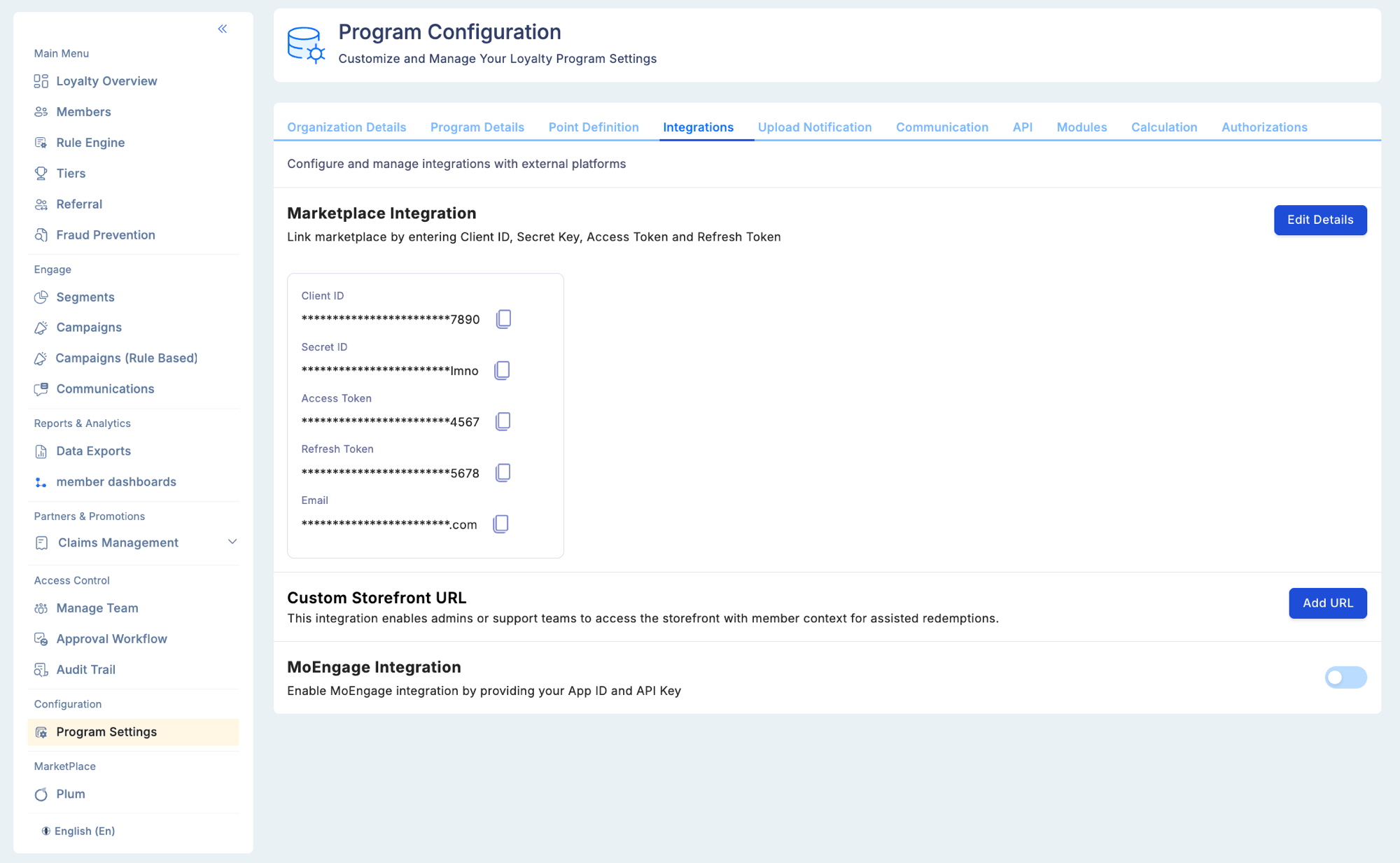
Go to Program Settings → Integration
In the Loyalife admin portal, navigate to Program Settings → Integration tab. Scroll down to the MoEngage Integration section and toggle it on. Get your MoEngage credentials
From your MoEngage dashboard, retrieve your App ID and Data API key under Settings → APIs. These are workspace-specific — use the credentials for the MoEngage account that holds your member profiles.
Enter credentials and data centre
The Enable MoEngage Integration modal opens. Fill in:
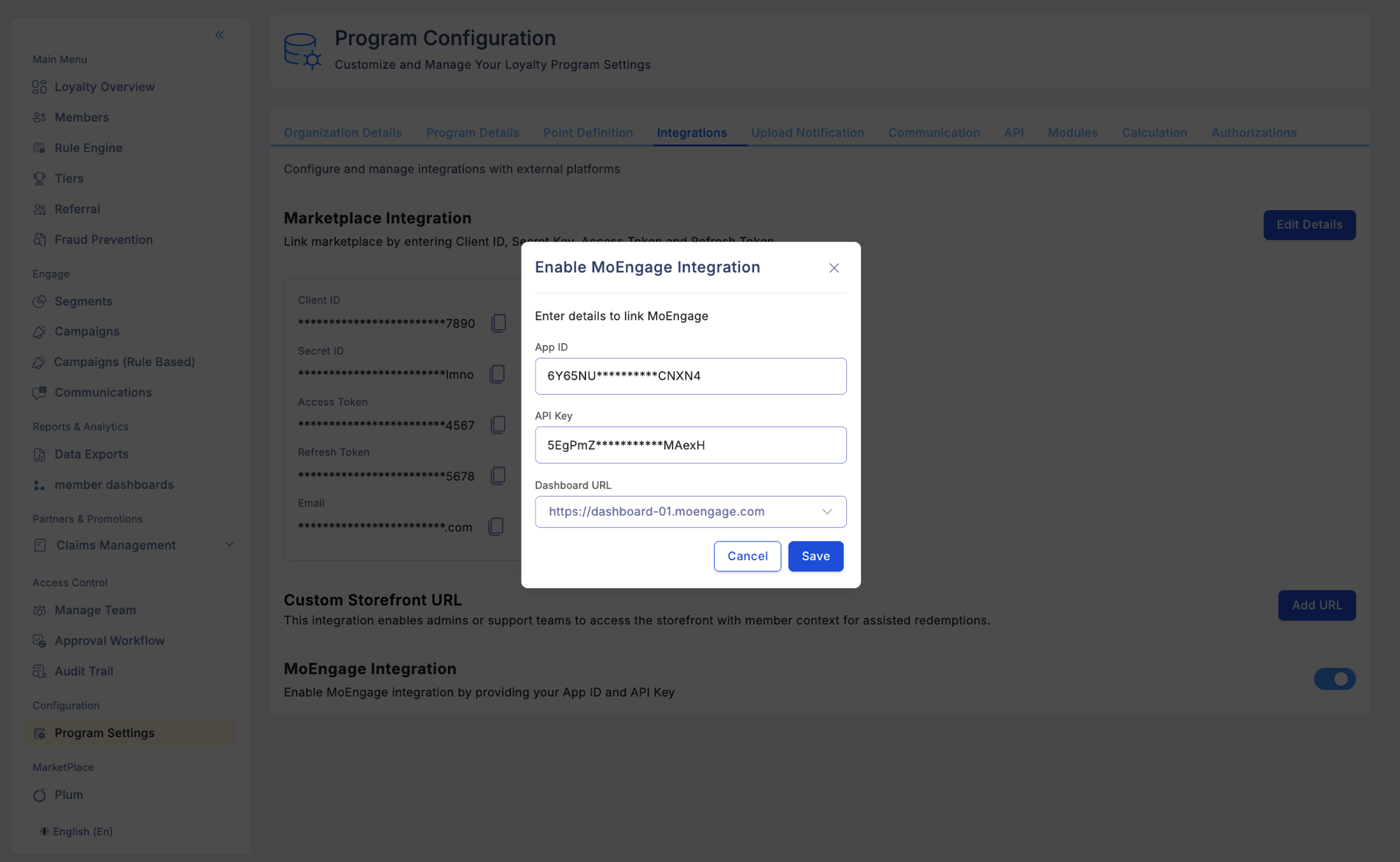
- App ID — your MoEngage workspace identifier
- API Key — the secret key for authenticating API calls to MoEngage
- Dashboard URL — the MoEngage region dashboard URL that matches your account (e.g.
https://dashboard-01.moengage.com)
Save
Click Save. The integration becomes active and data will flow on the next nightly sync.
Treat MoEngage credentials as secrets. Do not share them or include them in exported configuration files. Rotate the Data API key in both MoEngage and Loyalife if it is ever exposed.
Events sent to MoEngage
The following loyalty events are included in the nightly sync:
| Event | Trigger |
|---|
loyalty_points_earned | Points are credited to a member account |
loyalty_points_redeemed | Member redeems points in the marketplace |
loyalty_points_expired | Points expire based on the expiry schedule |
loyalty_points_expiring_soon | Expiry warning — 30, 60, or 90 days out |
loyalty_tier_upgraded | Member’s tier increases |
loyalty_tier_downgraded | Member’s tier decreases |
loyalty_segment_entered | Member qualifies for a segment |
loyalty_segment_exited | Member no longer qualifies for a segment |
loyalty_redemption_reversed | A redemption is cancelled and points are returned |
loyalty_member_activated | Member status changes to Active |
loyalty_member_suspended | Member is suspended |
Points earned — earning types
The loyalty_points_earned event includes an earning_type field that identifies the source of the credit:
earning_type | Source |
|---|
accrual | Points earned through a qualifying transaction evaluated by the Rule Engine |
campaign_bonus | Bonus points awarded by a campaign |
manual_bonus | Points manually credited by an admin outside of rule evaluation |
tier_bonus | Bonus awarded on a tier upgrade milestone |
This lets MoEngage campaigns react differently depending on how points were earned — for example, sending a different message for a Rule Engine accrual versus a manual bonus.
Member attributes synced
The nightly sync updates the following attributes on each MoEngage user profile:
Point balances
| Attribute | Description |
|---|
points_available | Current redeemable points balance |
points_accrued_lifetime | Cumulative points earned since enrollment |
points_redeemed_lifetime | Cumulative points redeemed |
points_expired_lifetime | Cumulative points expired |
Tier and status
| Attribute | Description |
|---|
tier | Current tier name |
status | Member status (active, inactive, suspended, blocked, cancelled) |
enrollment_date | Date the member joined the program |
Activity metrics
| Attribute | Description |
|---|
last_transaction_date | Date of the most recent point-earning transaction |
total_transactions | Total transaction count |
days_since_last_activity | Days elapsed since last transaction |
Expiry forecasts
| Attribute | Description |
|---|
points_expiring_30d | Points expiring within 30 days |
points_expiring_60d | Points expiring within 60 days |
points_expiring_90d | Points expiring within 90 days |
What you can do in MoEngage
Once loyalty data is flowing, MoEngage campaigns can use it to trigger outbound messages across three channels:
| Channel | Example use case |
|---|
| Push notification | ”You earned 150 points yesterday — you’re 50 away from Gold” |
| Email | Tier upgrade congratulations with a summary of new benefits |
| SMS | Points expiry reminder: “Your 200 points expire in 7 days — redeem now” |
Segment members in MoEngage using synced attributes (tier, points balance, days since last activity, expiry forecasts) to target the right audience before sending.
Troubleshooting
Events or attributes are not appearing in MoEngage.
- Verify the App ID, Data API key, and data centre region are correctly saved in the integration settings. A mismatched region causes API calls to fail silently.
- The sync runs at 12 AM — if you are checking shortly after a transaction or tier change, wait until the following morning.
- Confirm the member’s Relation Reference in Loyalife matches the Customer ID in MoEngage. Events are dropped if the user is not found.
A member exists in Loyalife but not in MoEngage.
- Loyalife does not create MoEngage profiles. The member must exist in MoEngage with a Customer ID matching their Loyalife Relation Reference before events will be associated with them.
Credentials have been rotated in MoEngage but events stopped flowing.
- Update the Data API key in Program Settings → Integration → MoEngage to match the new key. The sync will resume on the next nightly run.