Attributes are the data fields that describe a member. Loyalife organises them into three types, each serving a different purpose. Understanding the distinction matters because the attributes you configure here flow directly into the Rule Engine, segments, and communications — they’re not just profile fields, they’re the inputs to your entire loyalty logic.
Why attributes matter
| What you want to do | Attribute you need |
|---|
| Run a birthday cashback rule | Global attribute: Date of Birth |
| Target high-spending members in a campaign | Aggregate attribute: Monthly Spend Sum |
| Segment members by their occupation | Custom attribute: Occupation |
| Award bonus points only to members of a specific gender | Global attribute: Gender |
| Restrict a promotion to members with a particular card type | Custom attribute: Card Type |
| Reward the 10th purchase every month | Aggregate attribute: Monthly Transaction Count |
Every condition in the Rule Engine’s IF clause references one of these three attribute types. Every filter in Segments does too.
Global attributes
Global attributes are the standard member profile fields built into Loyalife. They are fixed — the same nine fields are present for every member in every program and cannot be removed.
| Attribute | Data type | PI protected | Notes |
|---|
| Relation Reference | String | — | Your program’s unique member identifier (CIF, account number, etc.) |
| Full Name | String | — | Member’s full name |
| Email | String | Yes | Masked in the UI unless the admin has PI Data Access permission |
| Phone | String | Yes | Masked in the UI unless the admin has PI Data Access permission |
| Address | String | Yes | Masked in the UI unless the admin has PI Data Access permission |
| Gender | String | Yes | Masked in the UI unless the admin has PI Data Access permission |
| Date of Birth | Date | Yes | Format: YYYY-MM-DD. Masked in the UI unless the admin has PI Data Access permission |
| Status | String | — | Current account status — Active, Suspended, Login Blocked, Canceled, InActive, Membership Blocked |
| Preferred Language | Selection | — | Controls the language used in communication templates sent to this member |
Five fields — Email, Phone, Address, Gender, and Date of Birth — are automatically treated as personally identifiable information (PI). They are masked in the admin portal by default and require a separate PI Data Access permission to view. Every access is logged in the Audit Trail.
What you can do with global attributes:
- Birthday rules — award cashback or bonus points when the transaction date matches the member’s Date of Birth (day + month comparison)
- Gender-based promotions — restrict earning rules to male or female segments for targeted campaigns
- Language-based communications — Loyalife automatically selects the correctly localised message template for each member based on their Preferred Language
- Status-based segmentation — create a segment of Inactive members for re-engagement, or Suspended members for review
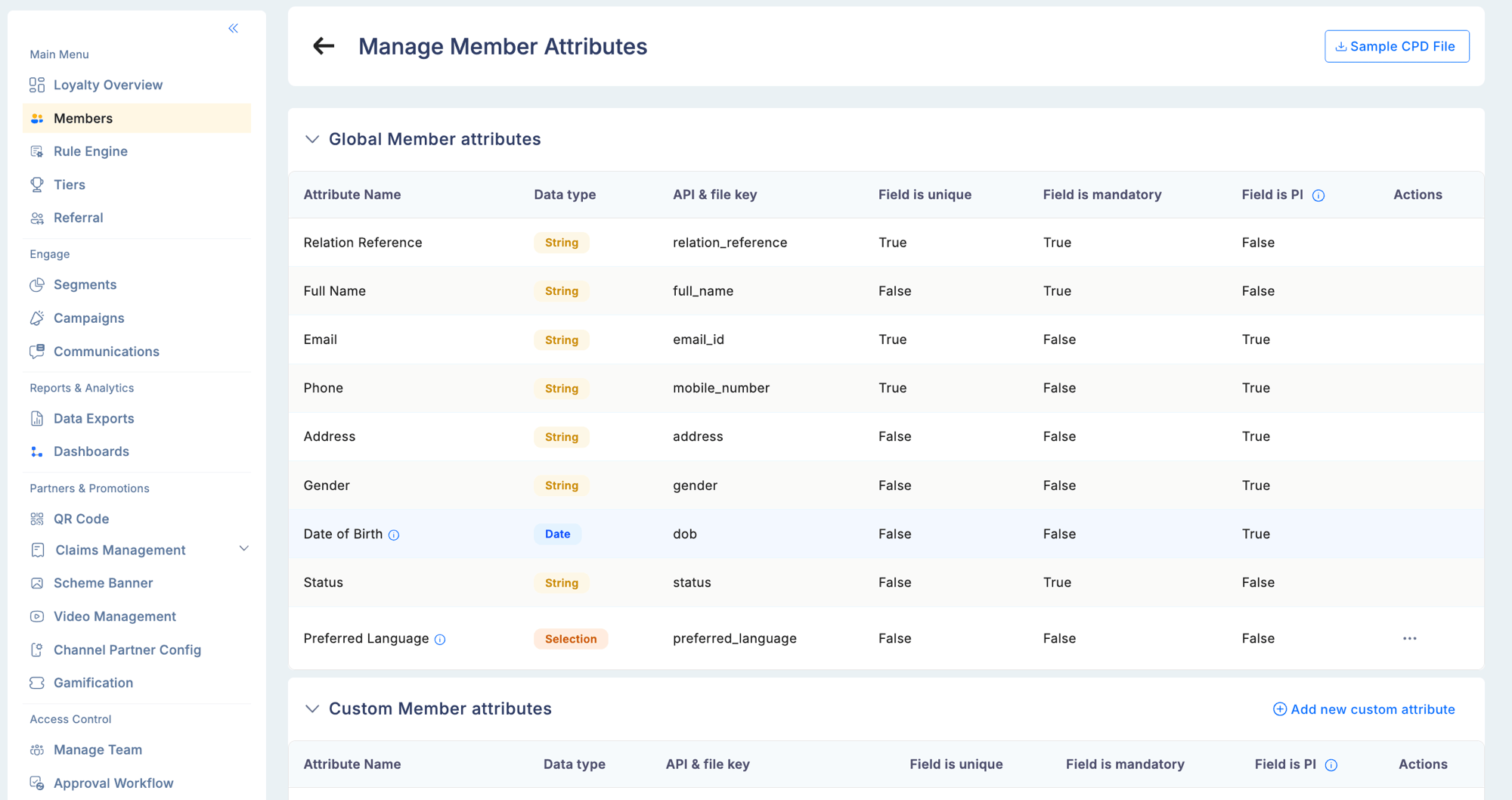
Global attributes are populated at enrollment (via API, file upload, or partner app) and can be updated via the API or from the member’s profile in the admin portal.
Custom attributes
Custom attributes are program-specific member fields you define for your business needs. No two programs need exactly the same member data — custom attributes let you extend the member profile with whatever is relevant to your program.
Examples by industry:
| Industry | Custom attribute examples |
|---|
| Financial services | KYC status, product type (savings/current/loan), segment band |
| Retail | Preferred store, product category preference, loyalty card number |
| Healthcare | Plan type, enrollment channel, specialist referral flag |
| Channel partners | Dealer tier, territory, certification level |
Creating custom attributes:
Go to Members → Attributes → Add Attribute. For each attribute you define:
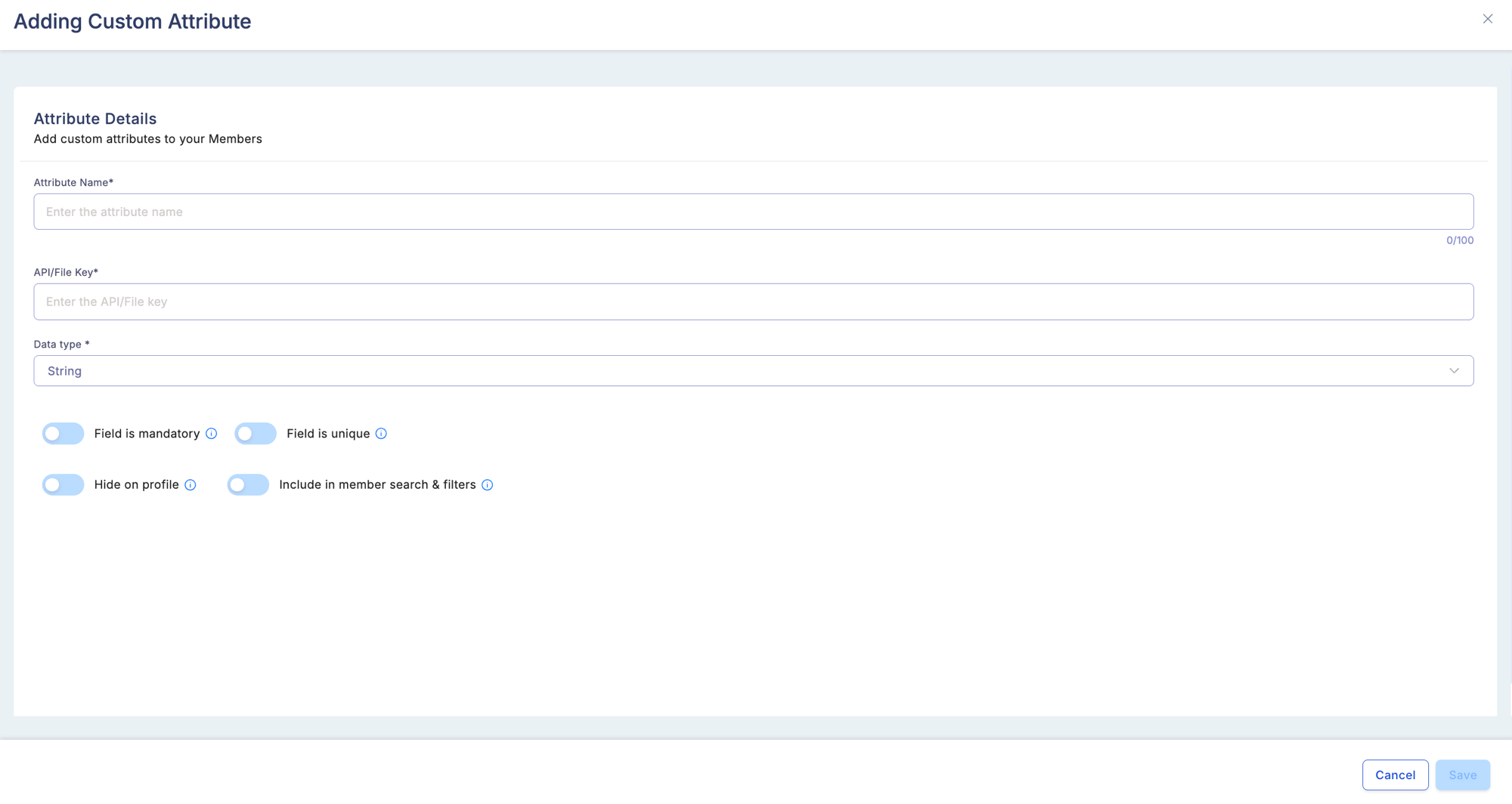
| Field | Description |
|---|
| Attribute Name | The label shown in the Rule Engine, segment filters, and member profile |
| Data type | String, Numbers (integer), Decimals (float), or Date |
| API & file key | The exact field name used when submitting the value via API or member upload file |
| Field is unique | Whether values must be distinct across all members |
| Field is mandatory | Whether a value is required for every member record |
| Field is PI | Mark as personally identifiable — controls masking and export permissions |
Once created, the attribute immediately appears as:
- A filter option in Engage → Segments
- A condition option in the Rule Engine (IF clause)
- A personalisation variable in Communication templates
Downstream uses:
| Use case | How the custom attribute is applied |
|---|
| Segment by product type | Create a segment where product_type = savings — link it to a rule group for savings-specific bonuses |
| Personalise communications | Insert {{preferred_store}} into an email template to show the member’s nearest store in every message |
| Restrict a promotion to certified partners | IF certification_level = Gold THEN 2x points on all transactions |
| Report by territory | Filter the Transaction report by territory attribute to view activity by region |
Aggregate attributes
Aggregate attributes are computed values derived from transaction history. Unlike global and custom attributes (which describe who a member is), aggregate attributes describe what a member has done — and they update dynamically as transactions come in.
Built-in aggregate examples:
| Attribute | What it tracks |
|---|
| Monthly Spend Sum (MTD) | Total transaction amount this calendar month |
| Transaction Count (MTD) | Number of transactions this calendar month |
| Lifetime Spend Sum | Total spend from enrollment to now |
| Lifetime Transaction Count | Total transactions ever |
| Quarter to Date Spend (QTD) | Total spend this calendar quarter |
| Average Transaction Value | Mean spend per transaction |
Time windows available:
| Window | Resets |
|---|
| Lifetime | Never |
| Month to Date (MTD) | First of every calendar month |
| Quarter to Date (QTD) | Start of each calendar quarter |
| Year to Date (YTD) | January 1st |
| Rolling N days | Sliding window — always the last N days from today |
| Billing Cycle | Based on your program’s configured billing period |
Aggregate functions:
Each aggregate attribute applies one of: sum, count, max, min, or avg across all qualifying transactions in the time window.
What you can do with aggregate attributes:
- Milestone rewards — fire a rule every time Monthly Transaction Count is a multiple of 10 (10th, 20th, 30th purchase)
- Spend tiers — award bonus points for any month where Monthly Spend Sum exceeds ₹20,000
- Segment dormant members — create a segment where Lifetime Transaction Count = 0 (enrolled but never transacted) for a win-back campaign
- Tier qualification — use Lifetime Spend Sum as the qualification metric for tier upgrades
- Velocity caps — restrict an earning rule from firing more than N times per month by checking Monthly Transaction Count
Creating aggregate attributes:
Go to Rule Engine → Attributes and create a new aggregate attribute. Choose the source transaction field (e.g., Transaction Amount), the aggregate function (e.g., sum), and the time window (e.g., Month to Date). Once saved, the attribute appears in both the Rule Engine condition builder and in Segment filters — no additional configuration needed.
Aggregate attributes are evaluated at the time a transaction arrives — the current transaction is included in the aggregate before the rule is checked. Reversals and refunds are automatically subtracted from the aggregate.
Attribute visibility in the member profile
All three attribute types appear in the member profile under the Account Info tab:
| Section | Shows |
|---|
| Profile fields | Global attributes (DOB, gender, status, preferred language, etc.) |
| Custom fields | Custom attributes defined for your program |
| Loyalty summary | Aggregate attribute values (current balance, lifetime earned, etc.) |
Admins with PI Data Access permission can view masked fields (mobile number, email, DOB) after accepting the confirmation prompt.
Updating attribute values
| Method | Best for |
|---|
| Admin portal — member profile edit | One-off corrections for individual members |
| API — Update Member endpoint | Real-time updates from your application (e.g., when a member changes their city) |
| Bulk CSV upload | Mass updates for many members at once (e.g., migrating a new custom attribute across your existing base) |
An attribute’s data type cannot be changed after it has been used in a live rule or segment. If you need to change the type, create a new attribute and migrate any rules or segments referencing the old one.