
Opening a member profile
Navigate to Members, then use search (relation reference, full name, email, or phone) or browse the member list. Click Actions → View to open the detail view.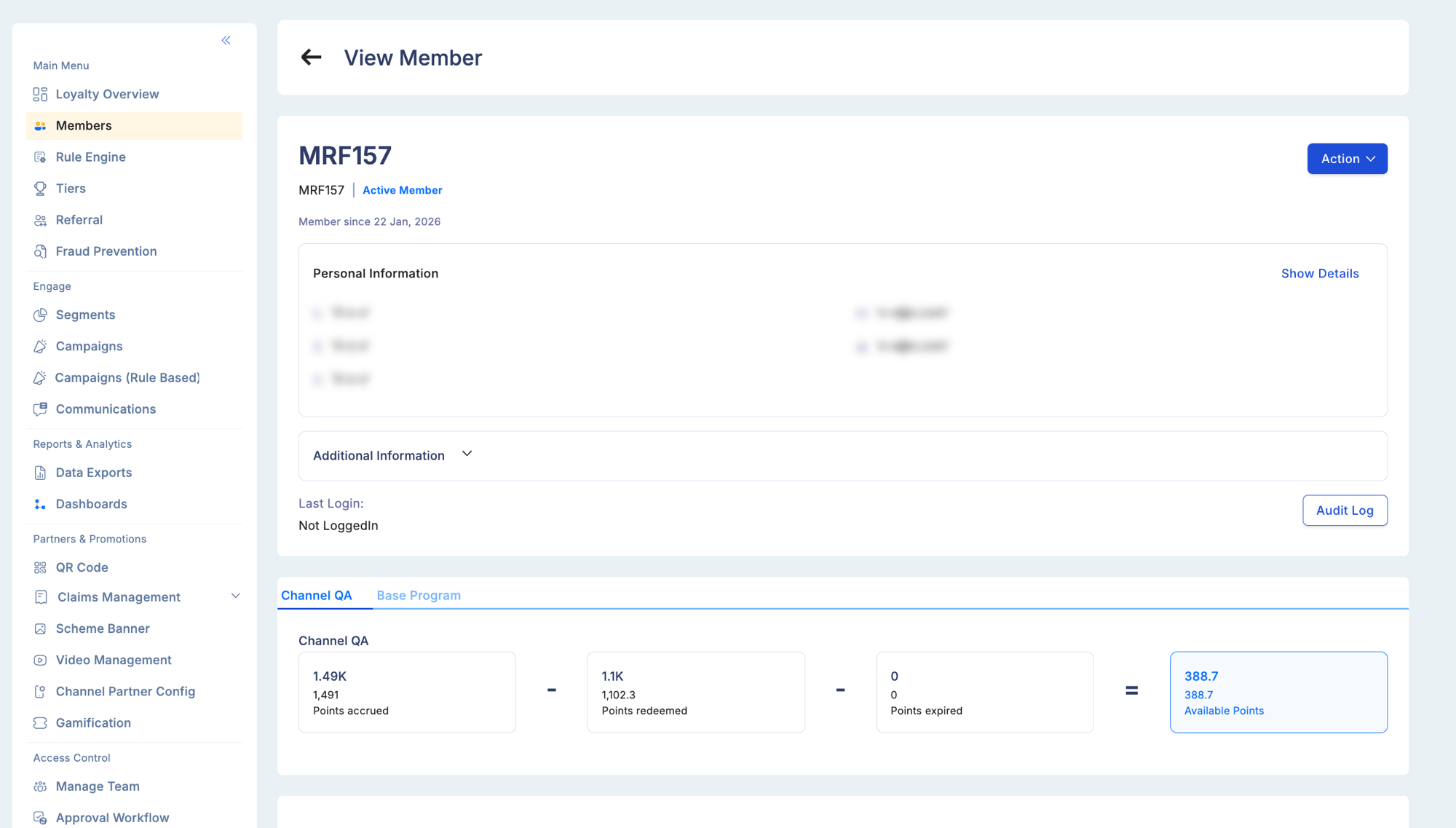
Tab overview
The member detail view has eight tabs. Each covers a distinct dimension of the member’s account.Not all tabs may be visible for every user. Tab visibility depends on role permissions and enabled modules:
- Referral tab is hidden if the Referrals module is not enabled in Configuration → Modules
- Communication tab requires the Communications permission in your role
- Accrual Info, Member Statement, and Member Redemption require the View Member Transactions permission
- Expiry Schedule requires points expiry to be configured for the program
Account Info
The primary identity and status panel. Member identification:
Account statuses:
Tier and segment information:
Program dates:
Action buttons available from this tab:
- Edit — update contact details or profile fields (subject to your role permissions)
- Change Status — suspend, block, re-activate, or cancel the account (enters Maker-Checker queue if workflow is enabled)
- Manual Adjust Points — initiate a manual point credit or debit
Accrual Info
Shows the member’s point-earning history and a real-time balance breakdown. Balance summary:
Accrual transaction history:
Every individual earn and debit event is listed in reverse-chronological order.
Filter options:
Use this tab to verify that a specific purchase triggered the right rule and awarded the correct points.
Member Statement
A period-based formatted view of the member’s account — equivalent to a bank statement for their points balance. What’s shown:- Every credit and debit event in the selected period, in chronological order
- Opening balance at the start of the period
- Closing balance at the end of the period
- Net movement (total credits minus total debits)
Downloading:
Export the statement directly from this tab as CSV or PDF. Use this when a member disputes their balance or needs a formal points statement for compliance or audit purposes.
Member Statement and Accrual Info both show transaction history. The difference is context: Accrual Info shows raw transaction-level detail for investigation, while Member Statement shows a formatted period view with opening/closing balances — more suitable for sharing with the member.
Member Redemption
Tracks every redemption event for this member — what was redeemed, when, how many points, and the outcome. Redemption history columns:
Use this tab to investigate disputed redemptions — confirm whether the debit was processed, on what date, and through which channel.
Transaction Summary
An aggregated view of the member’s transaction activity — a quick health check on engagement without scrolling through individual entries. Summary metrics:The figures shown here are the same values that feed aggregate attributes in the Rule Engine. If a rule condition checks “Monthly Transaction Count”, the figure shown under “Transactions this month” is what gets evaluated.
Expiry Schedule
Shows upcoming and past points expiry events for this member — essential for support agents advising members on expiring balances. Expiry schedule columns:
Expiry is calculated from either the Processing Date (when points were posted to the ledger) or the Point Availability Date (when points became redeemable), depending on your program’s Point Definition configuration.
Use this tab proactively in member support conversations — if a large batch is expiring soon, advise the member to redeem before the expiry date, or flag the account for a re-engagement campaign.
Communication
A complete log of every message sent to this member through Loyalife’s communication channels. Communication log columns:
Use this tab to:
- Confirm whether a member received a specific notification (e.g., tier upgrade, campaign reward)
- Investigate a reported missing message — check Delivered vs. Failed status
- Audit the complete communication history for compliance or dispute resolution
Referral
Tracks this member’s referral activity — as a referrer sending others to the program, and as a referee who was brought in by someone else. Referral summary:
Referral history table:
The Referral tab only appears if the Referrals module is enabled in Configuration → Modules. If referrals are not configured for your program, this tab is hidden.
Actions from the member profile
Manual point adjustments
1
Click Adjust Points
Available from the Account Info tab, in the action panel at the top right.
2
Choose direction and amount
Select Credit (add points) or Debit (remove points). Enter the point amount and a mandatory reason.
3
Select transaction category
Choose the Loyalty Transaction Type (LTT) that best describes the adjustment — e.g., Bonus for a goodwill grant, Miscellaneous for a correction.
4
Submit
If Maker-Checker is enabled for Manual Points, the request enters the approval queue. If not, the adjustment posts immediately.
Manual adjustments produce different ledger entries depending on direction and narration:
- Credit adjustments → Credit By Bonus (e.g., goodwill grant, correction top-up)
- Debit adjustments → Debit By Bonus (e.g., over-credit correction)
- Accrual reversal → Debit By Reversal
- Redemption reversal → Redemption Reversal (restores previously debited points)
- Reversal of a debit → Credit By Reversal
Changing member status
Status changes may require Maker-Checker approval depending on your program configuration.
Accessing personal information
Viewing raw personal data (mobile number, email, date of birth, address) requires a confirmation prompt. Every admin who accesses this data is logged in the Audit Trail for compliance accountability.Linked cards and accounts
When card and account linking is enabled in Advanced Configuration, the Account Info tab shows a View Linked Cards & Accounts button revealing:- Card / account numbers
- Sub-relationship classification
- Account status
- Member relationship reference ID
Troubleshooting
Recent transactions are not showing in Accrual Info.- Batch file transactions have a processing delay — the transaction date on the file and the posting date may differ. Widen the date filter to cover the full range.
- Pending points are excluded from the available balance but visible in Accrual Info as Pending entries.
- Look for Reversal entries — they reduce the balance without being debited transactions.
- The Referrals module is likely not enabled. Check Configuration → Modules.
- “Delivered” is the gateway status, not end-device confirmation. Check spam folders for email, and confirm the carrier isn’t filtering automated SMS sender IDs.