
Overview
Each QR code encodes a URL in the formatbaseURL?code=encrypted_code. The encrypted payload contains the parameters you define at batch creation time — for example, points: 20. Codes are single-use, expiry-checked, and tamper-resistant.
Generating a QR Code batch
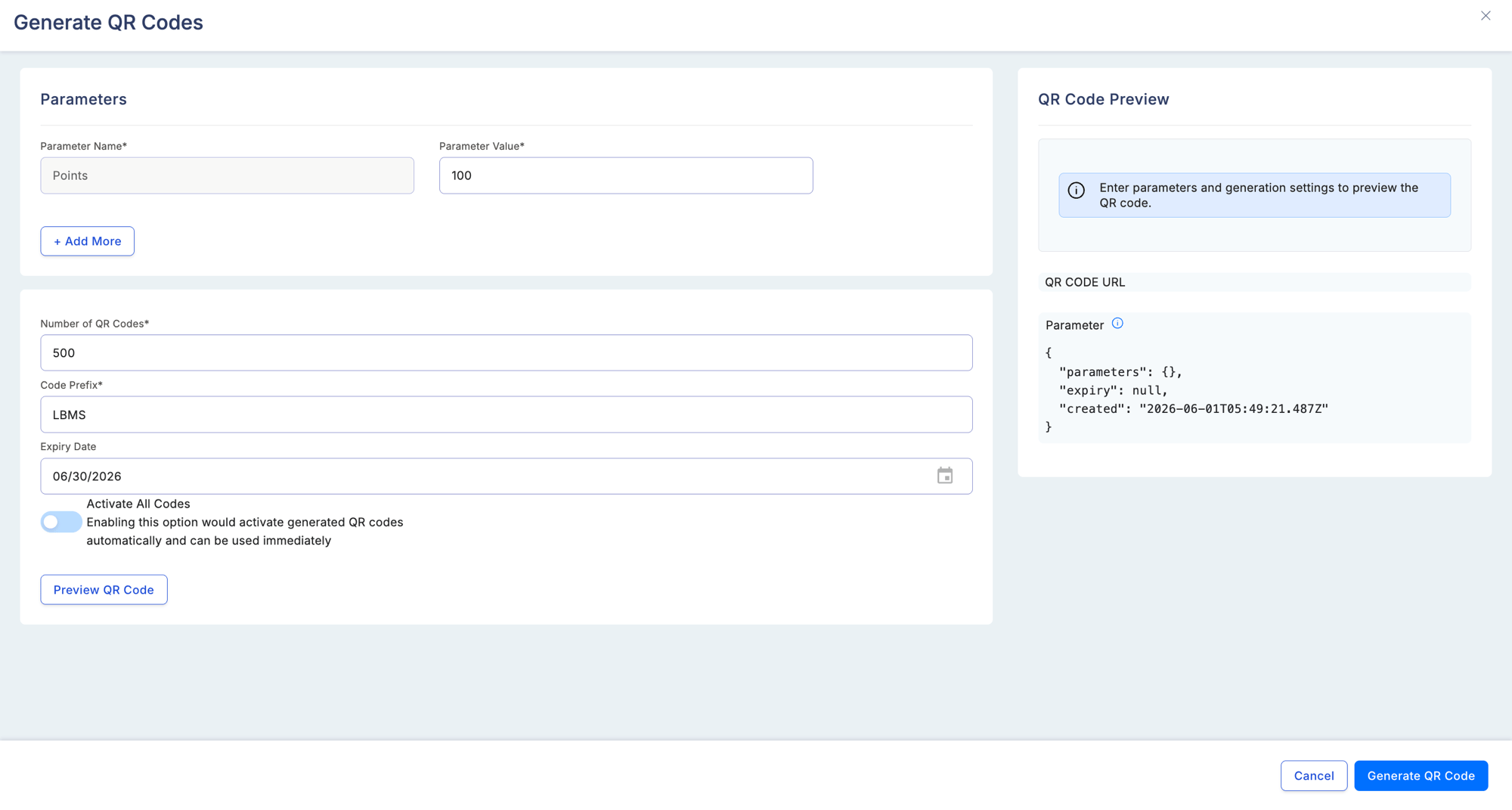
1
Navigate to QR Code
Go to Partners & Promotions > QR Code and select Create Batch.
2
Configure parameters
Add one or more custom key-value parameters that will be encoded into every QR code in the batch. For example, set
points to 20 to award 20 points per scan.3
Set quantity and optional code prefix
Enter the number of codes to generate (maximum 100,000 per batch). Optionally add a prefix string that will appear at the start of every code identifier, which is useful for sorting and reporting.
4
Set expiry date and base redirect URL
Choose the date after which codes in this batch will no longer be redeemable. Enter the base redirect URL — this is the landing page partners are sent to after scanning.
5
Preview and submit
The preview panel shows a sample QR code image, the constructed redirect URL, and the attached parameters. Review everything, then select Submit to generate the batch.
Downloading codes
After a batch is created, you can:- Download individual QR code images
- Download all codes as a ZIP archive
- Export a CSV report containing each code, its redirect URL, and its current status
Managing batches
Navigate to the Batch Management tab to see all batches across your program.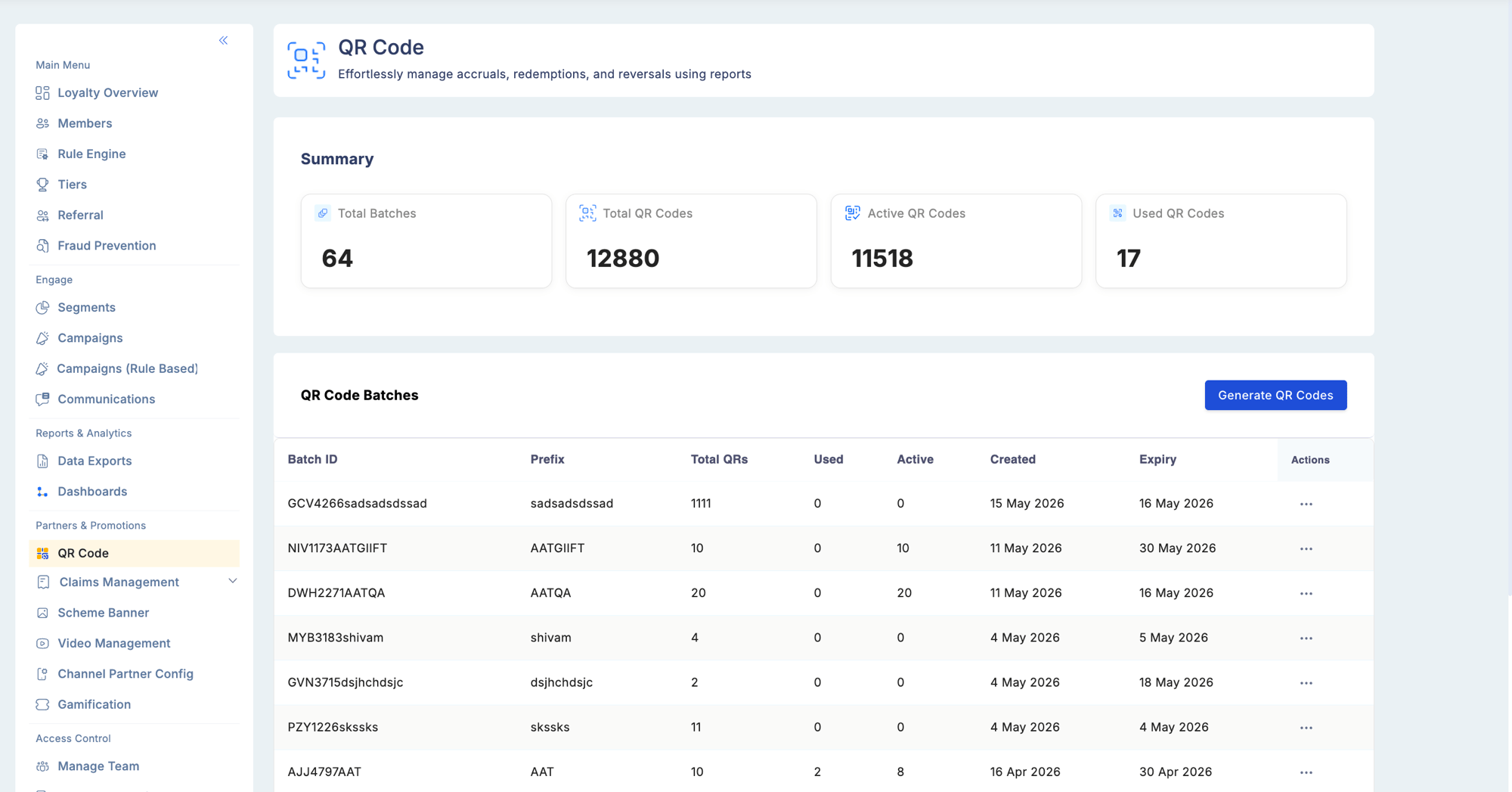
Summary metrics
Batch list fields
Batch detail view
Opening a batch shows its metadata (parameters, expiry, base URL) and a list of every code in the batch.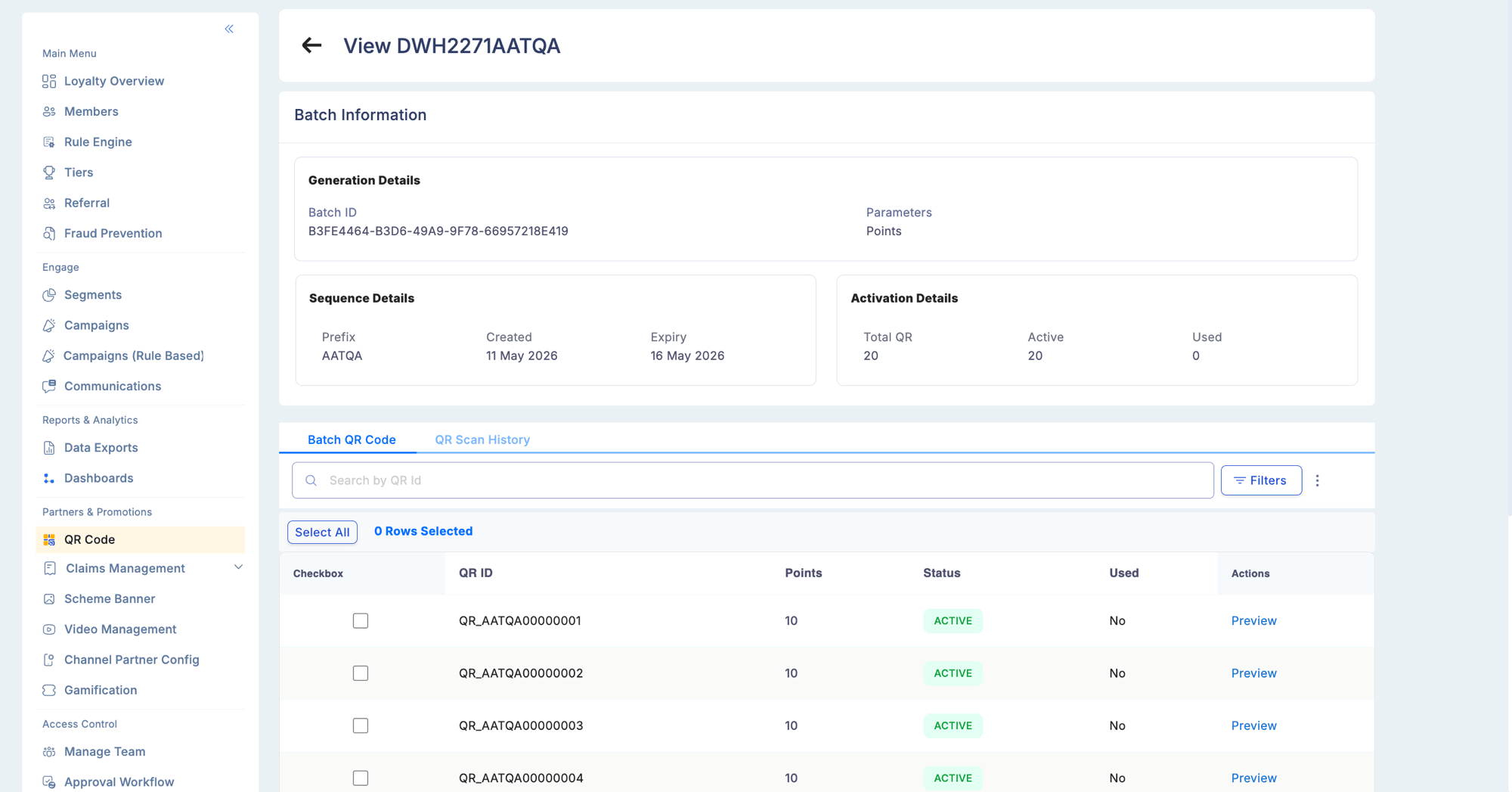
- View the status of each individual code (active, used, or disabled)
- Enable or disable individual codes
- Track whether each code has been redeemed and, if so, when
How partners redeem a QR code
- The partner scans the QR code using their mobile device.
- They are redirected to the configured base URL (the redemption landing page).
- They fill in the required information on the form.
- Points are transferred to their account upon successful submission.
Security notes
Generating and managing QR Code batches requires the QR Code Management permission.