Rules don’t exist in isolation. They depend on attributes to know what to evaluate, on members to know who earns, and on rule groups to know which members a set of rules applies to. Before the first transaction is processed, each layer must be in place. This guide walks through every step in the correct sequence.

The setup dependency chain

Program configuration
  └── Define member attributes (global + custom)
  └── Define transaction attributes (global + custom)
          └── Enroll members (CPD file or API)
                  └── Create rule groups (+ caps)
                  └── [optional] Create segments → link to rule group
                          └── Create earning rules (IF conditions + THEN reward)
                                      └── Submit transactions (TXN file or API)
                                                  └── Points awarded to members
Each layer depends on the one above it. Attributes must be defined before rules reference them. Members must be enrolled before transactions can be attributed to them. Rule groups must exist before transactions are evaluated. Segments are not required. A rule group with no linked segment applies to every member in the program. Only create segments when you need rules to target a specific subset of members.

Phase 1 — Program configuration

Before attributes or rules, your program’s foundational settings must be in place. Navigate to Configuration → Program Settings and verify:
SettingWhy it matters for rules
Points currencyDetermines the unit used in rule rewards (points, miles, cashback %)
Product codesThe allowed values for the Product Code attribute — rules can filter by these
Sub product codesThe allowed values for Sub Product Code — used for finer transaction classification
Billing cycle start dateRequired if you plan to use Billing Cycle aggregate attributes in rules
Expiry configurationIf rules award expiry-tagged points, expiry settings must be configured first
Product Code and Sub Product Code are selection attributes — their allowed values come from the configured picklist. If a rule condition needs to check Product Code = "Retail", the value Retail must exist in the picklist before the rule can reference it.

Phase 2 — Define your data model

This is the most important planning step. Attributes are the vocabulary your rules speak. Every condition in a rule references an attribute. Get the data model right before building rules — changing an attribute’s data type after it is used in a live rule requires creating a new attribute and migrating all rules that referenced the old one.

2a. Member attributes

Nine global member attributes (Relation Reference, Full Name, Email, Phone, Address, Gender, Date of Birth, Status, Preferred Language) are available in every program without any setup — see Member Attributes for the full reference. For program-specific member data, define custom member attributes at Members → Attributes → Add Attribute. Before creating custom attributes, answer:
  • What member-level facts do my rules need to check? (card type, dealer tier, KYC status)
  • What member-level fields do my segments need to filter on? (region, product holding, enrollment channel)
  • What columns does my CPD file contain beyond the standard fields?
Example — retail bank loyalty program:
Custom attributeAPI / file keyData typeUsed for
Card Typecard_typeStringSegment: premium cardholders; Rule: 2x points for Platinum card
Product Holdingproduct_holdingStringRule: bonus points for savings account transactions
KYC Statuskyc_statusStringSegment: exclude unverified members from promotions
Home Branchhome_branchStringCommunications: insert nearest branch in push notifications

2b. Transaction attributes

Seven global transaction attributes are present on every transaction:
AttributeAPI / file keyData type
Transaction Idtransaction_idString
Transaction Datetransaction_dateDate
Transaction AmountamountDecimal
Product Codeproduct_codeSelection
Sub Product Codesub_product_codeSelection
Relation Referencemember_relation_referenceString
Transaction Typetransaction_typeSelection (CR / DR)
For transaction-level data beyond these seven, define custom transaction attributes at Rule Engine → Attributes → Add Attribute (not under Members). Before creating custom transaction attributes, answer:
  • What transaction-level data should rules evaluate? (merchant name, MCC code, channel, store)
  • What columns does my TXN file send beyond the standard seven?
  • What fields does the transaction API payload include?
Example — retail bank loyalty program:
Custom attributeAPI / file keyData typeUsed for
MCC Codemcc_codeNumberRule: 1.5x points at grocery stores (MCC 5411)
Transaction ChannelchannelStringRule: +50 flat points for online transactions
Merchant Namemerchant_nameStringRule: 3x at specific merchant (ilike "Brand X")
CurrencycurrencyStringRule: apply FX rate adjustment for foreign currency
The API / file key you set here is the exact field name that must appear in every TXN file column header and every API payload key for this attribute. A mismatch means the attribute arrives as null — the rule condition sees no value and evaluates to false.

Phase 3 — Enroll members

Members must exist in Loyalife before any transaction can be attributed to them. Two methods:

CPD file (bulk enrollment)

Upload a CPD file via SFTP to upload/CPD. Each row is one member. For new members, set Action Type = N. Required columns:
action_type | relation_reference | member_name | [optional: address, mobile, email, dob, gender, language]
            | [+ any custom member attribute columns defined in Step 2a]
The column name for each custom attribute must exactly match the API / file key configured in Members → Attributes. After upload, each member has:
  • A Loyalife account linked to their Relation Reference
  • Global and custom attributes populated from the file
  • A starting balance of zero
  • Aggregate attributes initialised at zero (they build as transactions arrive)

API (real-time enrollment)

Use the Create Member Profile endpoint to enroll members from your application as they register. The same attribute mapping applies — API keys must match what was configured in Members → Attributes.

Phase 4 — Create rule groups

Go to Rule Engine → Create Rule Group. Give the group a name, optionally link it to a segment (leave blank to apply to all members), and set any caps you need. See Rule Groups for the full field reference and cap behaviour. The key structural decision is how many groups you need and how to divide them. A group per logical earning category keeps them independently manageable — you can pause a promotional group without touching base earning. Example structure:
Rule Group: Base Earning            → no segment (all members), monthly cap 10,000 pts
Rule Group: Platinum Benefits       → segment: Premium Card, monthly cap 5,000 pts
Rule Group: New Member Welcome      → segment: New Members, lifetime cap 2,000 pts
Rule Group: Weekend Promotions      → no segment (all members), monthly cap 3,000 pts
A member can earn from multiple rule groups simultaneously. A Platinum cardholder buying something on a Saturday earns from Base Earning AND Platinum Benefits AND Weekend Promotions in the same transaction — each group’s caps are tracked independently.

Phase 5 — Create earning rules

Each rule group can contain one or more earning rules. Every rule is an IF / THEN statement evaluated against each transaction. Go to Rule Engine → [select a rule group] → Add Rule.
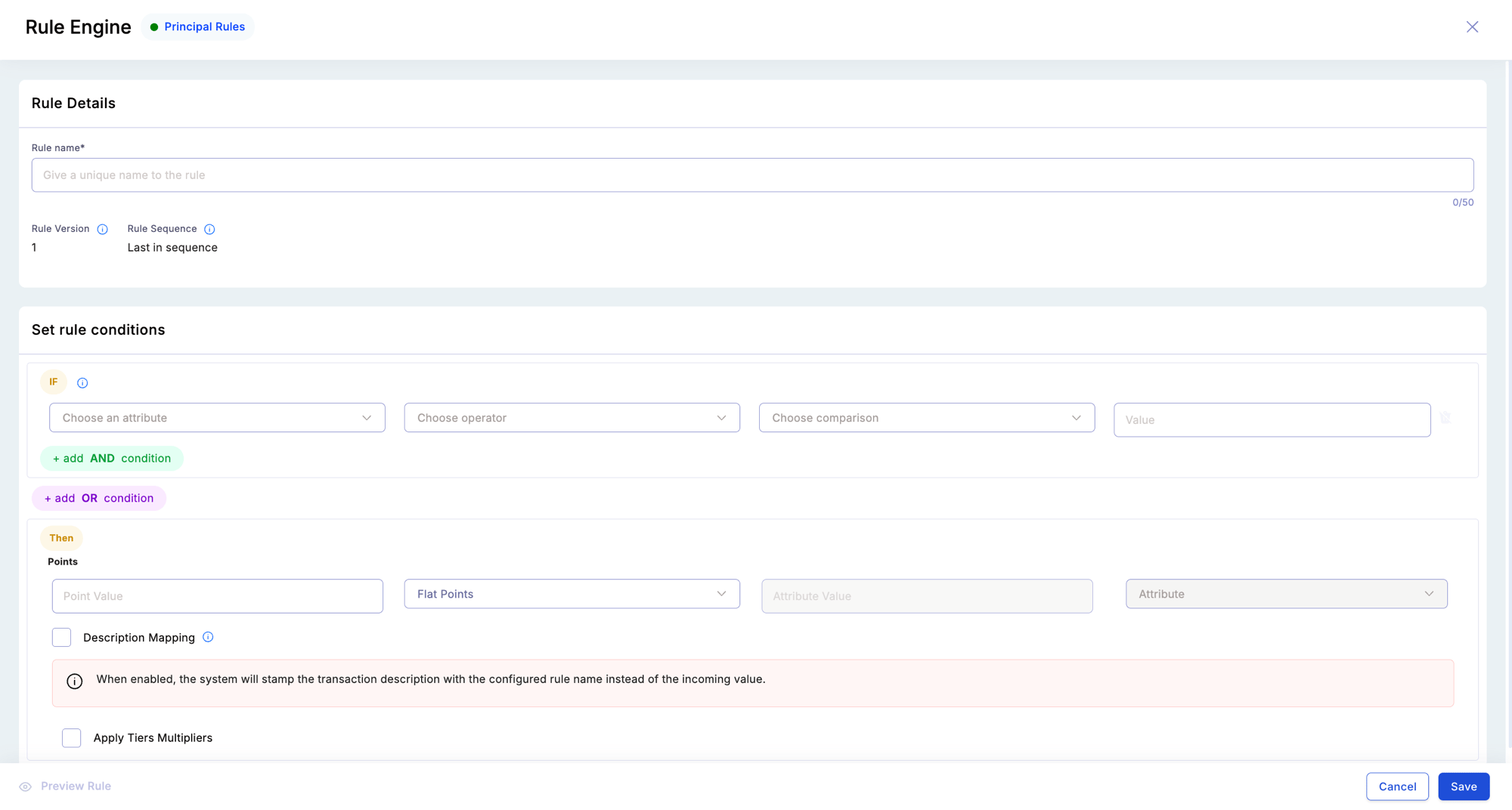
Add New Rule form showing Rule Details at the top (rule name, version, sequence), followed by Set Rule Conditions with IF attribute/operator/value dropdowns and AND/OR condition builders, and a THEN Points section with reward type selector

IF conditions

Each condition has three parts: an attribute, an operator, and a value.
PartOptions
AttributeAny transaction attribute (global or custom), any member attribute (global or custom), any aggregate attribute
OperatorEquals, Not equals, Greater than, Less than, Between, Contains (ilike), Is multiple of, In group, Is null, Is not null
ValueA static input — or another attribute (for dynamic comparisons like birthday rules)
Multiple conditions combine with AND (all must match) or OR (any must match).

THEN reward

Reward typeHow points are calculatedExample
Flat pointsFixed number regardless of transaction amount500 points for first purchase
MultiplierTransaction amount × multiplier2x = ₹5,000 transaction → 10,000 pts
For EveryFixed points for every N units of an attribute1 pt per ₹10 = ₹5,000 → 500 pts

Restrictions

Add restrictions to control when and how much the rule fires:
RestrictionEffect
Point LimitCap earnings from this specific rule per transaction
Date RangeRule only fires between a start and end date — use for seasonal promotions
Product CodesRule only fires for transactions with specific product codes
Calculation TimingDelay points posting (e.g., post after a 30-day return window)

A complete example

Rule Group: Base Earning (no segment — all members)
RuleIFTHENRestrictions
Standard earnTransaction Type = CR1 pt per ₹10 (For Every)Point limit: 5,000 pts
Rule Group: Platinum Benefits (segment: Premium Card)
RuleIFTHENRestrictions
Weekend multiplierTransaction Type = CR AND Transaction Date [Day of Week] IN [Saturday, Sunday]2x multiplier
Birthday cashbackTransaction Date [Day of Month] = Date of Birth [Day of Month] AND Transaction Date [Month of Year] = Date of Birth [Month of Year]35% cashbackPoint limit: 2,000 pts
Online bonusChannel = “Online”50 flat points
Fuel exclusionMCC Code = 55410 — rule does not fire
Rule Group: New Member Welcome (segment: New Members)
RuleIFTHENRestrictions
First purchaseLifetime Transaction Count = 1500 flat points
Early milestoneTransaction Count (MTD) is multiple of 3100 flat points
Rule Group: Weekend Promotions (no segment — all members)
RuleIFTHENRestrictions
Every 20th orderMonthly Transaction Count is multiple of 2025% cashbackPoint limit: 500 pts, date range: campaign period
Rules within the same group all evaluate simultaneously against the same transaction. A Platinum cardholder transacting on a Saturday online earns the weekend multiplier and the online bonus and the base points — from different rule groups running in parallel.

Advanced rule conditions

”Is Multiple Of” operator

The Is Multiple Of operator is available for aggregate integer attributes (e.g., Monthly Transaction Count, Lifetime Transaction Count). It triggers a reward every time the member’s aggregate value reaches a multiple of the configured number. Example:
ConditionRewardMeaning
Monthly Transaction Count is multiple of 10200 flat pointsEvery 10th transaction this month earns a bonus
Monthly Transaction Count is multiple of 2025% cashbackEvery 20th order earns enhanced cashback
Reversals are deducted from the aggregate count and can affect whether the multiple condition is met.

Attribute-to-attribute date comparison

Rule conditions can compare two date-type attributes against each other — not just a date attribute against a fixed value. Example:
ConditionMeaning
Transaction Date [Day of Month] equals Date of Birth [Day of Month]Matches transactions that occur on the member’s birth date (any year)
Transaction Date [Month of Year] equals Date of Birth [Month of Year]Matches transactions in the member’s birth month
Rules and constraints:
  • Self-comparison (an attribute compared against itself) is prevented
  • Comparisons between incompatible data types are blocked
  • Date-type fields are auto-locked in the comparison selector to enforce valid pairings
Combining both conditions (Day of Month AND Month of Year) creates a birthday rule that matches only on the exact calendar day — useful for birthday cashback without hardcoding dates.
Members with no value recorded for the comparison attribute (e.g., no Date of Birth) will not match the condition and will not receive the reward.

Time picker for Transaction Date

The Transaction Date attribute now includes a time selector (HH:MM, 24-hour format) alongside the date picker:
  • The default time is 00:00 if not explicitly set
  • The combined value is stored and evaluated as MM/DD/YYYY HH:MM
  • For the Between operator, each date boundary has its own independent time selection
  • Existing date-only rules are fully backward compatible — they are treated as 00:00
This allows time-of-day conditions such as “transactions placed between 18:00 and 23:59” or “early-morning bonus before 09:00”.

Phase 6 — Submit transactions

With members enrolled and rules active, submit transactions to trigger rule evaluation.

TXN file (batch)

Upload via SFTP to upload/TXN. Required columns:
action | member_relation | name | transaction_type | amount | transaction_date | transaction_id
       | [+ any custom transaction attribute columns defined in Step 2b]
Every custom transaction attribute column must appear in every row (use empty string if not applicable for that row). A missing column causes a column count mismatch and rejects the entire file.

API (real-time)

Call the Insert Transaction endpoint. The payload must include all 7 global attributes plus any custom transaction attributes defined in your program.

What happens at evaluation time

For each accepted transaction row, Loyalife:
  1. Resolves the member from the Relation Reference
  2. Identifies all active rule groups
  3. For groups with a linked segment — checks whether the member is in that segment
  4. Evaluates every rule’s IF conditions against the transaction’s attributes (both transaction-level and member-level)
  5. Awards points from all matching rules across all qualifying groups simultaneously
  6. Updates aggregate attributes (Monthly Spend Sum, Transaction Count, etc.) for the member
  7. Re-evaluates tier qualification

Phase 7 — Verify

After submitting a test transaction, confirm the correct rules fired:
  1. Go to Members → [search by Relation Reference] → Accrual Info
  2. Find the transaction by Transaction Id or date
  3. The Accrual Info tab shows each rule that evaluated, whether it matched, and how many points it awarded
  4. Cross-check against the rule conditions to confirm the evaluation logic is correct
Checklist before going live:
  • All custom member attributes have the correct data type
  • All custom transaction attributes have the correct API / file key
  • At least one test member is enrolled via CPD or API
  • All rule groups are set to Active
  • Rules within each group are set to Active
  • A test TXN row submitted via API matched the expected rules
  • Accrual Info confirms correct points were awarded
  • Group-level caps are set to sensible values for your program volume

Quick reference — where each piece is configured

WhatWhere in Loyalife
Product codes (picklist)Configuration → Program Settings
Custom member attributesMembers → Attributes
Custom transaction attributesRule Engine → Attributes (settings icon)
Member enrollment (file)SFTP upload → upload/CPD
Member enrollment (API)Create Member Profile endpoint
Rule groupsRule Engine → Create Rule Group
Segments (optional)Engage → Segments → link to rule group
Earning rulesRule Engine → [select group] → Add Rule
Transaction submission (file)SFTP upload → upload/TXN
Transaction submission (API)Insert Transaction endpoint
Verify rule firingMembers → [member] → Accrual Info
Every time an earning rule fires on a submitted transaction, one Credit By Accrual entry is written to the points ledger. These entries are visible in the member’s transaction history and can be filtered in Transactional reports under Reports & Analytics → Transaction Category → Credit By Accrual.